

This documentation is provided for informational purposes only and demonstrates how to configure and use our API with third-party AI chat interfaces. Any third-party software, websites, or services mentioned are not operated, controlled, or endorsed by us.

Introduction to Roo Code
What Can Roo Code Do For YOU?- Generate Code from natural language descriptions and specs
- Adapt with Modes: Code, Architect, Ask, Debug, and Custom Modes
- Refactor & Debug existing code
- Write & Update documentation
- Answer Questions about your codebase
- Automate repetitive tasks
- Utilize MCP Servers
Step
1
Install Roo Code
Install the Roo Code extension from the VS Code Marketplace.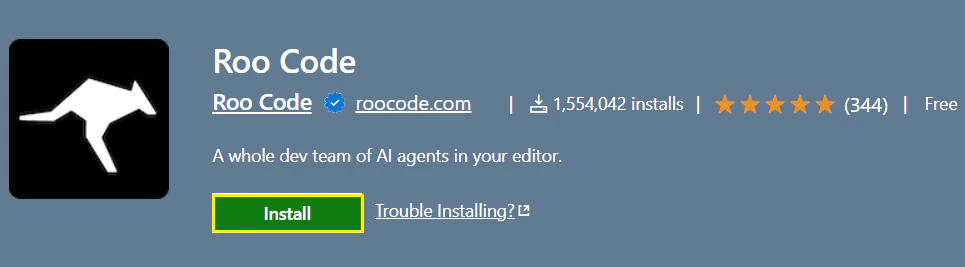
2
Model Configuration & API Key
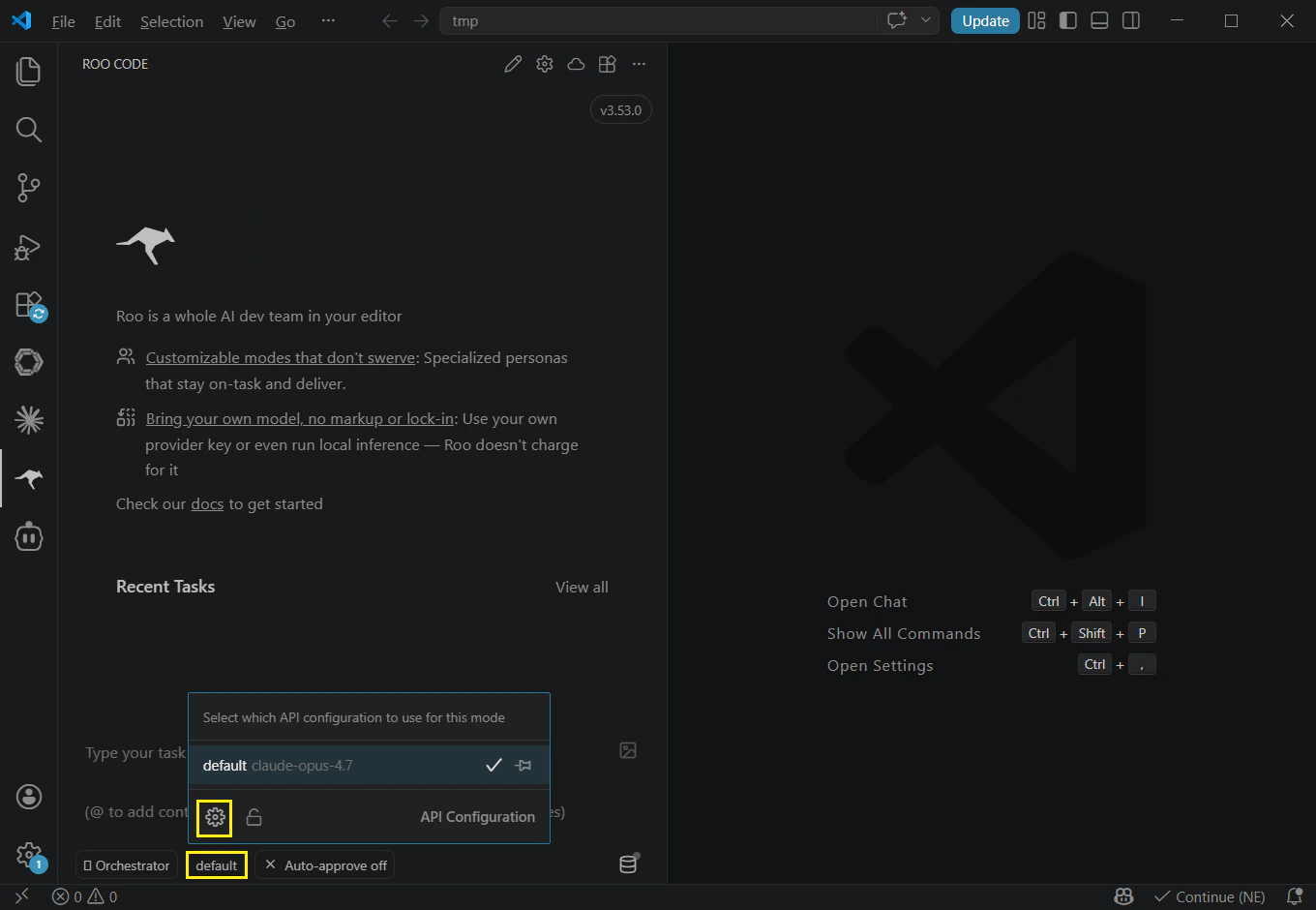
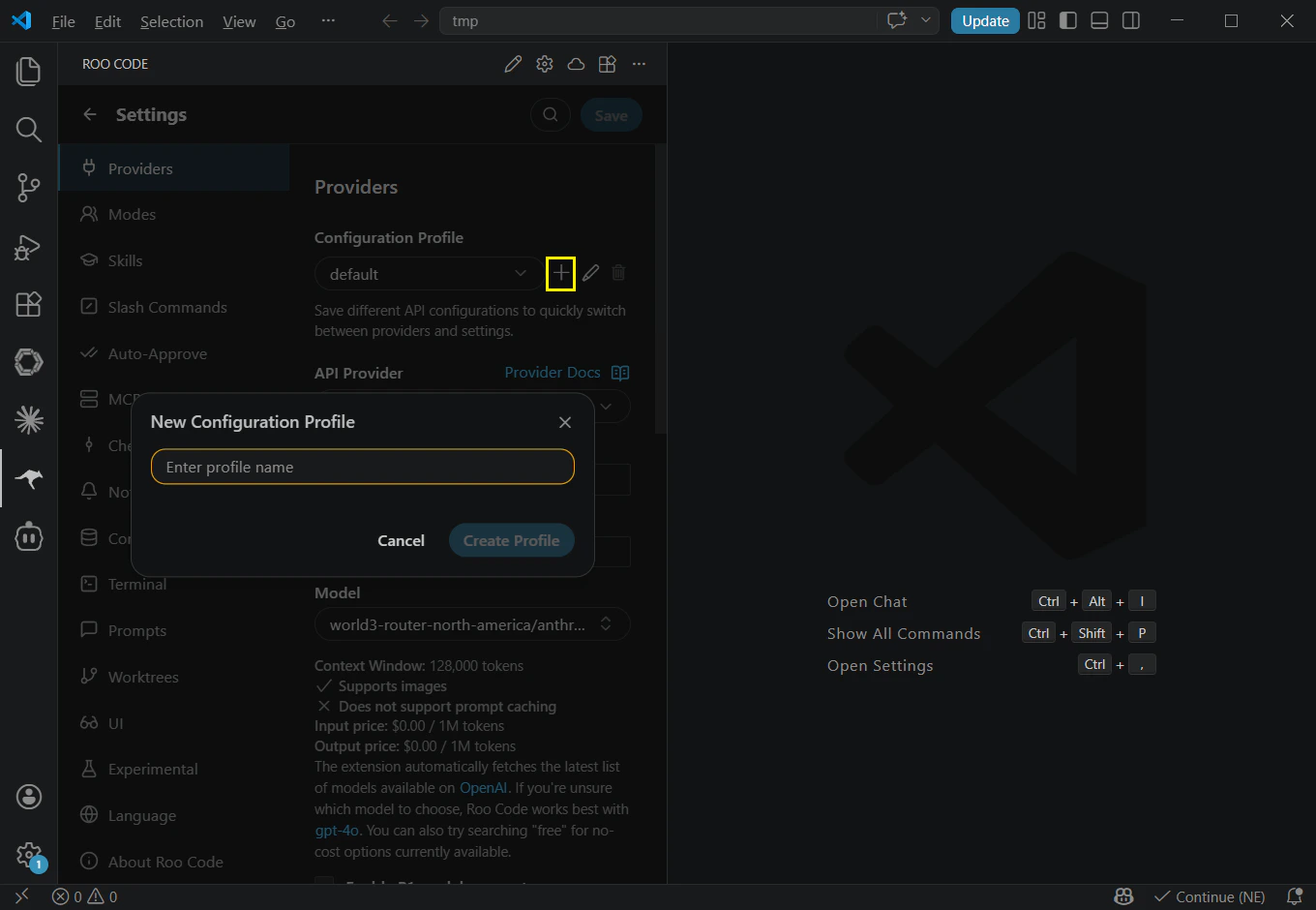
Click the “Roo Code” icon on the sidebar to launch. And click the settings in the top-right corner. If Roo Code prompts you to create an account, please select “Use without an account” and choose a third-party provider.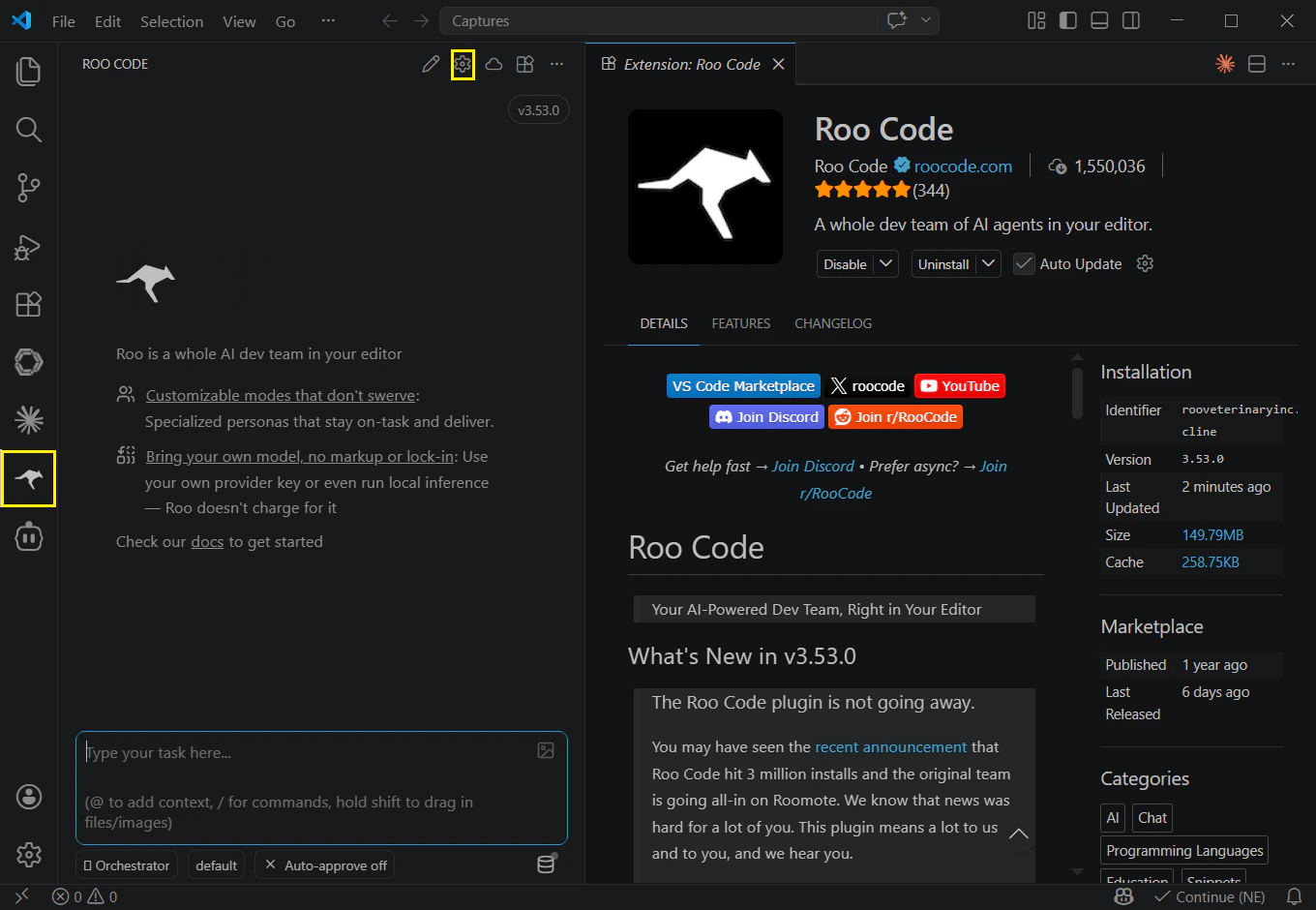
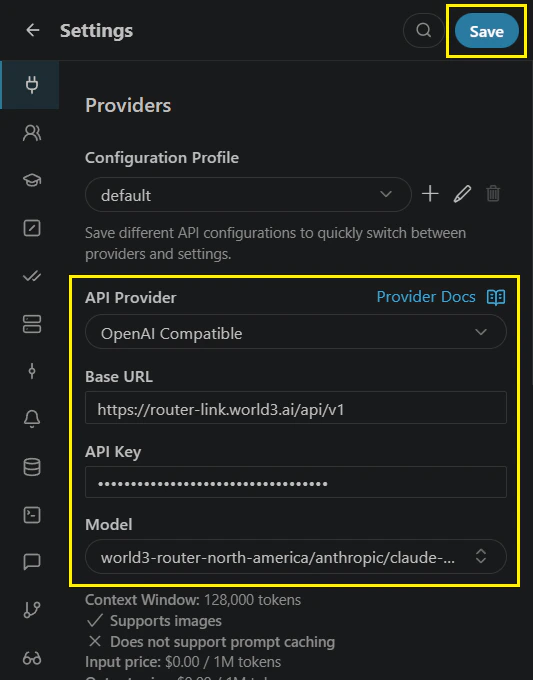
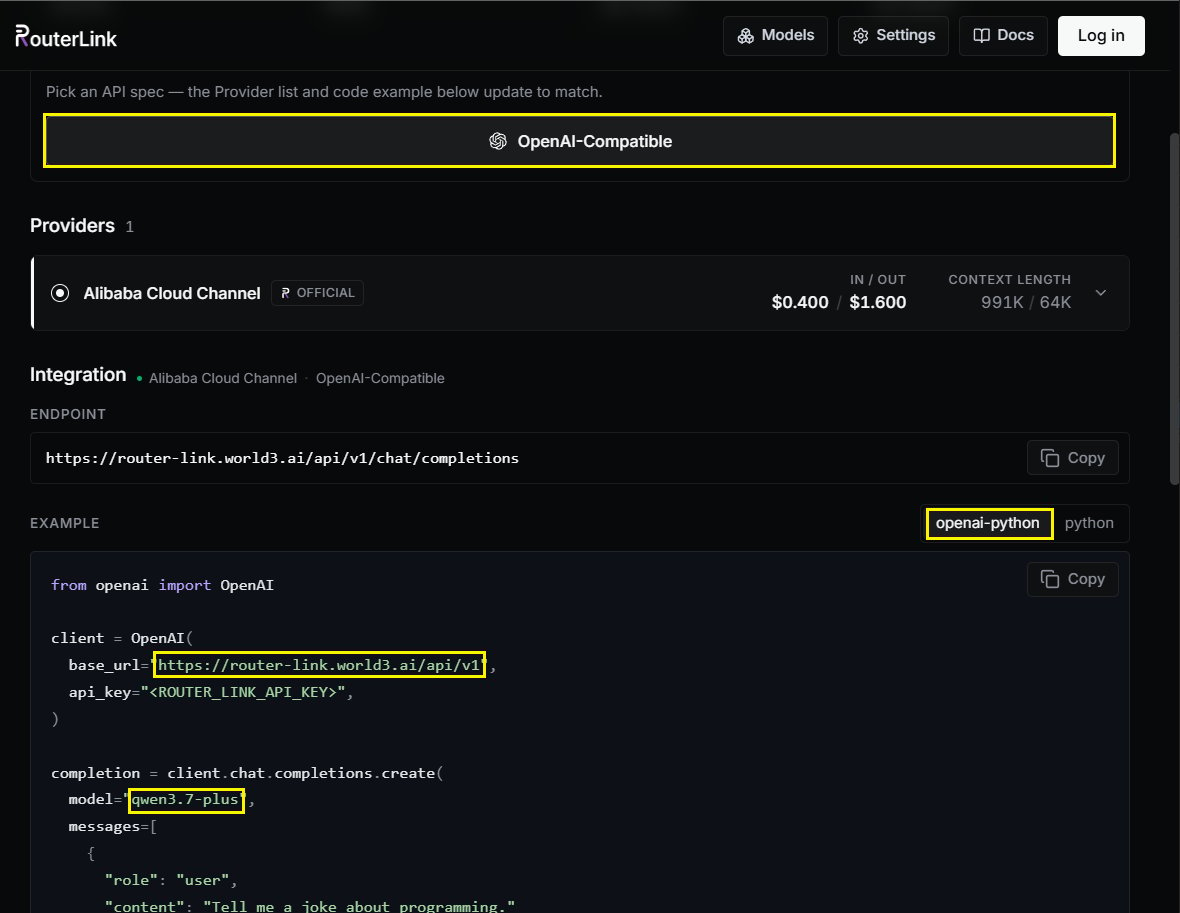
You can change the model manually with the Model ID (OpenAI-compatible API format is required):
3
Use Roo Code
Type a clear, concise description of what you want Roo Code to do in the chat box at the bottom of the panel. Examples of effective tasks: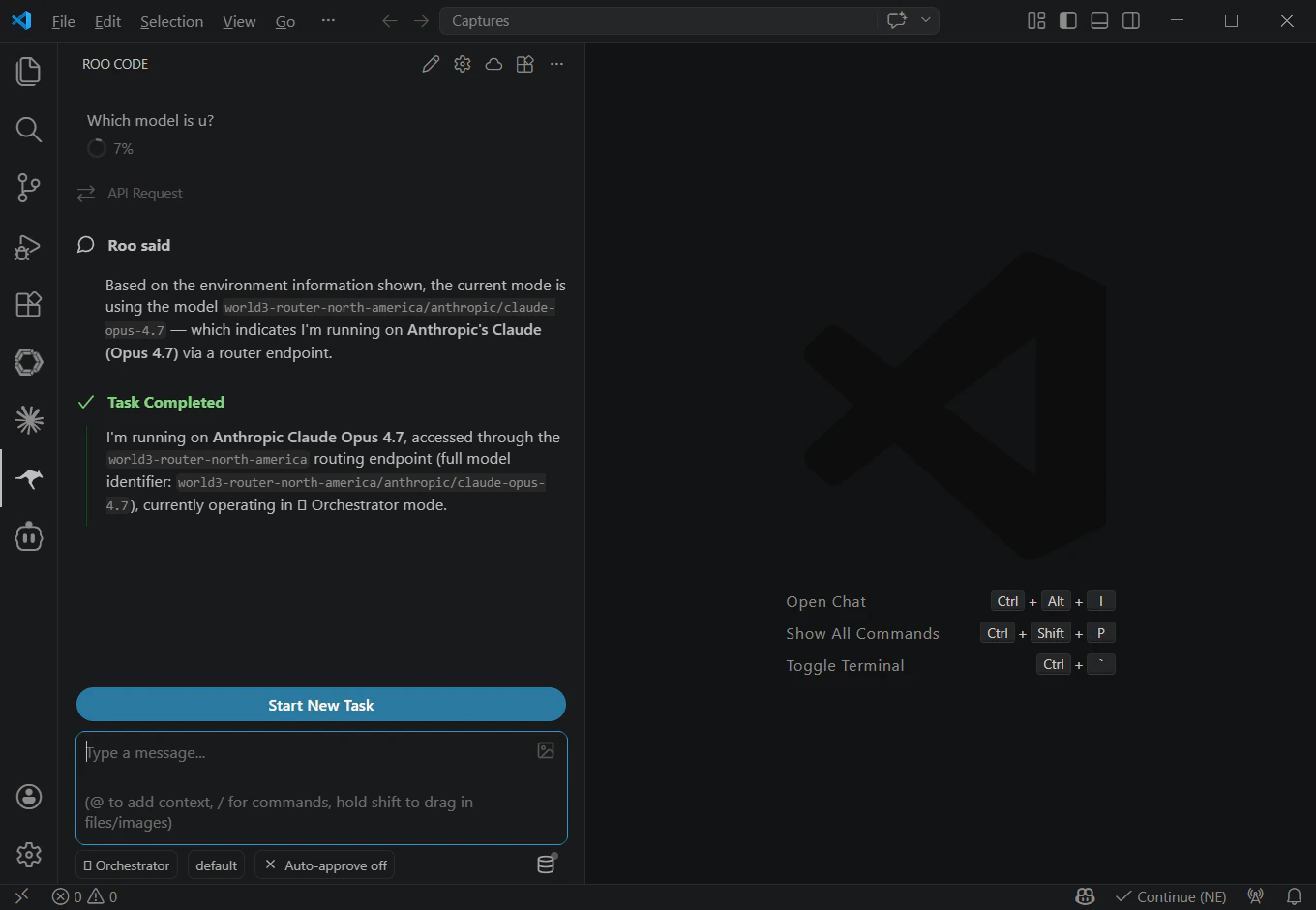
- “Create a file named
hello.txtcontaining ‘Hello, world!’.” - “Write a Python function that adds two numbers.”
- “Create an HTML file for a simple website with the title ‘Roo test’”
Troubleshooting
- Restart VS Code
- Verify Roo Code is listed and enabled in Extensions
- Try disabling and re-enabling
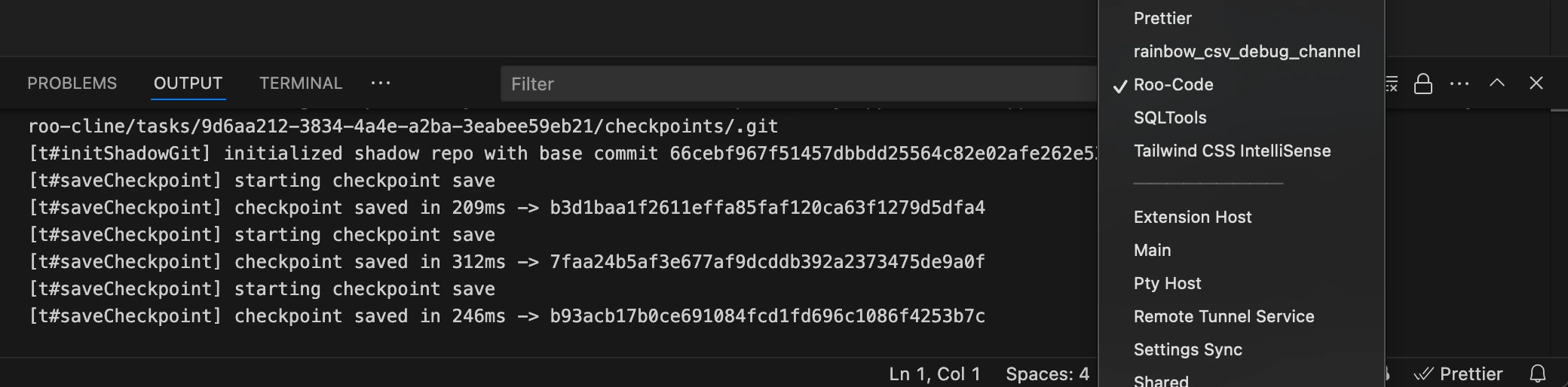
- Check Output panel for errors (View → Output, select “Roo Code”)
- Ensure stable internet connection
- Verify VS Code version 1.84.0 or later
- If VS Code Marketplace is inaccessible, try the Open VSX Registry method