

This documentation is provided for informational purposes only and demonstrates how to configure and use our API with third-party AI chat interfaces. Any third-party software, websites, or services mentioned are not operated, controlled, or endorsed by us.
Introduction to Cline Plugin
Step
1
Install Cline
Install the Cline extension from the VS Code Marketplace.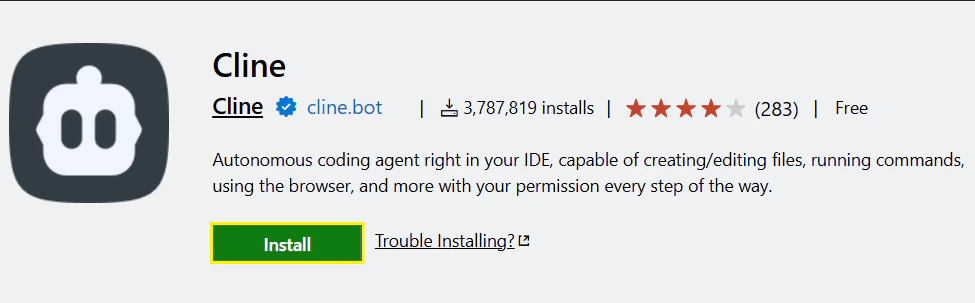
2
Model Configuration & API Key
Click the “Cline” icon on the sidebar to launch. and click x. If “How will you use Cline” appears, please select “Absolutely Free”.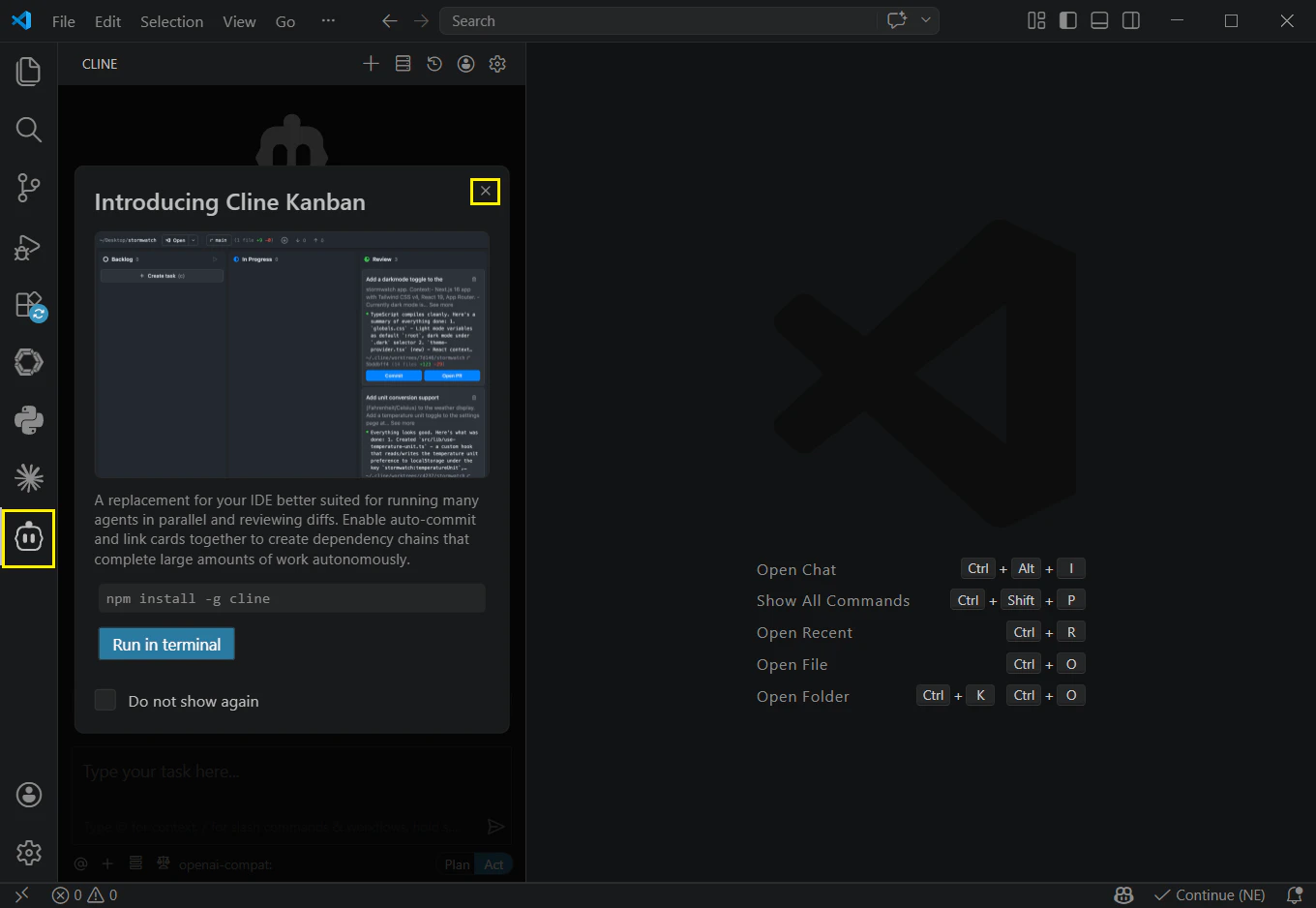
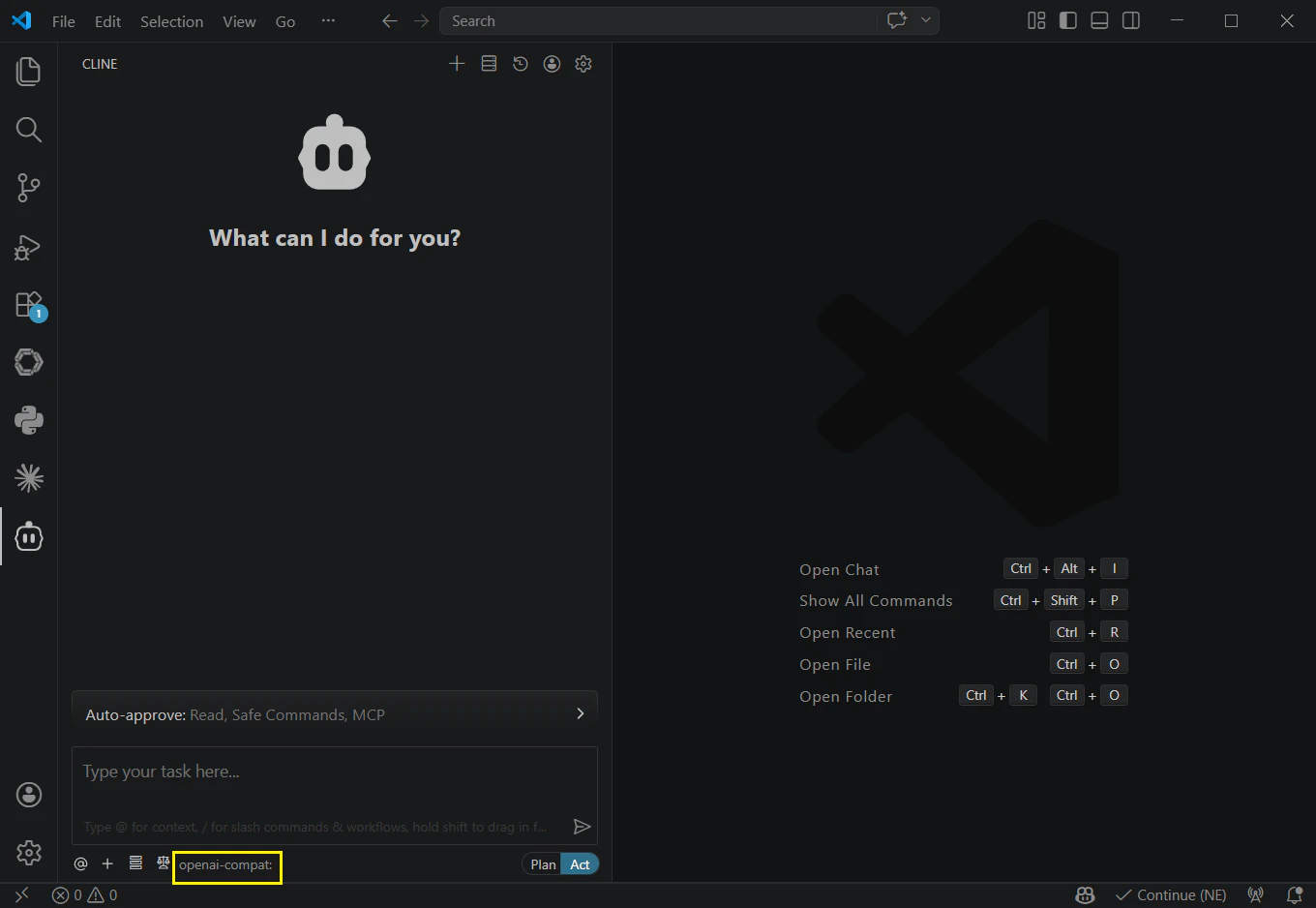
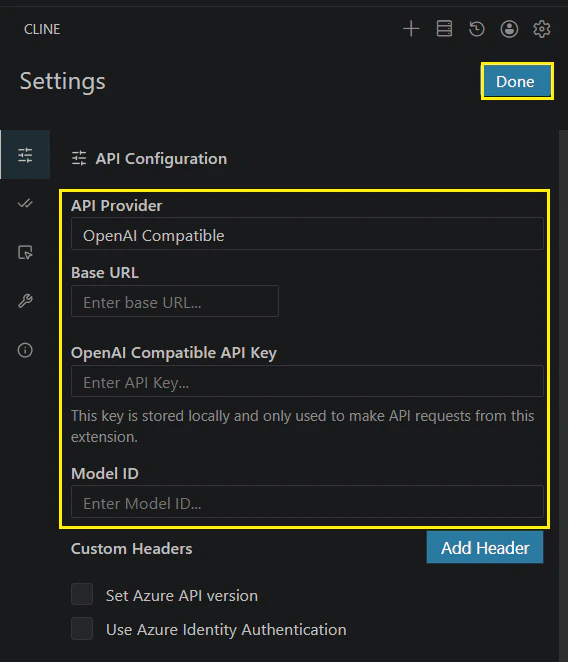
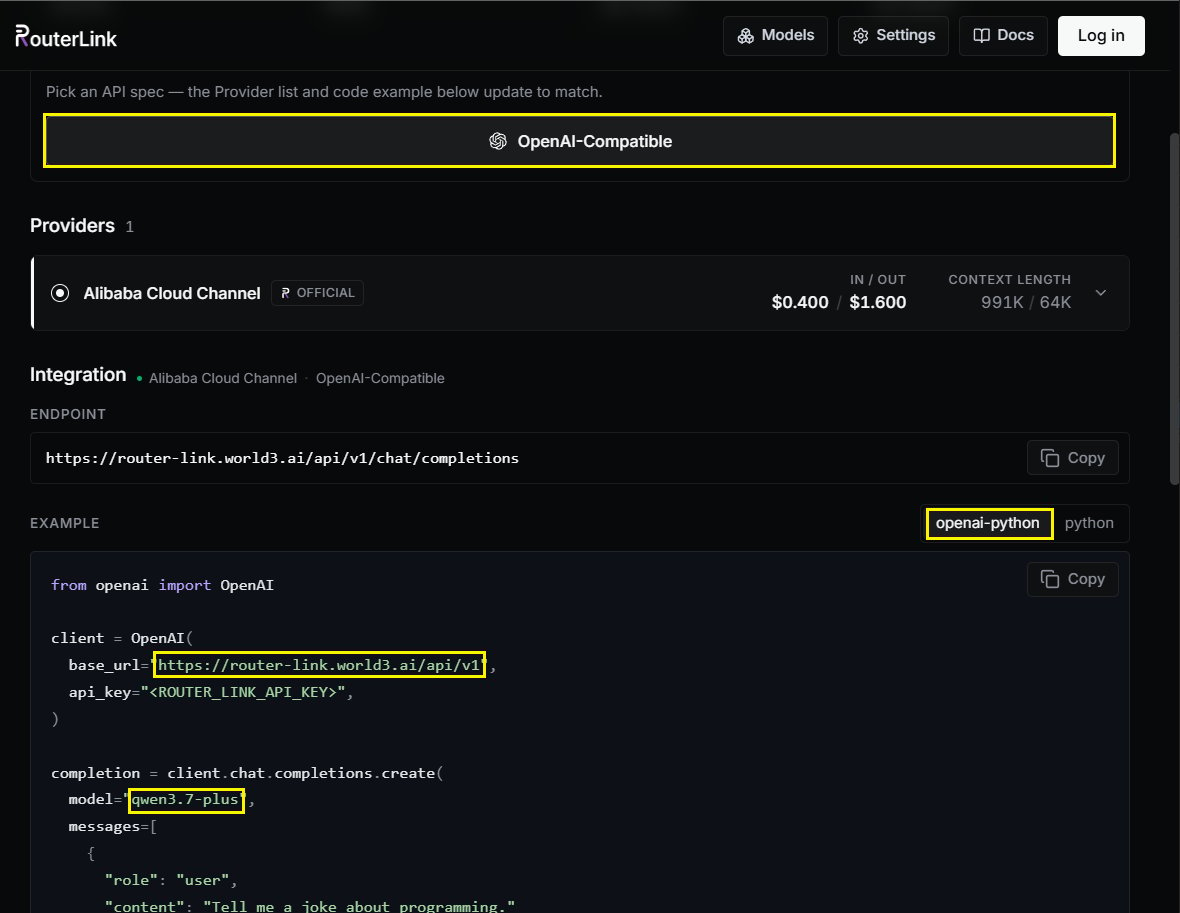
You can change the model manually with the Model ID (OpenAI-compatible API format is required):
3
Use Cline
Above the input box, you can use Auto-approve to configure Cline’s read/write permissions and command execution permissions. Enabling these permissions can enhance automation capabilities, but may also increase token usage, so it’s recommended to enable them only after fully understanding Cline’s behavior.Cline provides two working modes, which can be switched at the bottom of the dialog: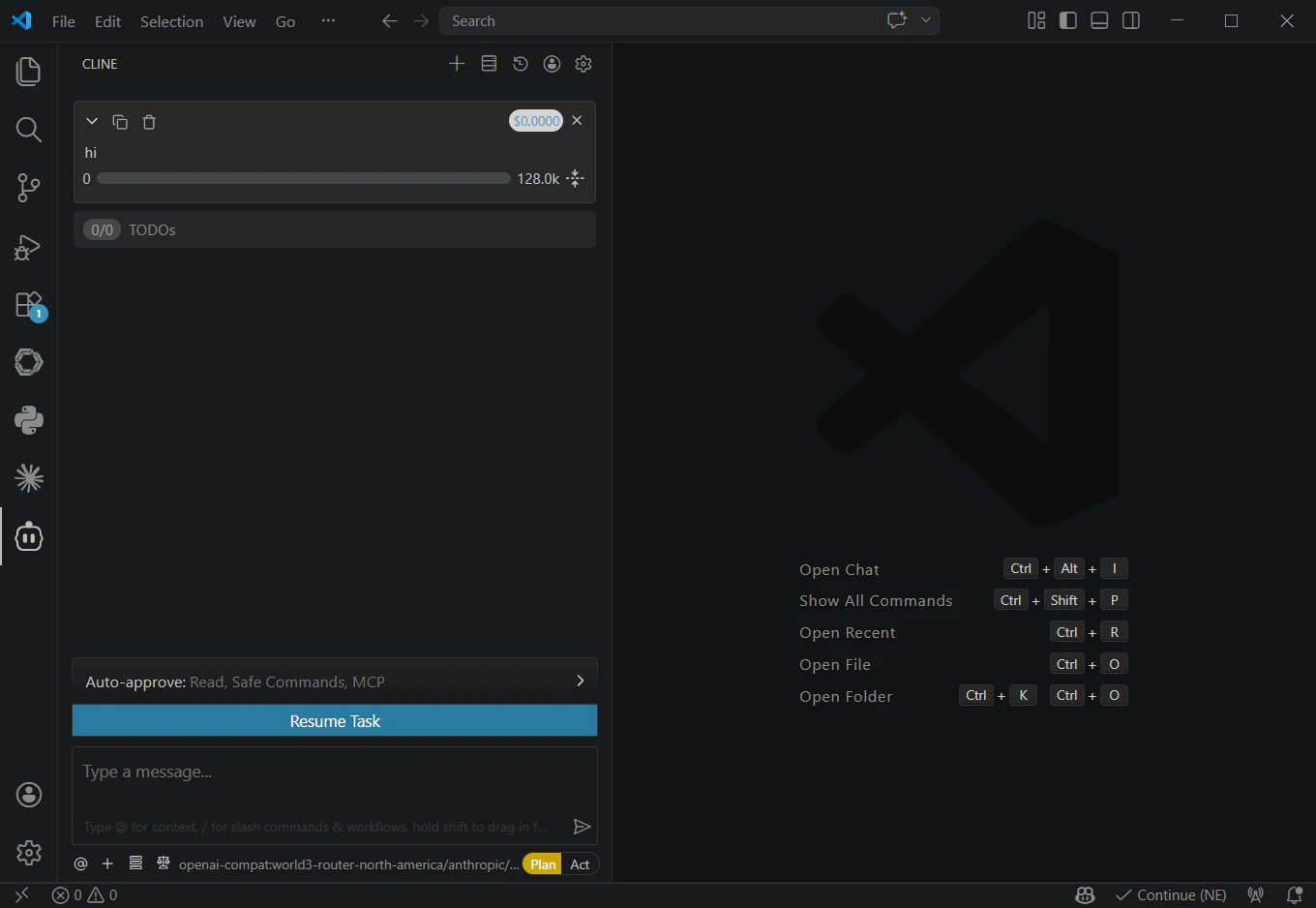
- Plan mode: Focuses on information gathering, problem breakdown, and task planning without directly modifying files.
- Act mode: Executes changes, runs commands, and completes tasks based on the plan.