

Documentation Index
Fetch the complete documentation index at: https://docs.routerlink.ai/llms.txt
Use this file to discover all available pages before exploring further.
This documentation is provided for informational purposes only and demonstrates how to configure and use our API with third-party AI chat interfaces. Any third-party software, websites, or services mentioned are not operated, controlled, or endorsed by us.
Introduction to OpenClaw

- Autonomous AI agent that executes real tasks
- Self-hosted with full data control
- Multi-channel (Telegram, Slack, Web, etc.)
- Extensible skill/plugin system
- Supports multiple AI models
- Persistent memory across sessions
- Built for automation & workflows
Step
Install OpenClaw
OpenClaw requires Node >= 22.14, please install the newest LTS version of Node.jsAfter installation is complete, open the terminal (Windows users use PowerShell) and check the version number.If it cannot be displayed correctly, please search for related issues and make sure that your current system version is not outdated.Install OpenClaw
- macOS, Linux, Windows:
Configure OpenClaw
Open the terminal and run the following command to begin configuration.Select “Yes”, “QuickStart”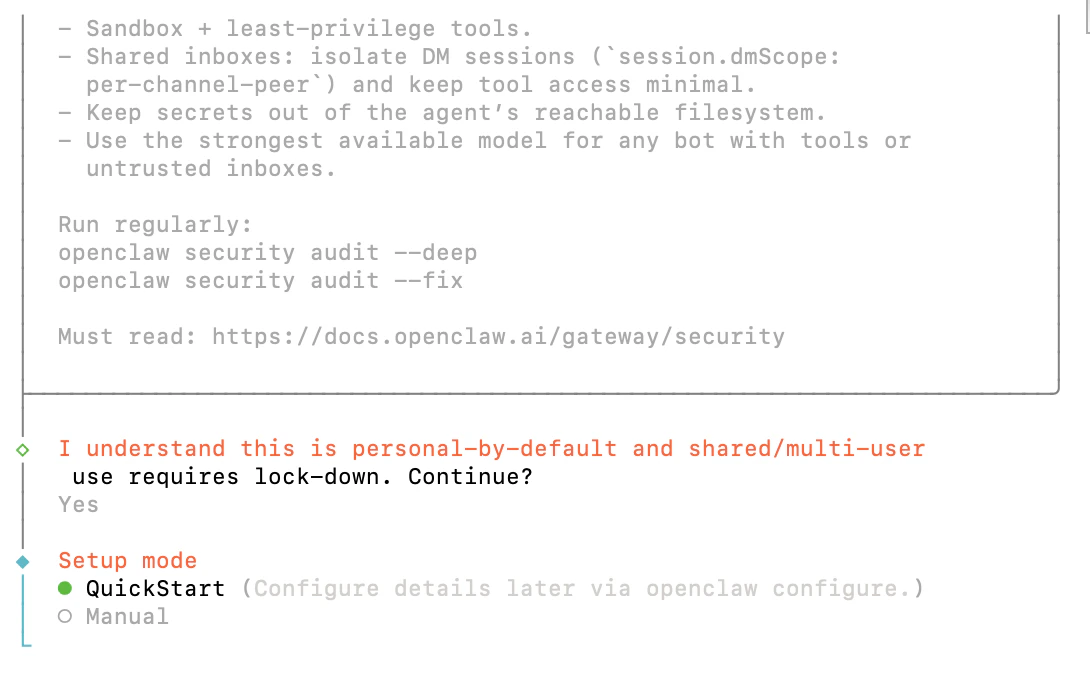
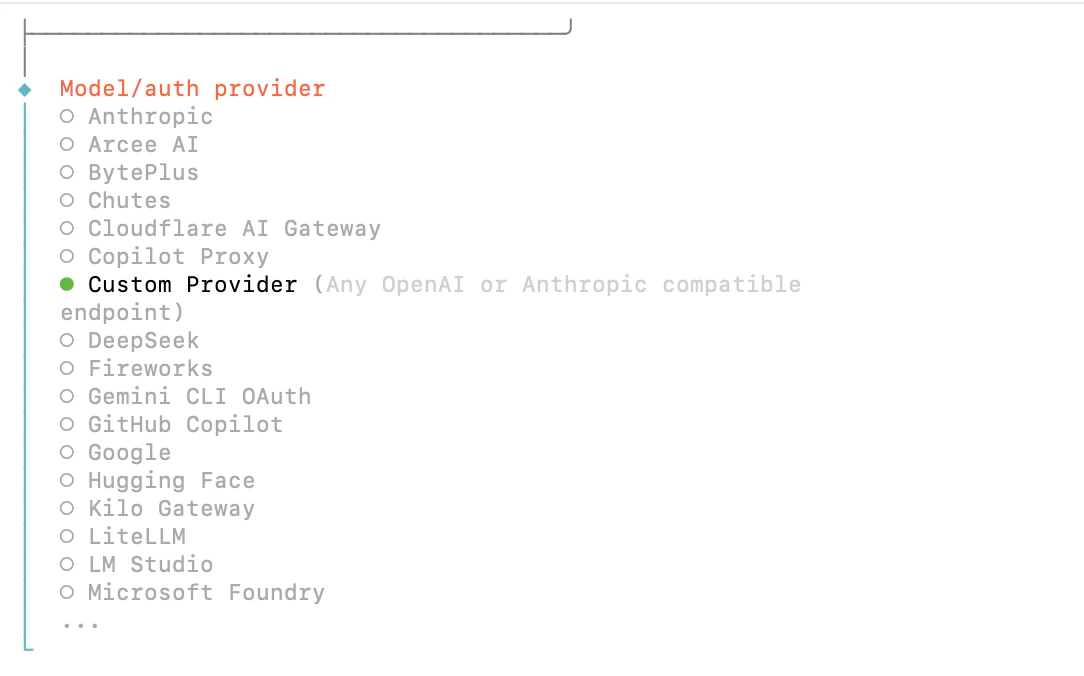
GPT-5.3-Codex
Gemini 3.1 Pro Preview
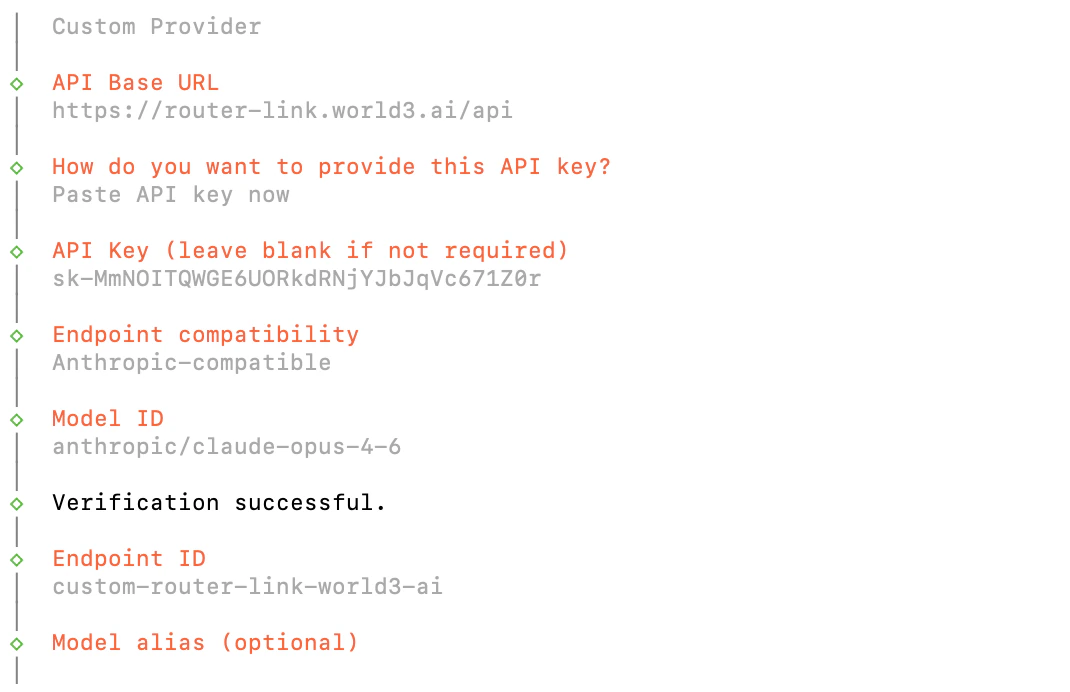
| Field | Content |
|---|---|
| API Base URL | https://router-link.world3.ai/api |
| API Key | Obtain one from RouterLInk API |
| Endpoint compatibility | Anthropic-compatible |
| Model ID | anthropic/claude-opus-4-7 |
| Field | Content |
|---|---|
| API Base URL | https://router-link.world3.ai/api |
| API Key | Obtain one from RouterLInk API |
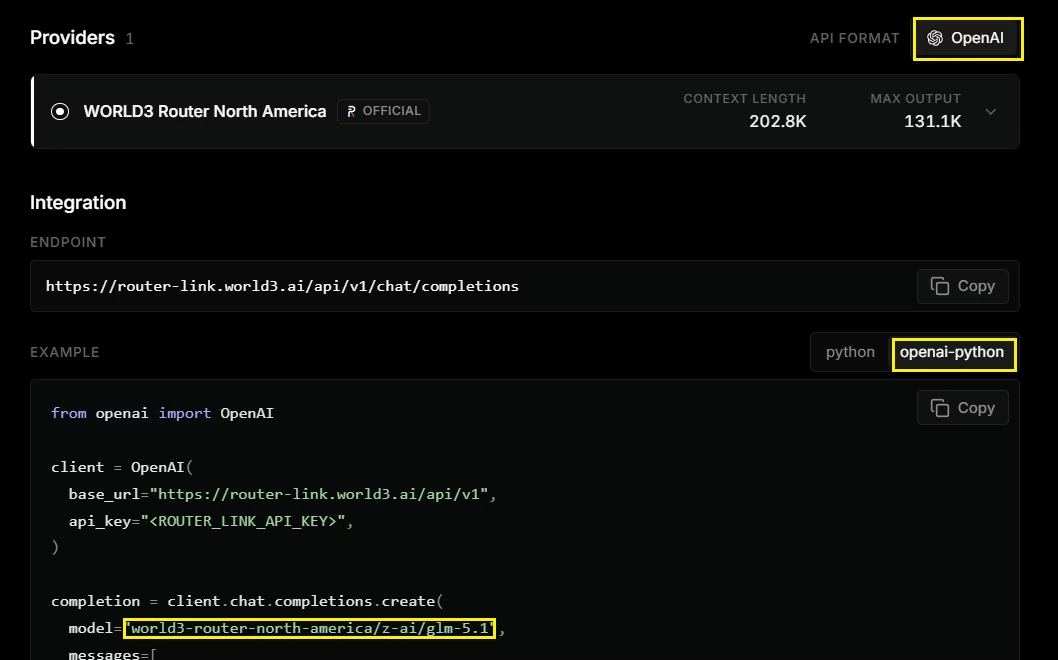
| Endpoint compatibility | OpenAI-compatible |
| Model ID | world3-router-north-america/openai/gpt-5.3-codex |
| Field | Content |
|---|---|
| API Base URL | https://router-link.world3.ai/api |
| API Key | Obtain one from RouterLInk API |
| Endpoint compatibility | OpenAI-compatible |
| Model ID | world3-router-north-america/google/gemini-3.1-pro-preview |
Start using OpenClaw
RunVerify the Gateway is runningYou should see the Gateway listening on port 18789.Open the dashboardThis opens the Control UI in your browser. If it loads, everything is working.Send your first messageType a message in the Control UI chat and you should get an AI reply.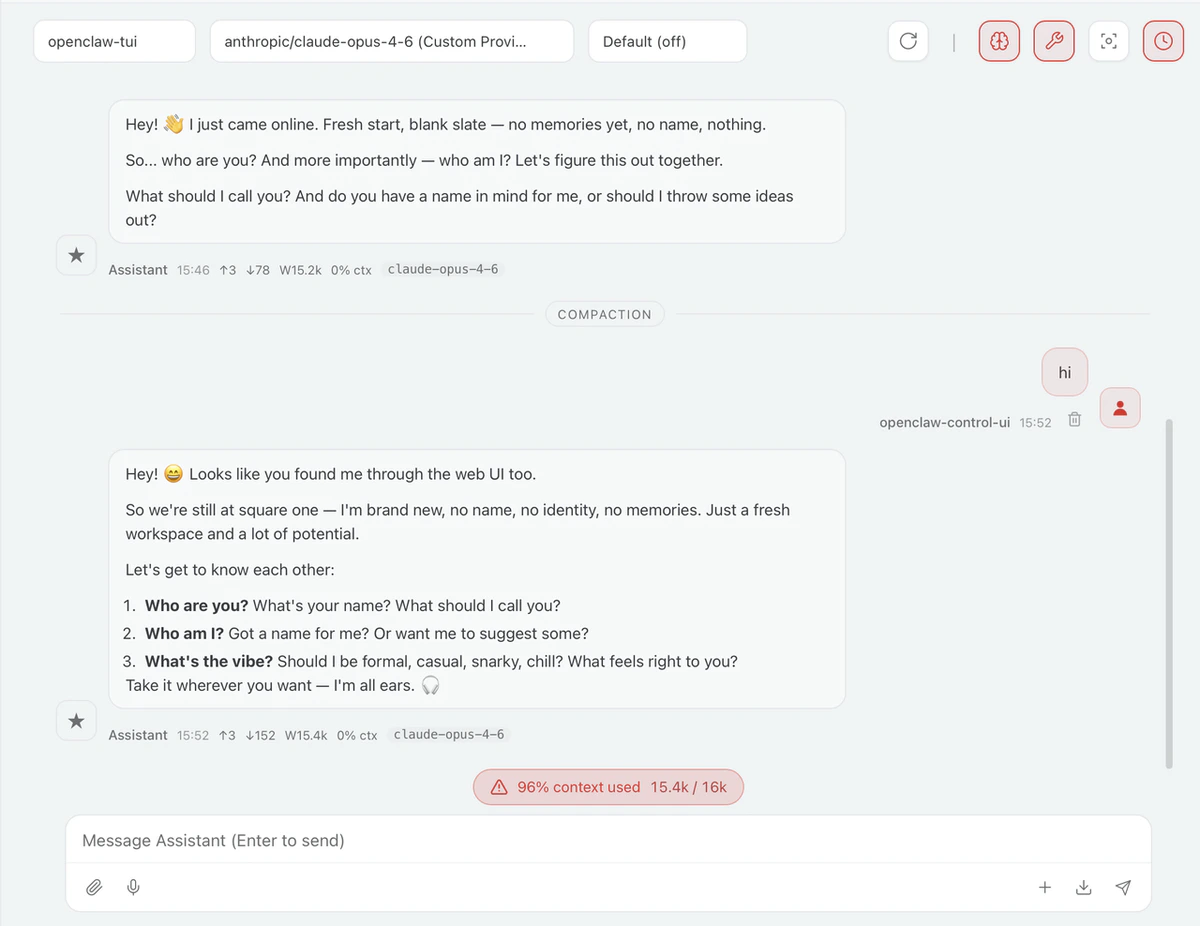
Troubleshooting
How to add a model
How to add a model
Run it againSelect “Use existing values” in Config handling.Add the new model you need under Custom Provider.
The Gateway process is already in use.
The Gateway process is already in use.
How can I upgrade OpenClaw?
How can I upgrade OpenClaw?
Enter the following command in the terminal:
Need more help?
Need more help?
Please check the official documentation.