

This documentation is provided for informational purposes only and demonstrates how to configure and use our API with third-party AI chat interfaces. Any third-party software, websites, or services mentioned are not operated, controlled, or endorsed by us.
Introduction to Codex
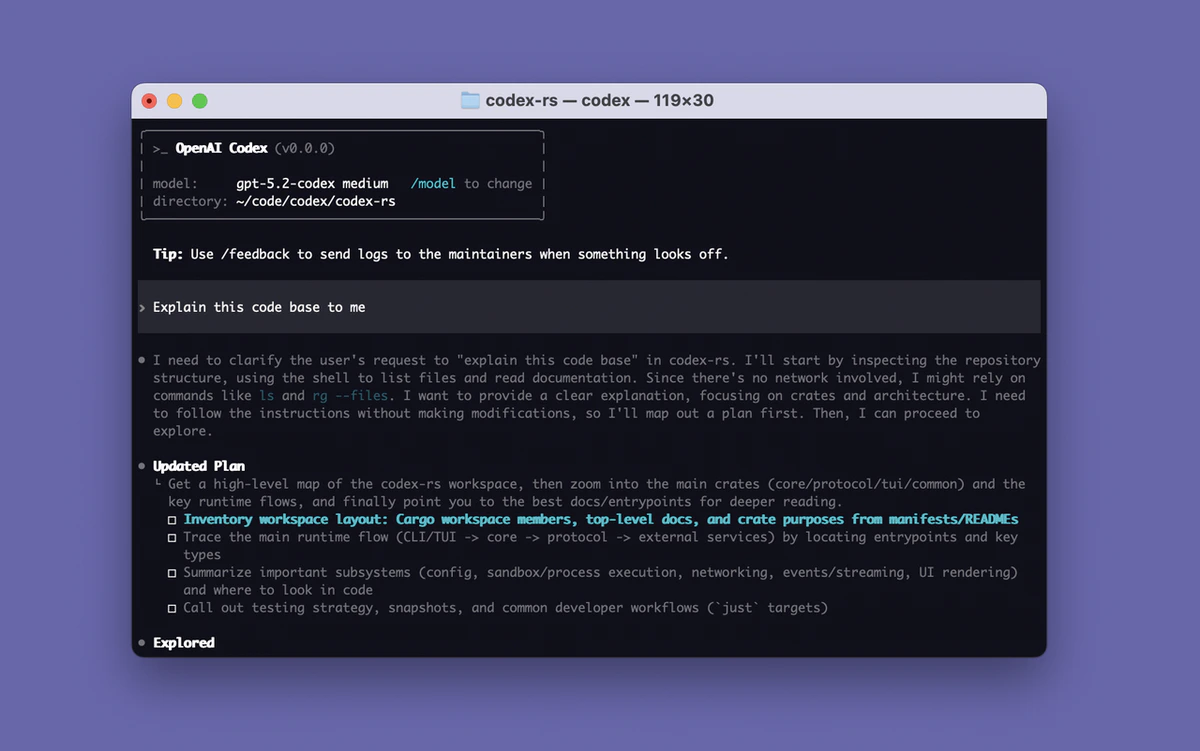
- Terminal-based AI coding assistant
- Natural language → code generation
- Local execution with privacy
- Multiple automation modes
- Multi-language support
- Debugging, refactoring & testing automation
- Interactive workflow in CLI
Step
Install Codex
Install the newest LTS version of Node.jsAfter installation is complete, open the terminal (Windows users use PowerShell) and check the version number.Verify the installation.If the version number is displayed correctly, the installation is successful.
- macOS, Linux, Windows:
Configure Codex
Codex uses the You can replace the “model” field with any model that is compatible with the OpenAI format.
config.toml file to parse provider parameters. Please locate and create/edit this file according to your operating system.Edit or create config.toml fileOn macOS & Linux: ~/.codex/config.tomlOn Windows: C:\Users\<USERNAME>\.codex\config.tomlDelete the previous content and replace it with the following.Configuration file:Codex Loading and Validation
Open the terminal (Windows users use PowerShell). Make sure to replace with the Launch codexSelect “Yes” to trust this folder.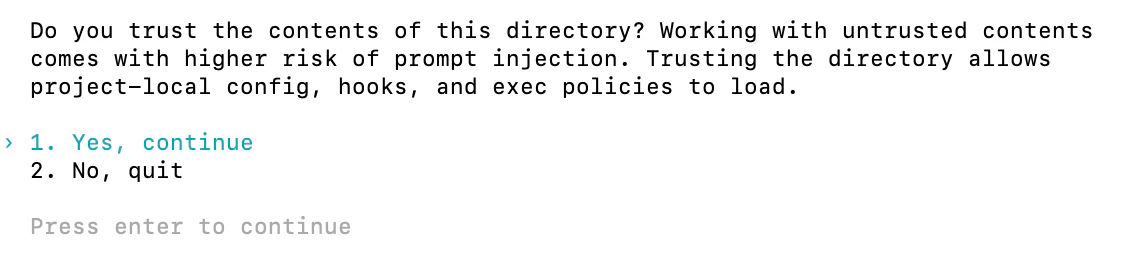
<ROUTERLINK_API_KEY> obtained from RouterLink Key.- macOS, Linux,
- Windows PowerShell: