

This documentation is provided for informational purposes only and demonstrates how to configure and use our API with third-party AI chat interfaces. Any third-party software, websites, or services mentioned are not operated, controlled, or endorsed by us.
Introduction to Claude Code
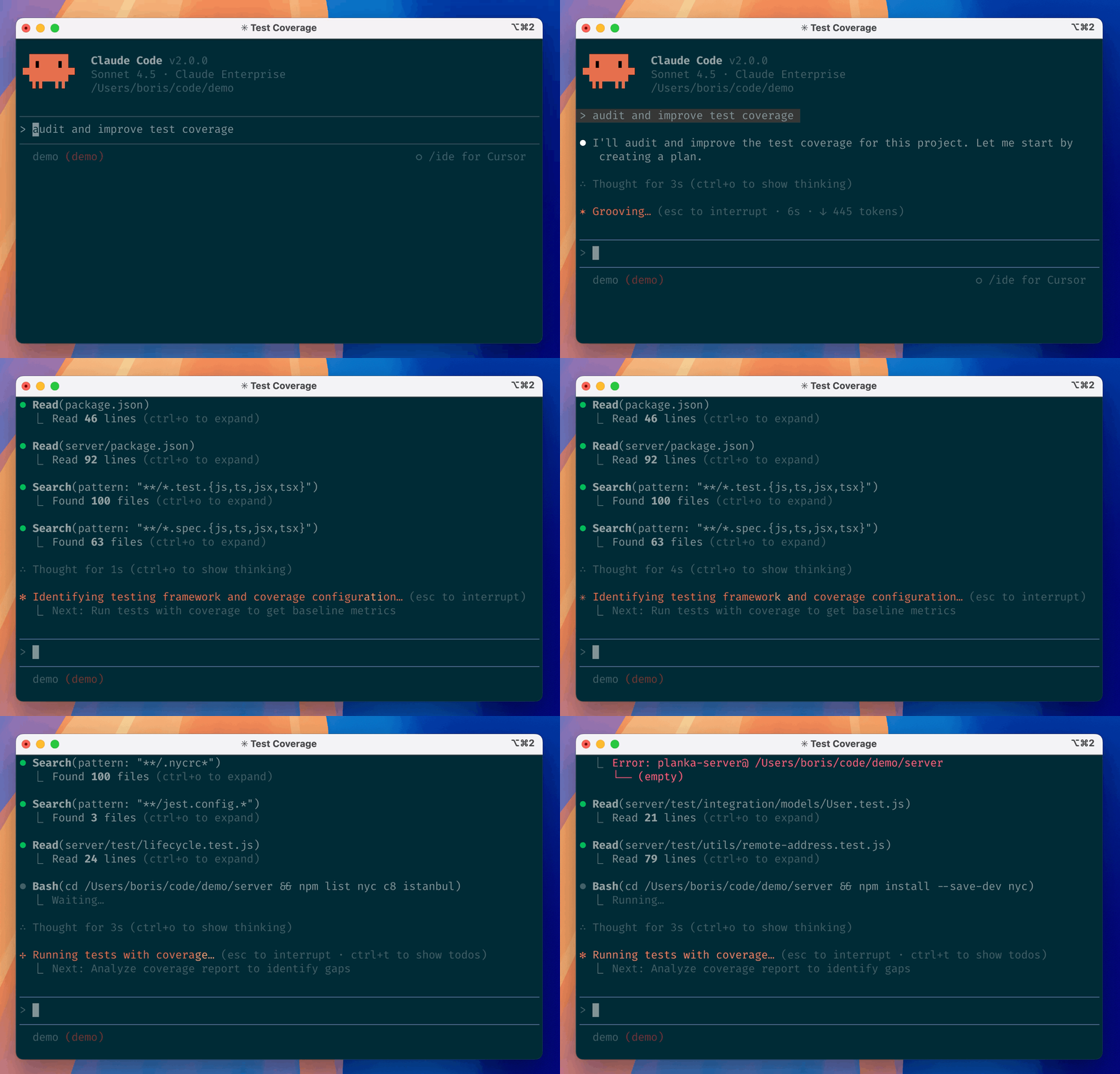
- Autonomous Action: Reads/writes files, runs terminal commands, and fixes bugs directly.
- Full Context: Automatically understands the entire codebase without manual copy-pasting.
- Safety & Control: Supports one-click rollbacks and requires manual approval for key actions.
- Tool Integration: Supports custom complex workflows via SKILL.md.
Step
1
Install Claude Code
If you have previously installed Claude Code, please run the following command in the terminal to update to the latest version. This may require administrator privileges.
- CLI - Node.js
- CLI - Native Install
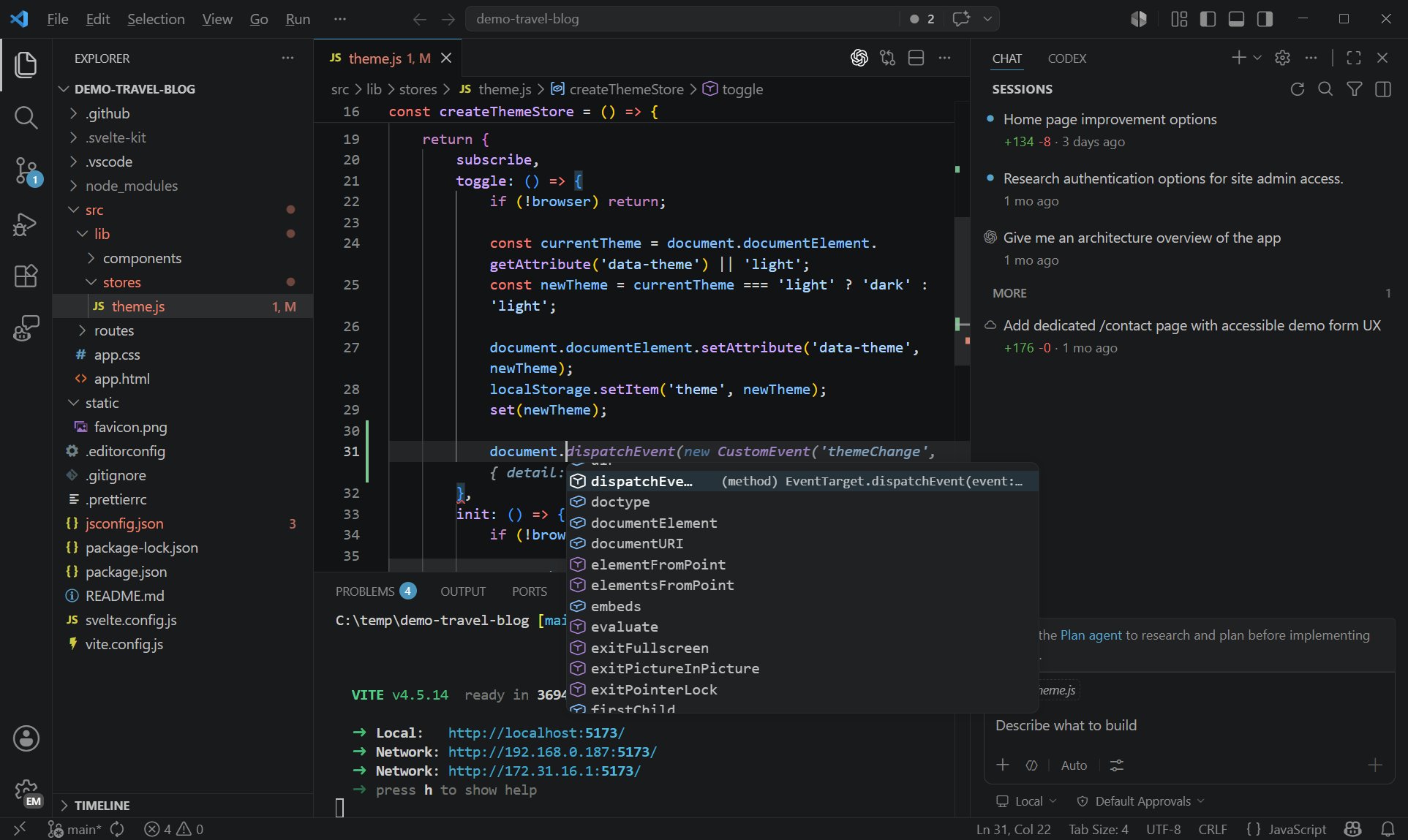
- VS Code Extension
- Desktop App
RouterLink has already prepared installation scripts for you. You can run the following commands for one-click installation of Node.js and the corresponding coding agent.macOS, Linux, WSL:Windows PowerShell:
Windows users may be unable to run scripts because of digital signature requirements. Please run the following command:Or, you can choose to manually install Node.js and the corresponding coding agent:Install the newest LTS version of Node.js, and then use npm to install it globally in the terminal:
Windows PowerShell:
2
Point Claude Code at RouterLink
- CLI — settings.json
- VS Code Extension
- Desktop App
Claude Code officially supports managing persistent configuration through the settings system. For daily use, it is recommended to prioritize writing configurations into
On macOS & Linux:
On Windows:
settings.json. Shell or system environment variables are better suited for temporary switching, CI scenarios, or as a fallback when encountering known issues in the current version.Edit or create the settings.json fileOn macOS & Linux:
~/.claude/settings.jsonOn Windows:
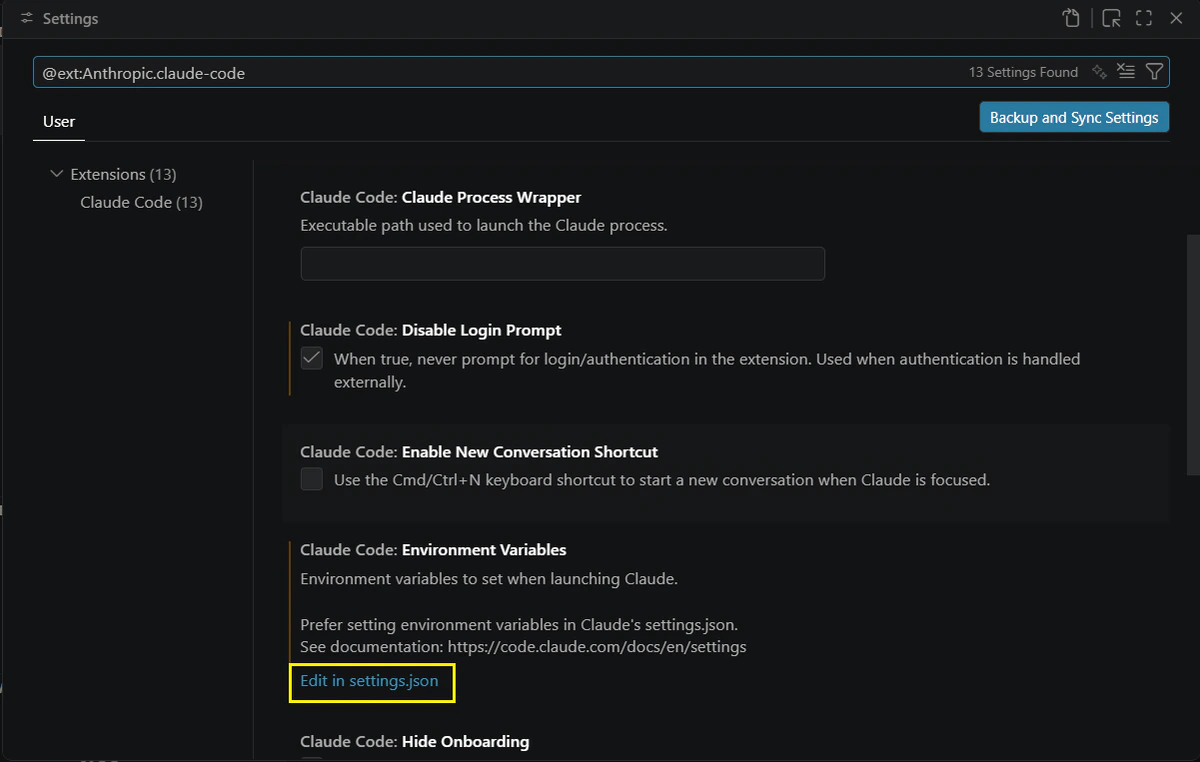
C:\Users\<USERNAME>\.claude\settings.jsonMake sure to replace <ROUTERLINK_API_KEY> with your API key from RouterLink. When replacing it, do not keep the angle brackets < and >.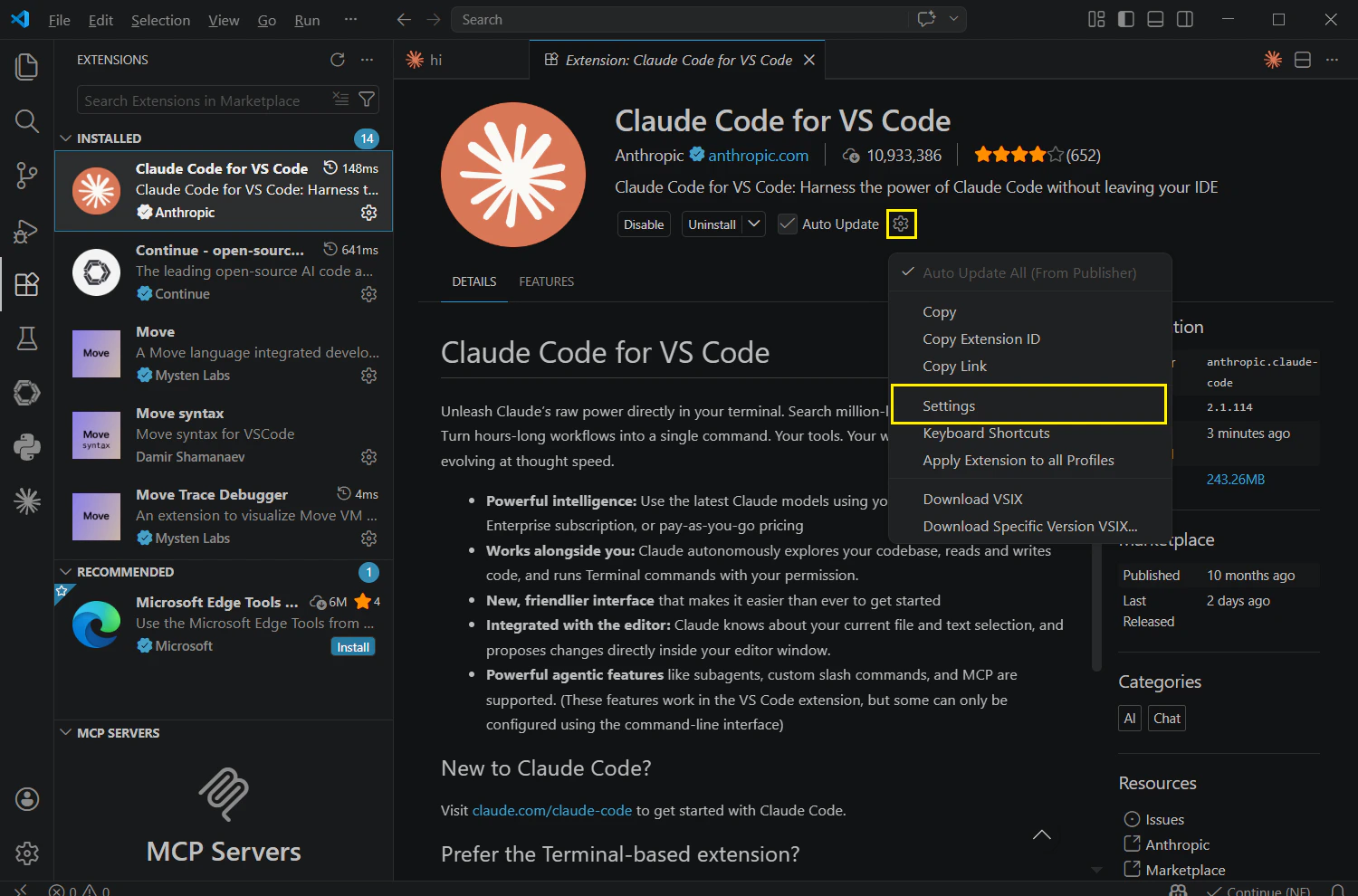
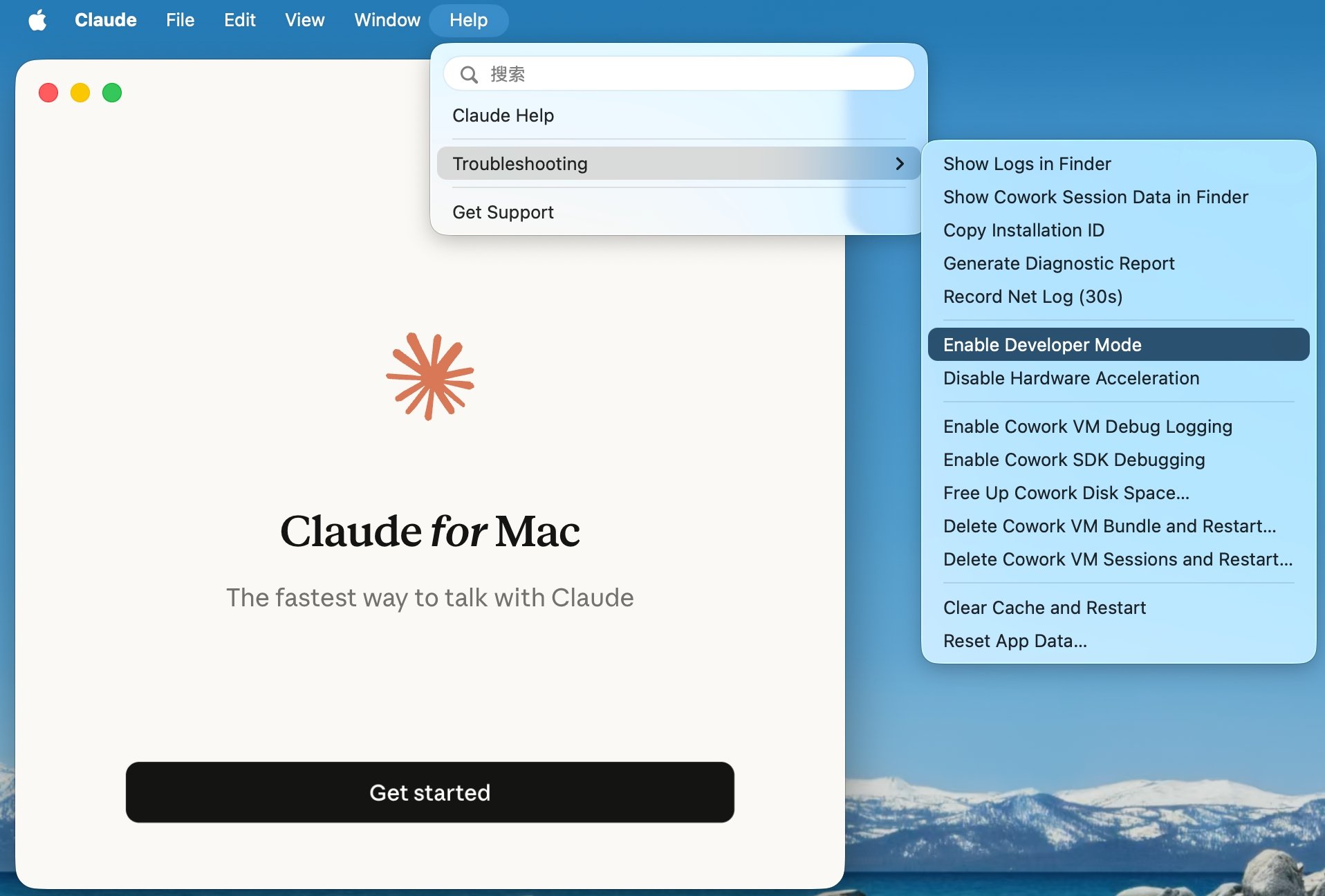
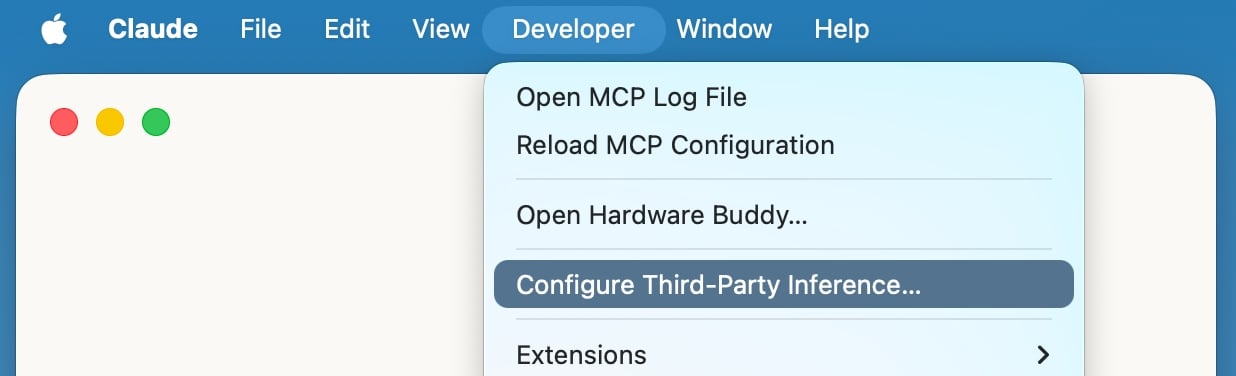
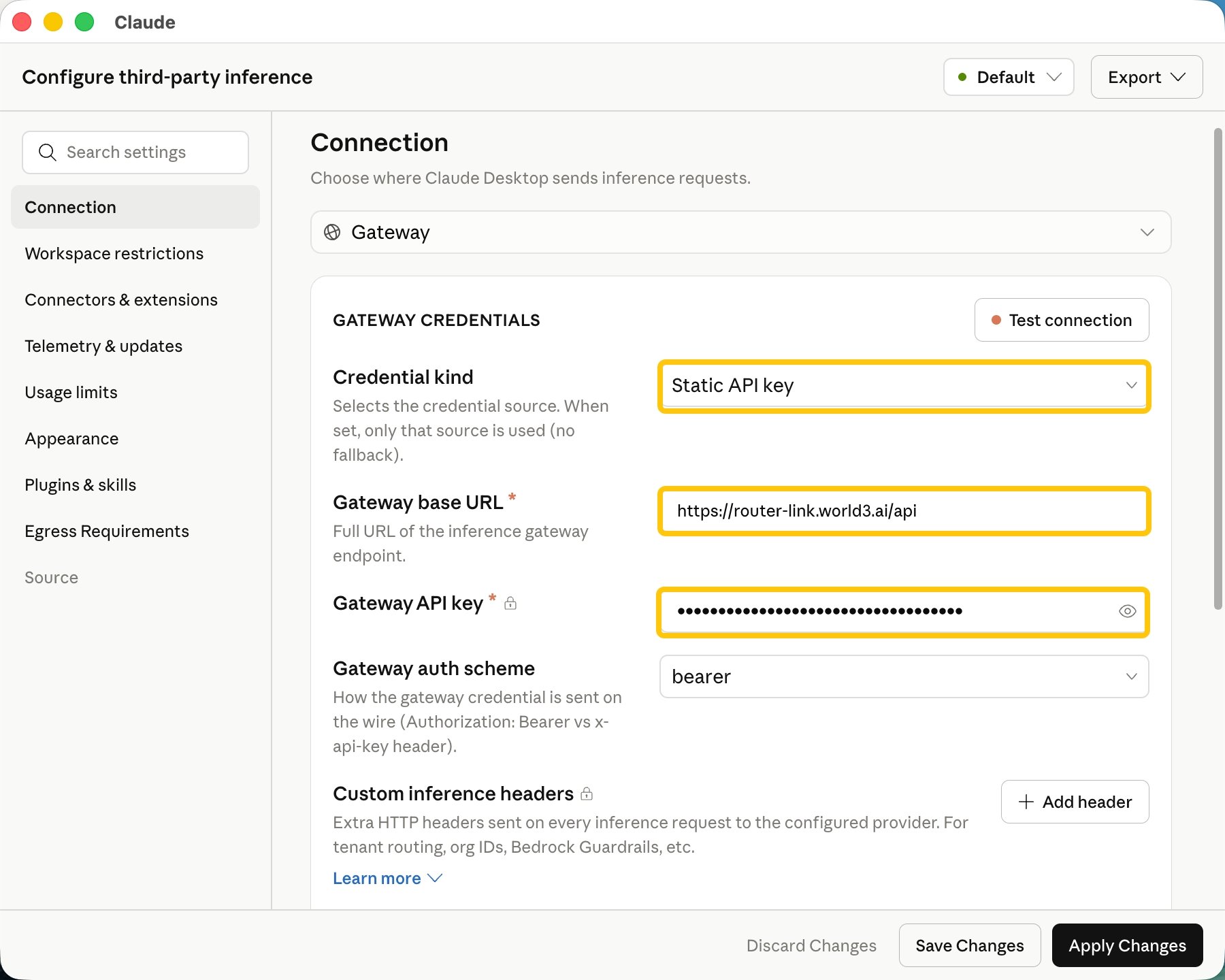
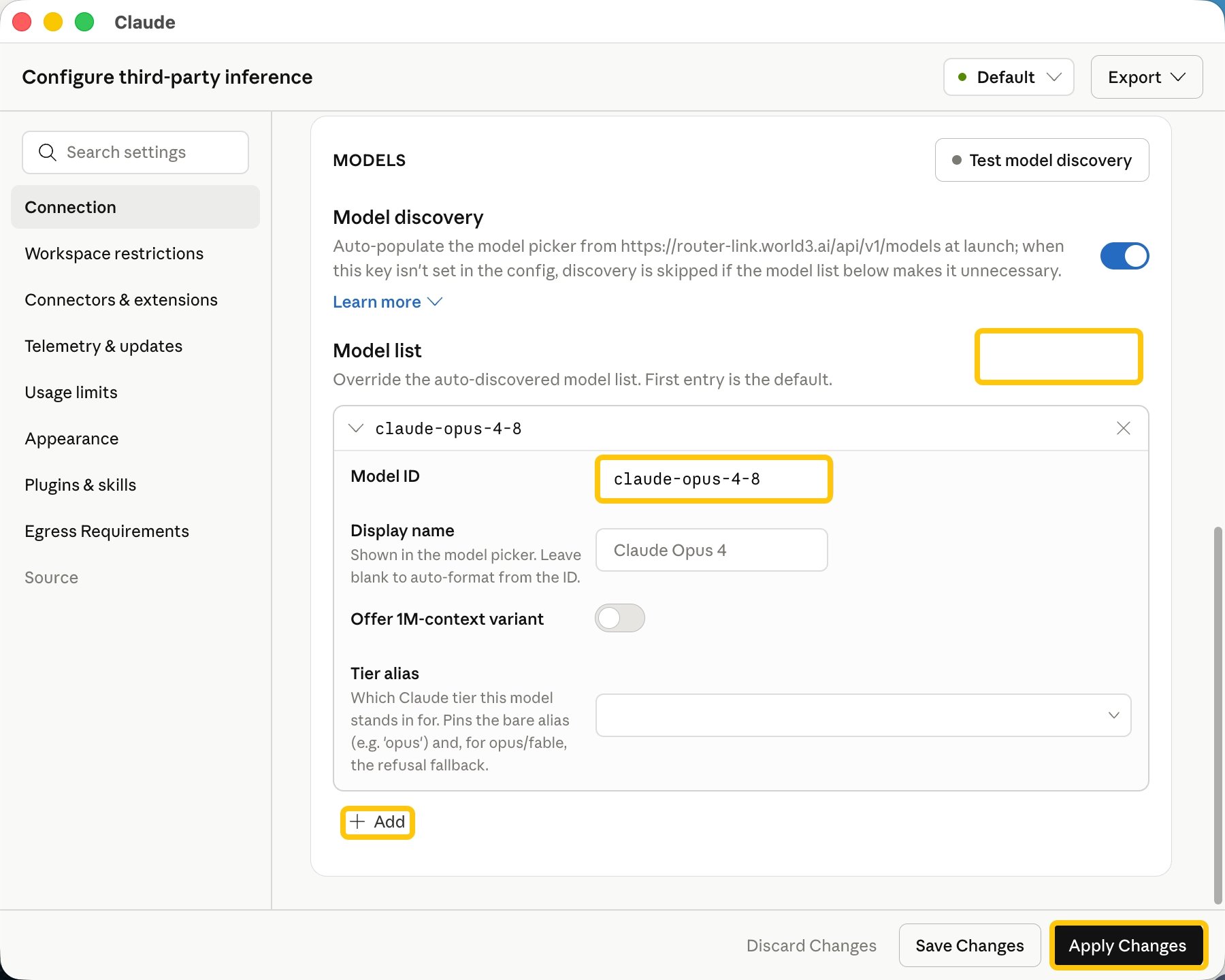
3
First launch
- CLI
- VS Code Extension
- Desktop App
Navigate to your code working directory and run the When using Claude Code for the first time, you may be forced to log in to an Anthropic account.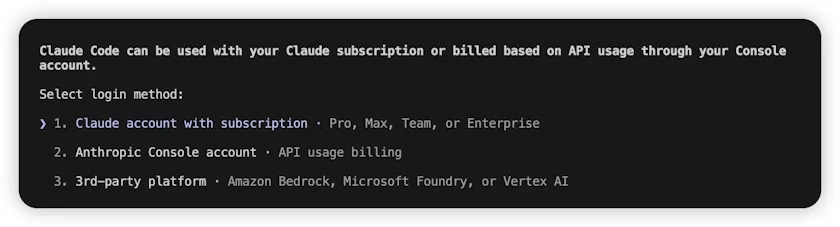
claude command in the terminal to start using Claude Code.- Please follow the steps below to skip this process:
- Open or create the
.claude.jsonfile in the user’s home directory. The specific paths are as follows: macOS / Linux:~/.claude.jsonWindows:C:\Users\<USERNAME>\.claude.json - Set the value of the
hasCompletedOnboardingfield totrue.
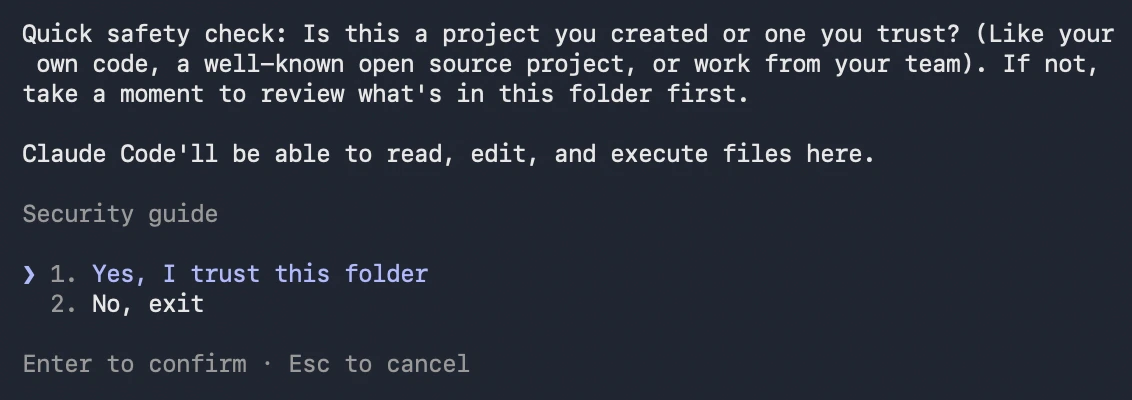
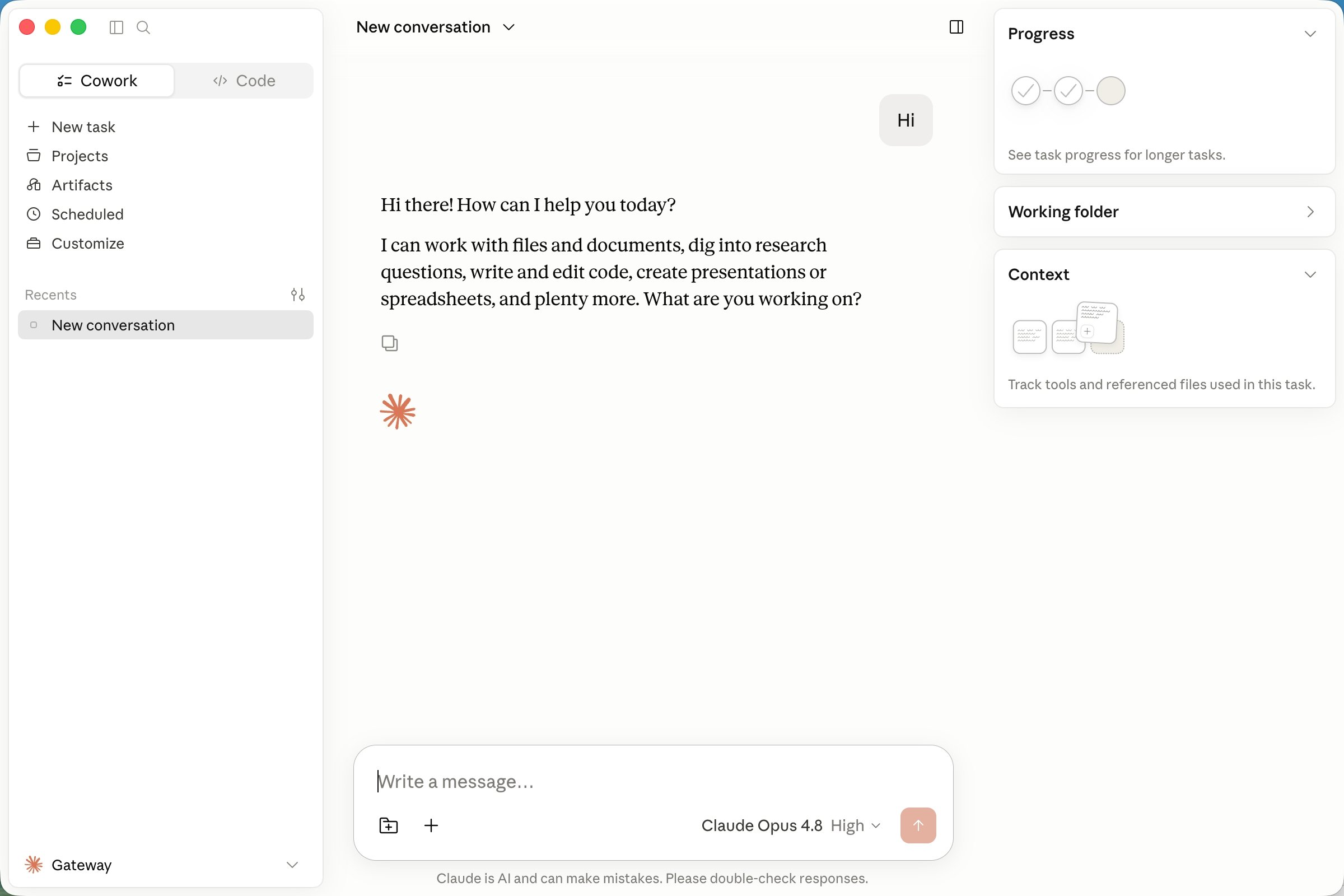
claude again in the terminal.After launching, choose to trust Claude Code to access the files in the folder, as shown below: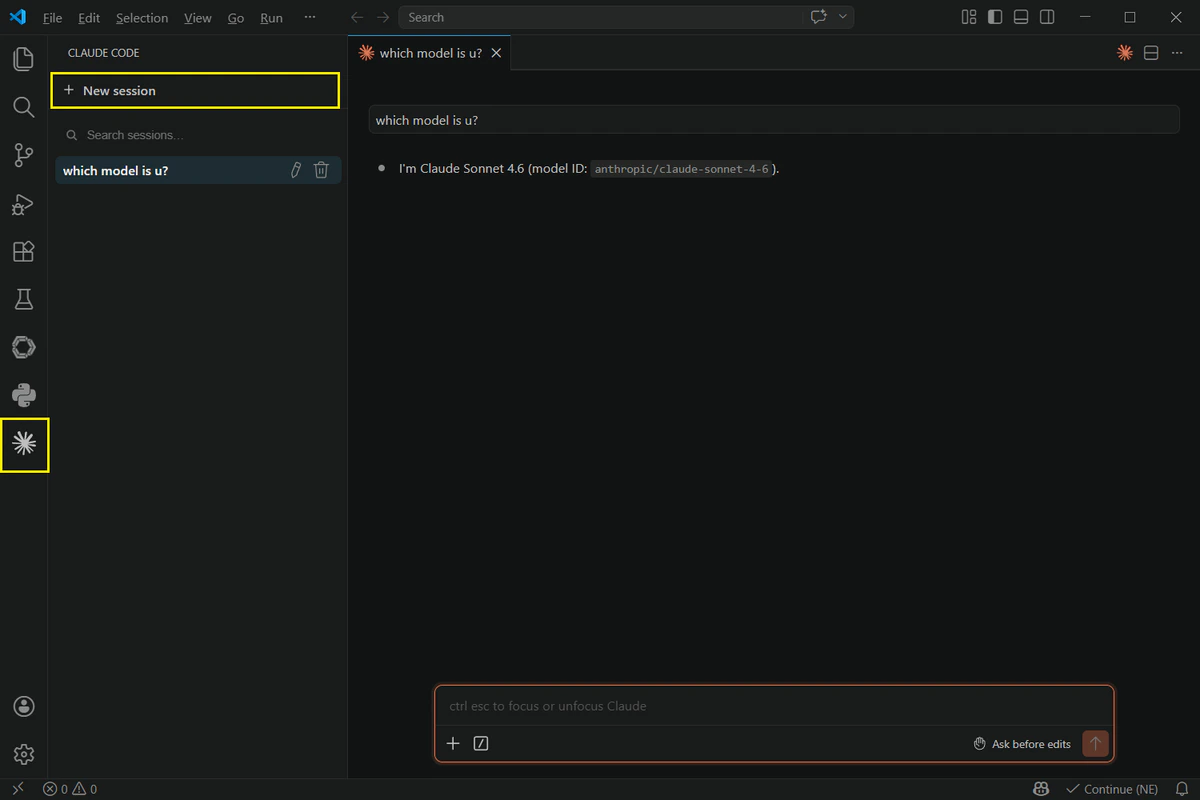
Troubleshooting
No response after entering a prompt / “You don’t have enough $WAI” error
No response after entering a prompt / “You don’t have enough $WAI” error
Make sure your API input is correct. Due to the high token consumption of Anthropic models, the daily free quota may not support this model. Please top up your balance.
How can I switch to another model?
How can I switch to another model?
Claude Code only supports the Anthropic-format API.
Go to https://routerlink.ai/models. Click on the model, set the API Format to “Anthropic,” and locate the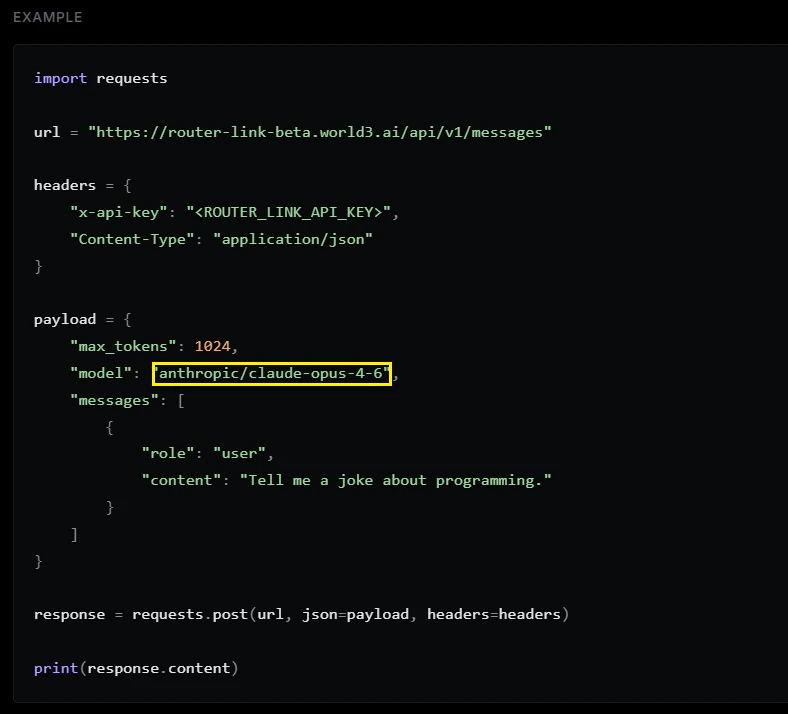
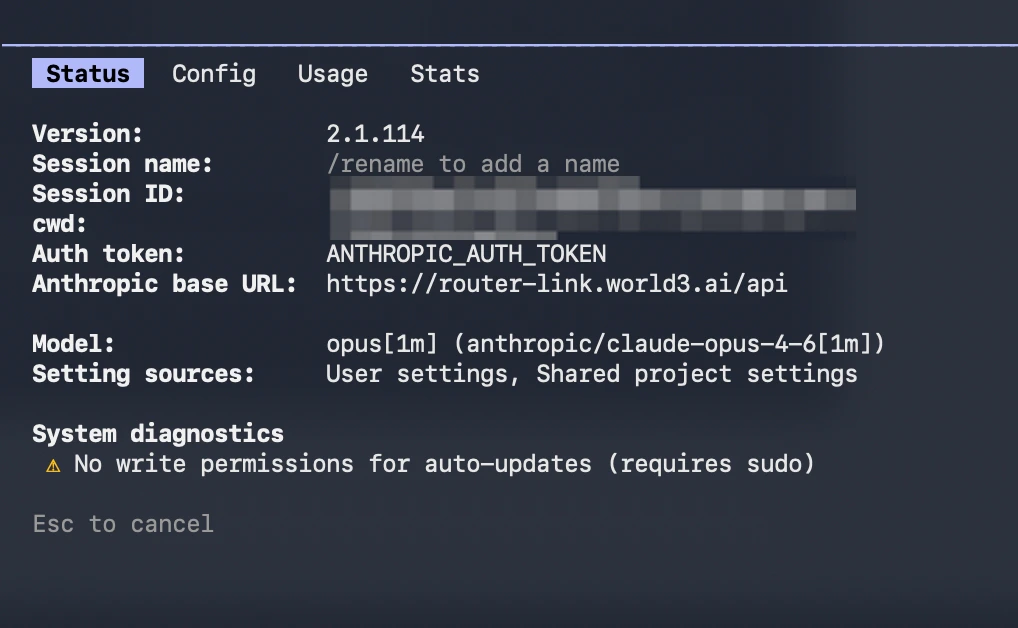
Go to https://routerlink.ai/models. Click on the model, set the API Format to “Anthropic,” and locate the
model field in the code block.Copy the model name from the model field and replace it in the settings.json file above.claude to start Claude Code. Then enter /model to switch the model, and finally type /status to verify the model status.Manual configuration changes not taking effect
Manual configuration changes not taking effect
If you have manually edited the
~/.claude/settings.json file but the changes are not applied, please try the following:- Close all Claude Code windows. Open a new terminal window and run
claudeagain to restart. - If the issue persists, try deleting the
~/.claude/settings.jsonfile and reconfigure the environment variables. Claude Code will automatically generate a new configuration file. - Make sure the JSON format of the configuration file is correct. Check for issues such as incorrect variable names, missing commas, or extra commas. You can use an online JSON validator to verify the file.
How can I upgrade Claude Code?
How can I upgrade Claude Code?
Enter the following command in the terminal:
For more information
For more information
Please check the official documentation.