RouterLink Starter is currently in beta. If you encounter any issues, please contact us at support@routerlink.ai.
Introduction to RouterLink Starter
Step
1
Install
Windows users may encounter a “ prevented an unrecognized app from starting” warning. This is normal — please select “Run anyway.”Download: https://routerlink.ai/downloadCurrently available for Windows and macOS.
2
Configure
After entering the Starter, click “Get Started”.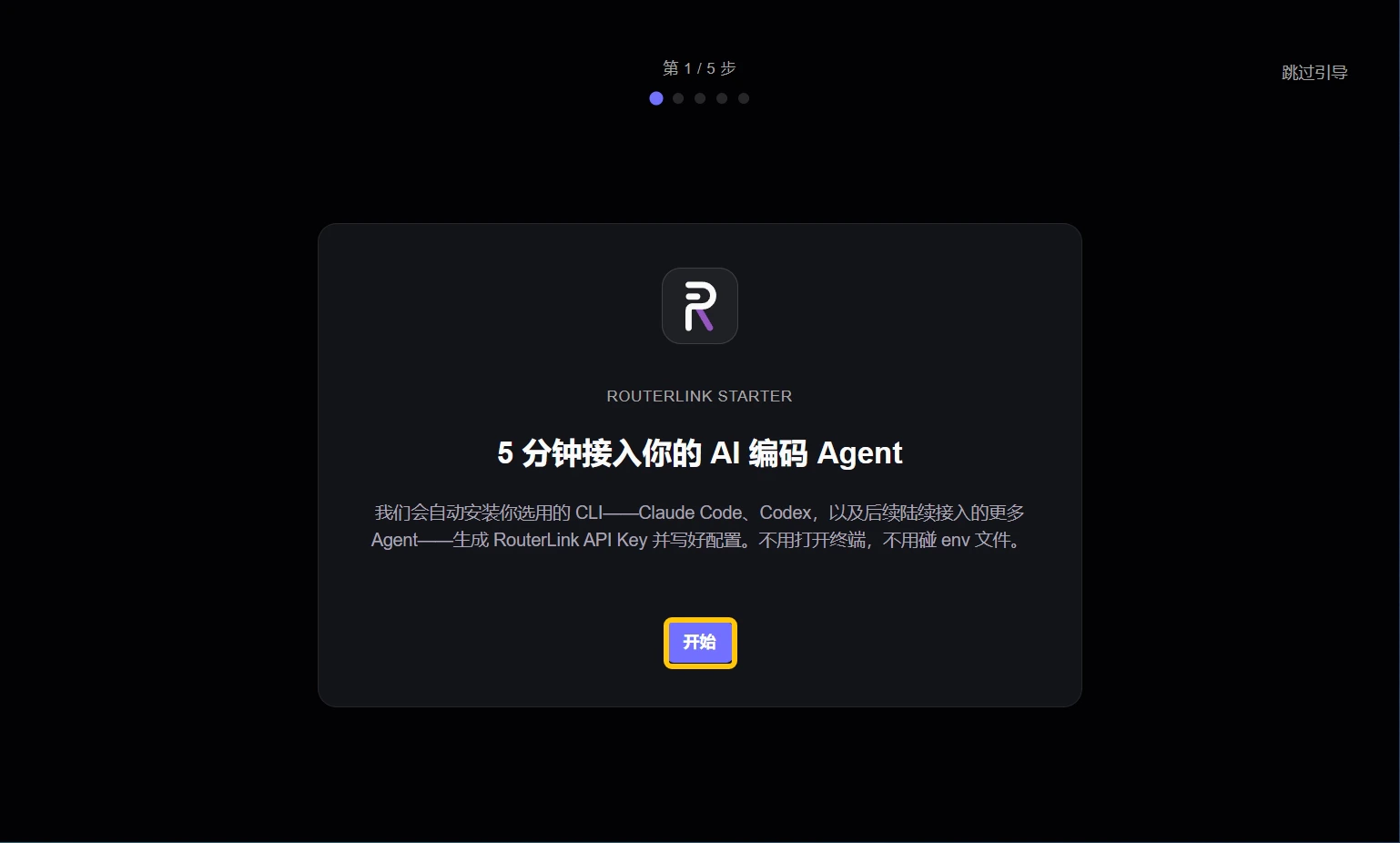
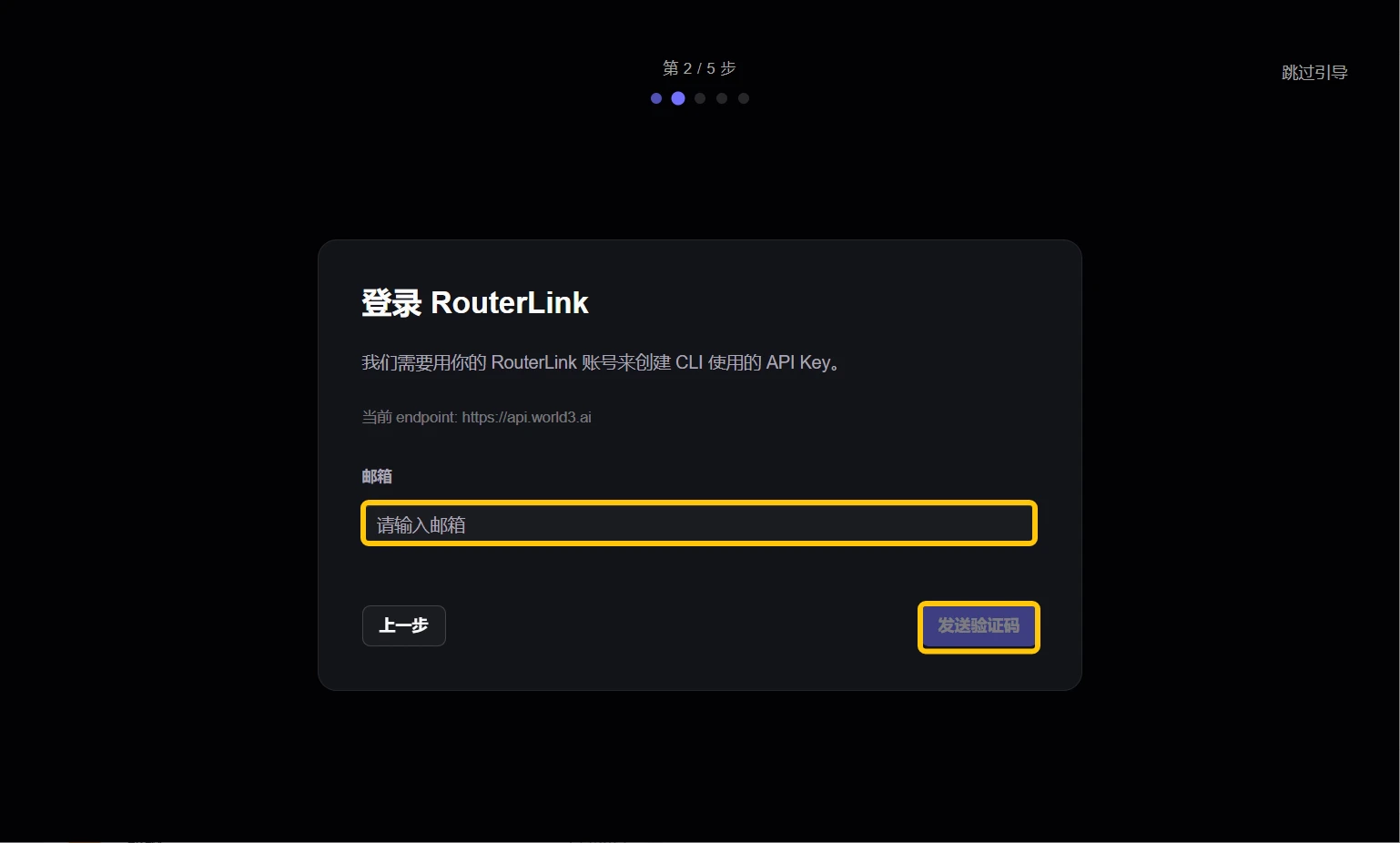
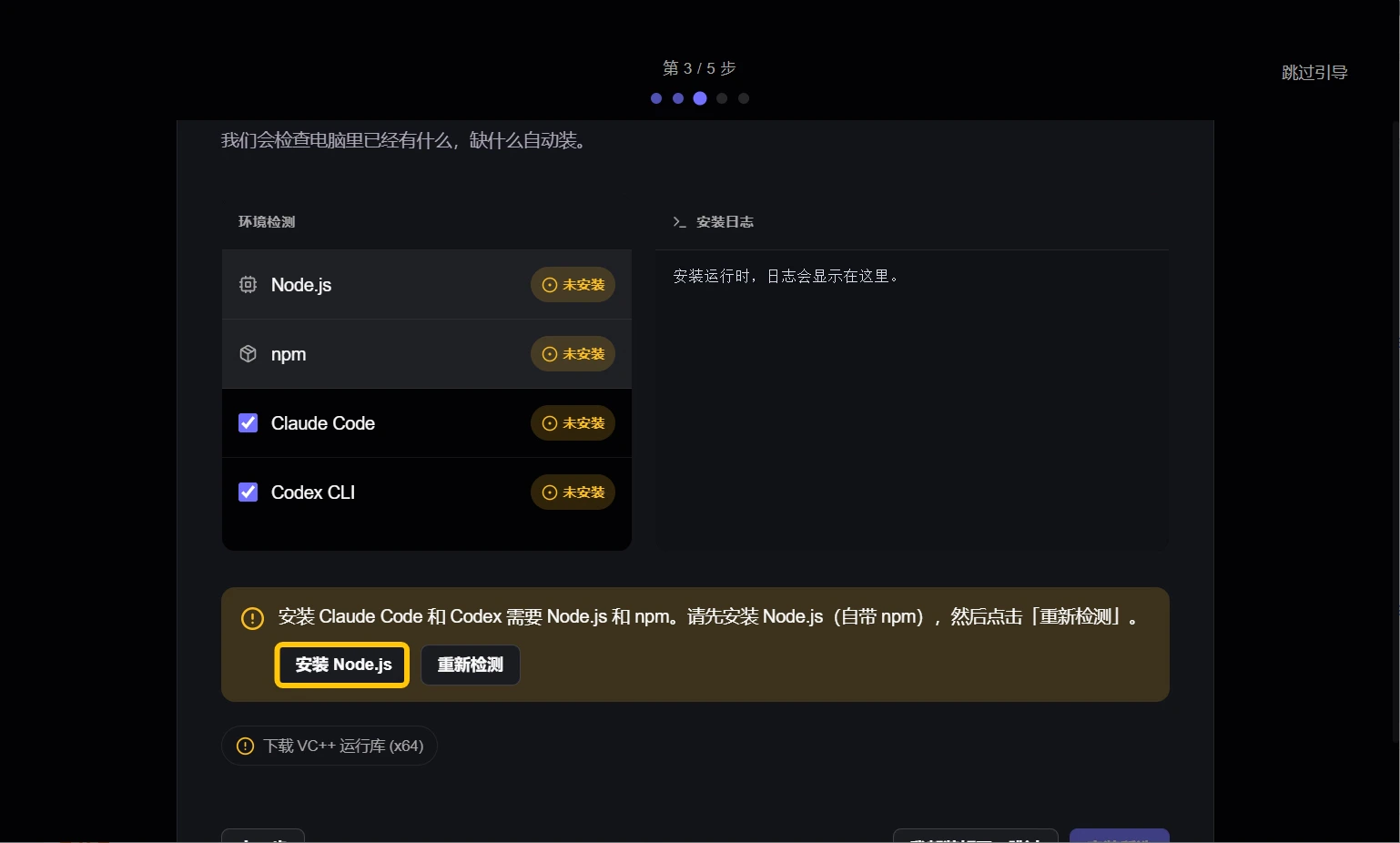
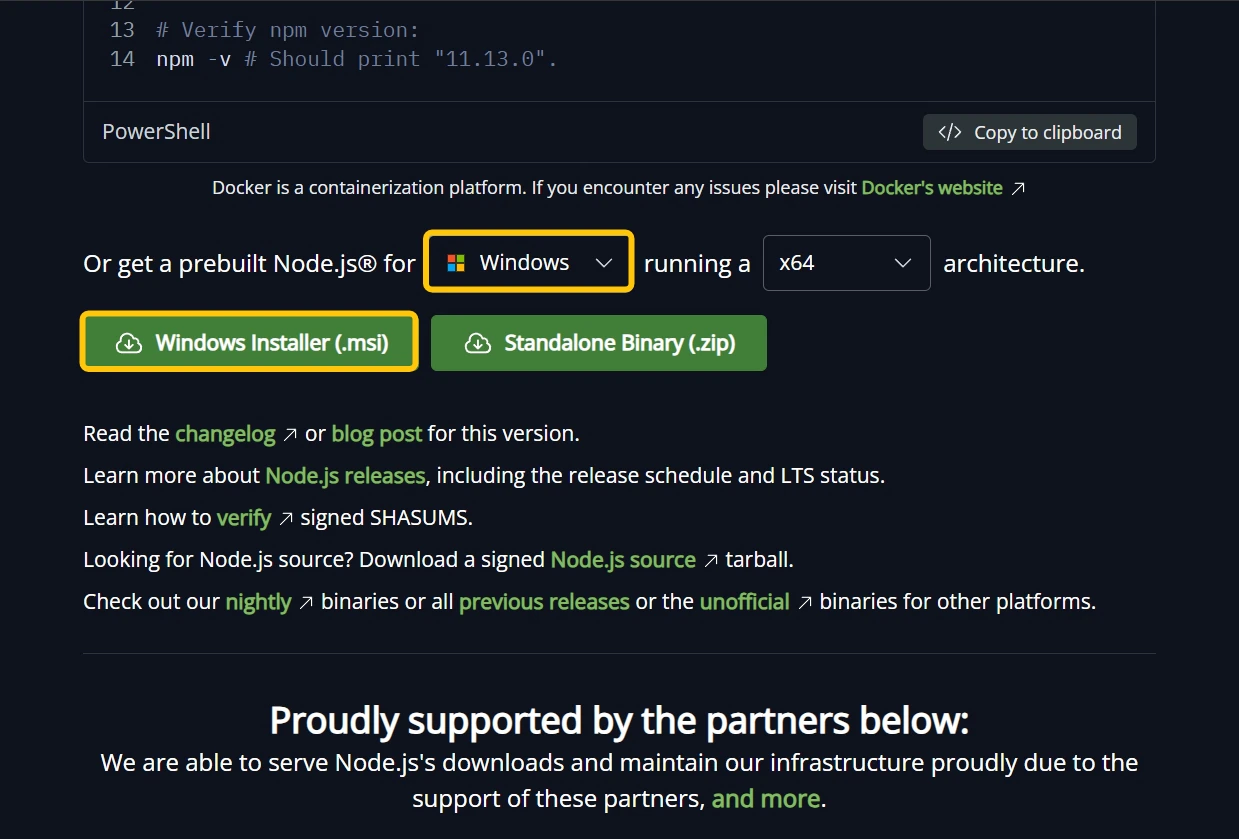
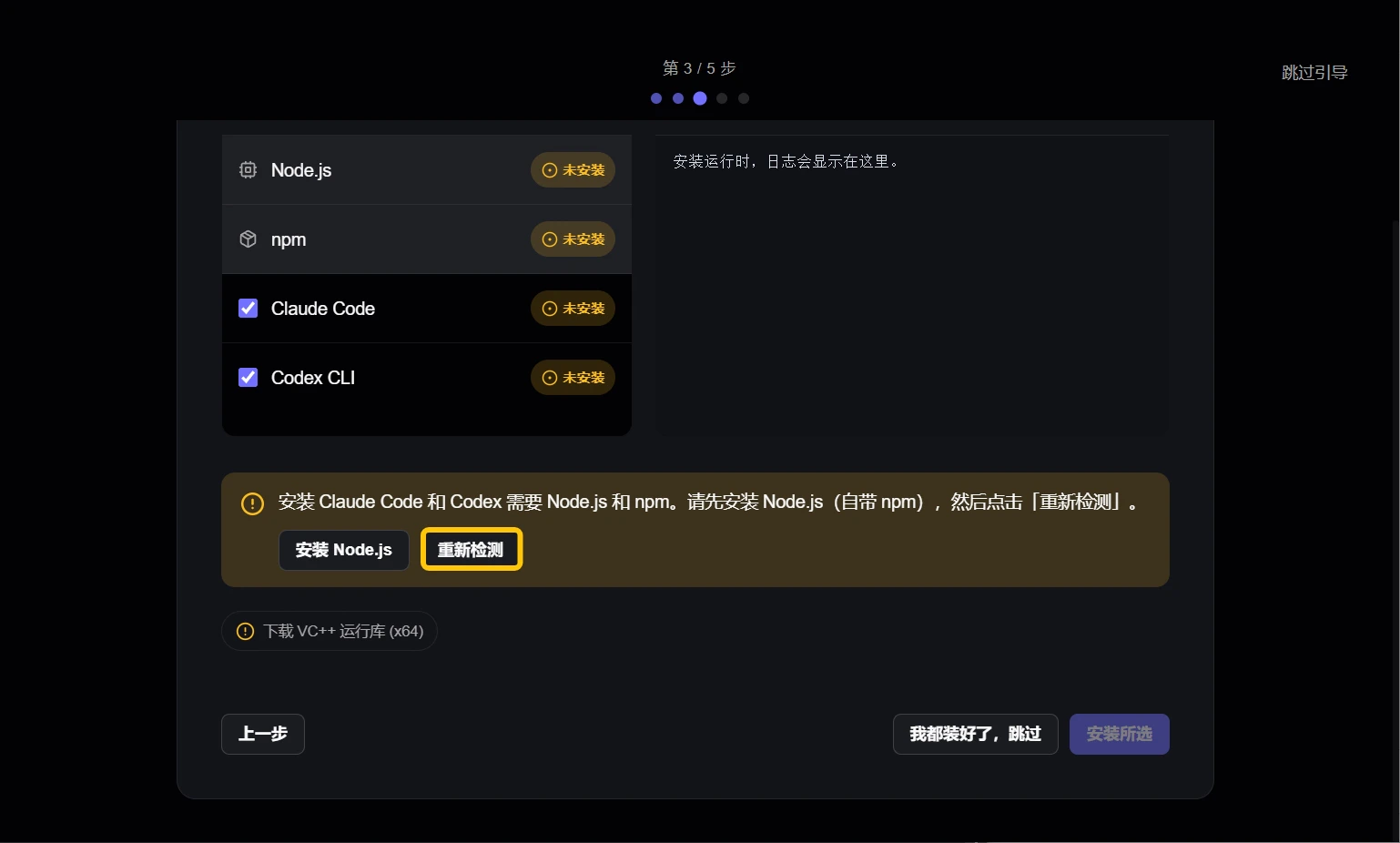
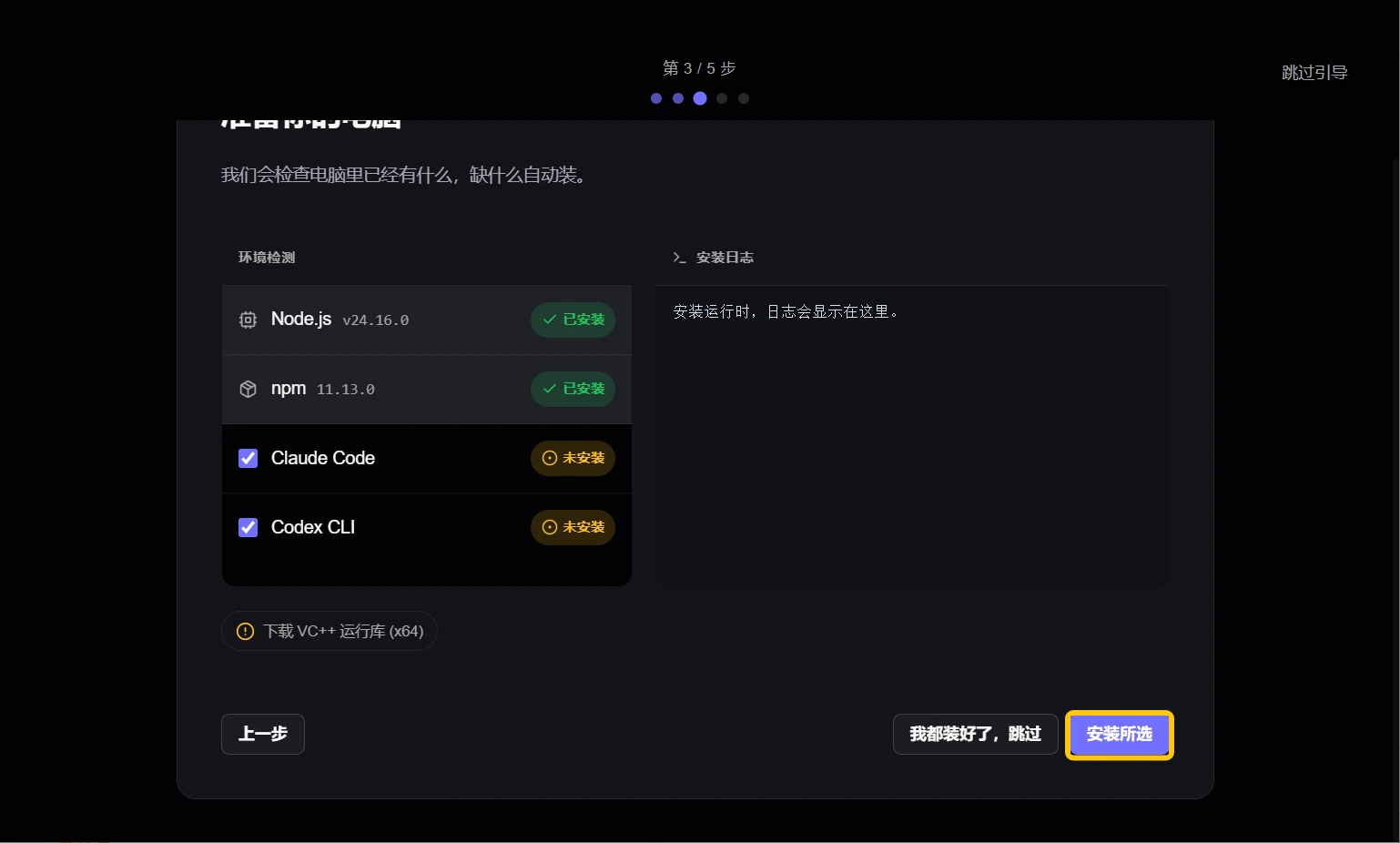
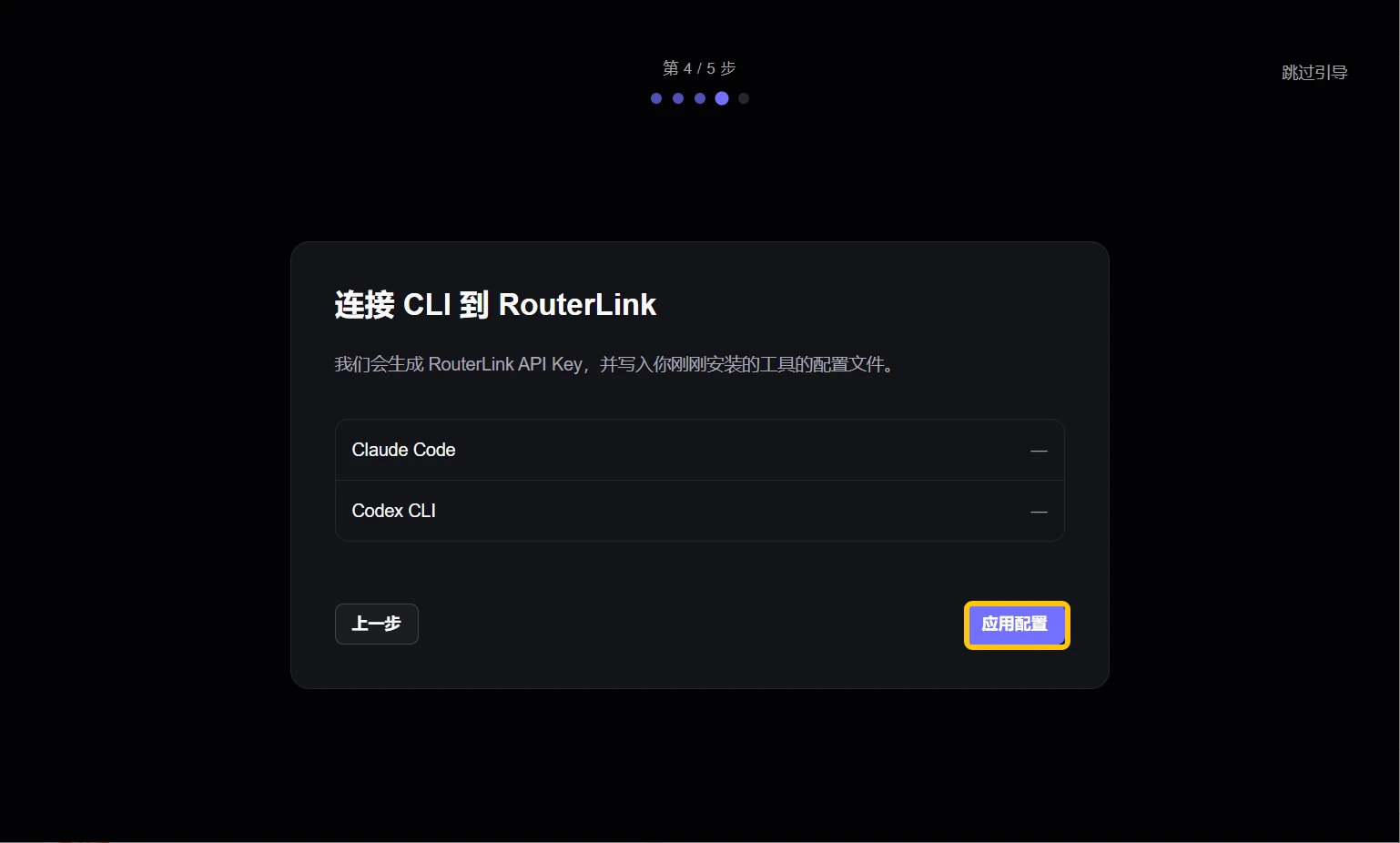
3
Launch
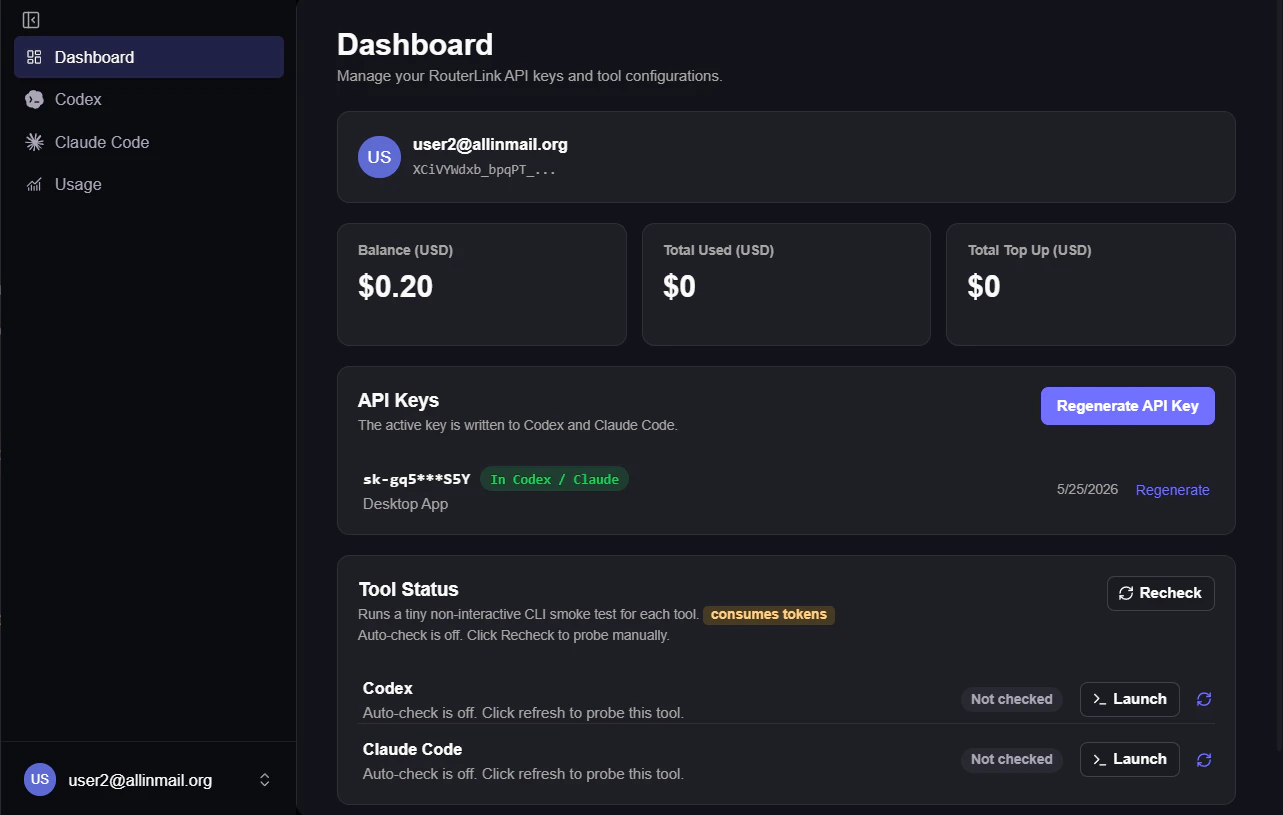
You can check the availability of the coding agent and quickly launch it from the main page.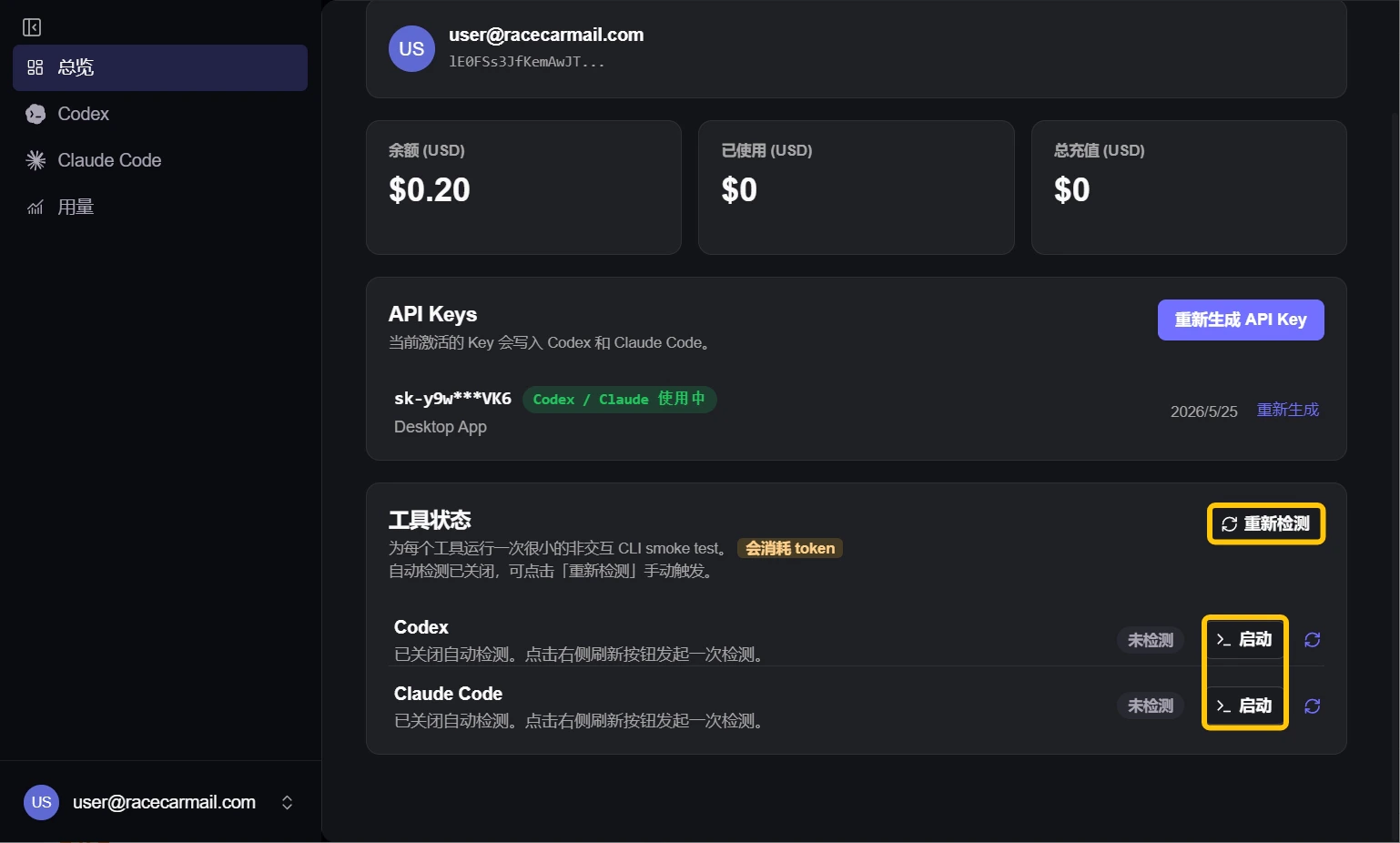
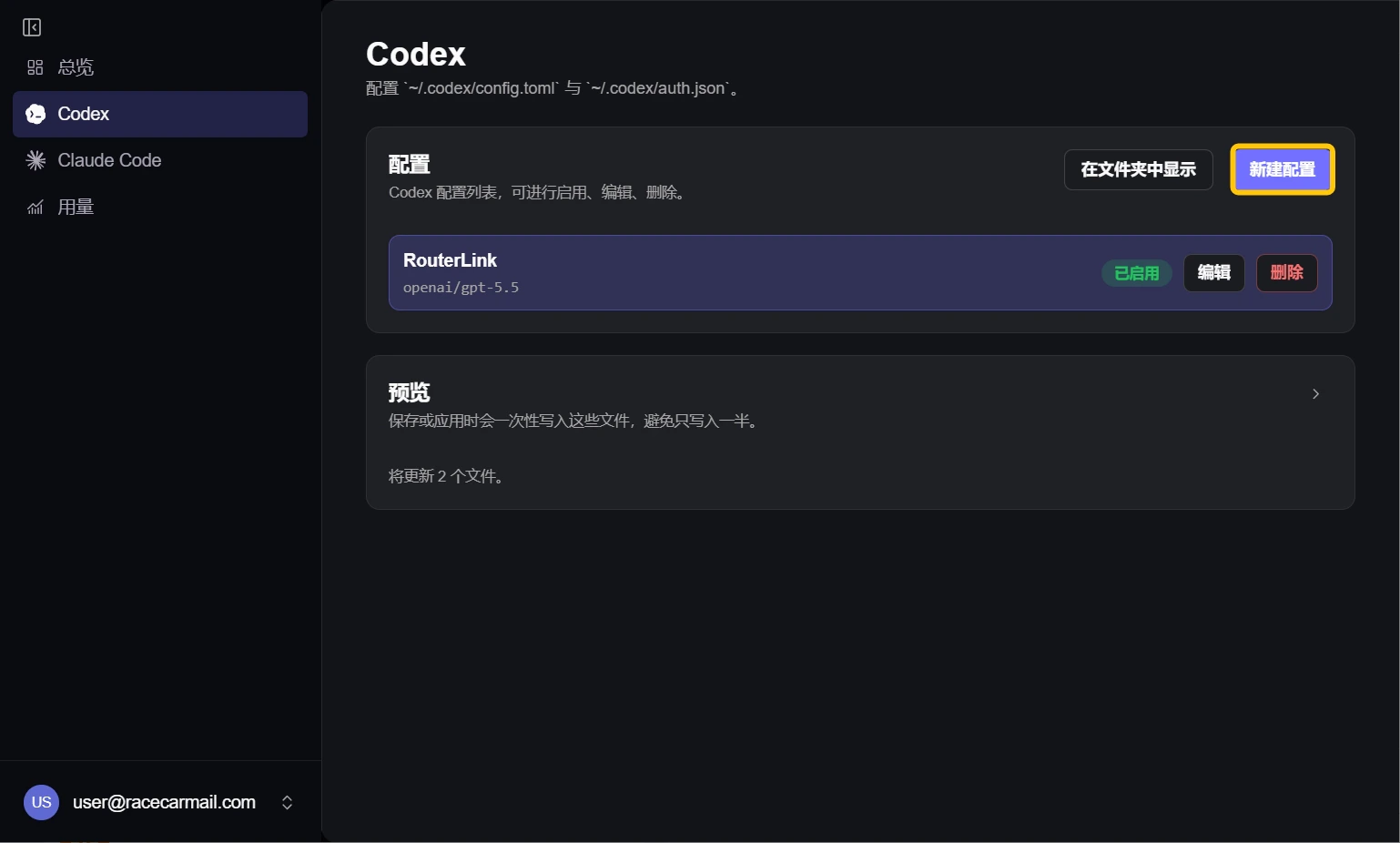
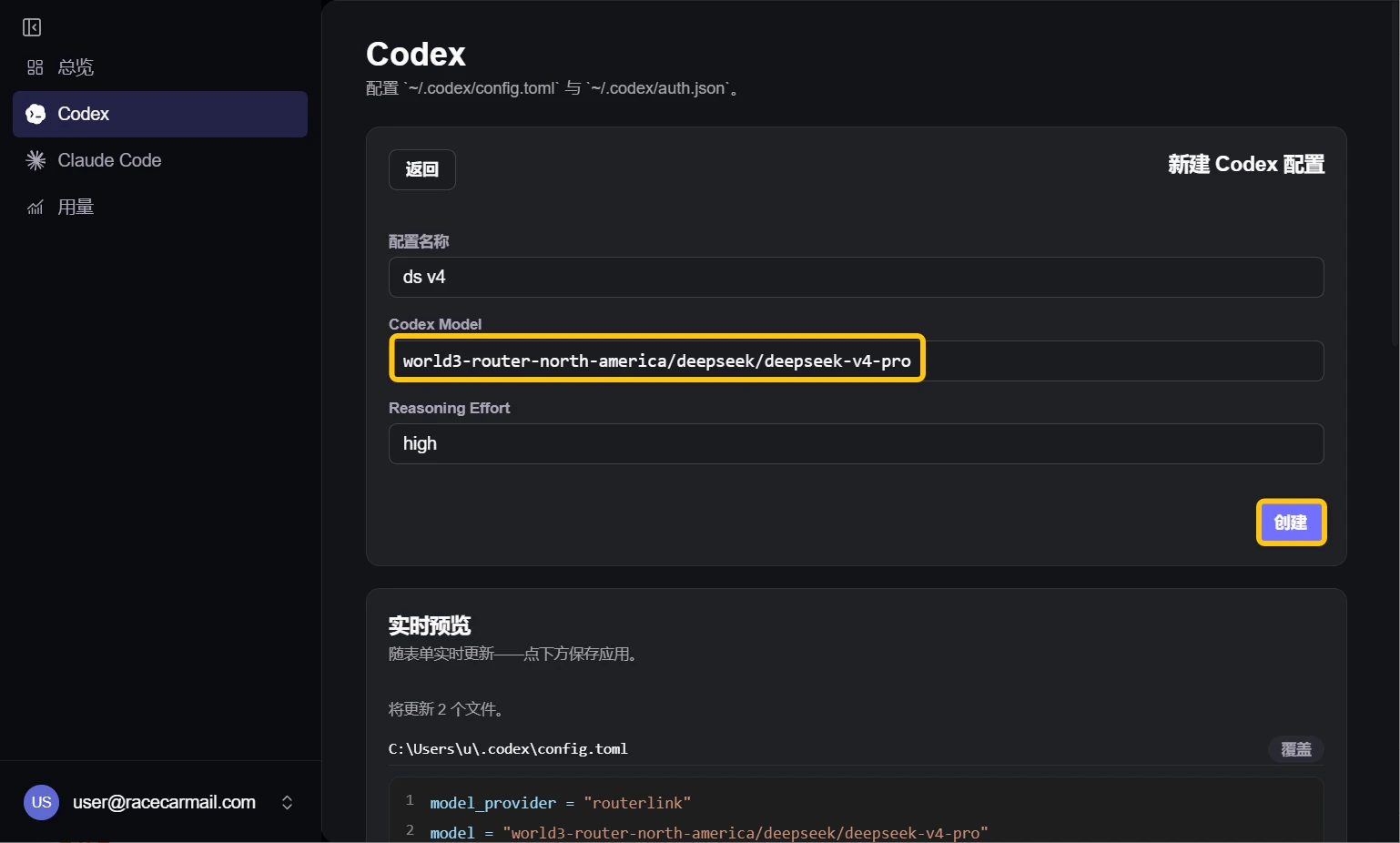
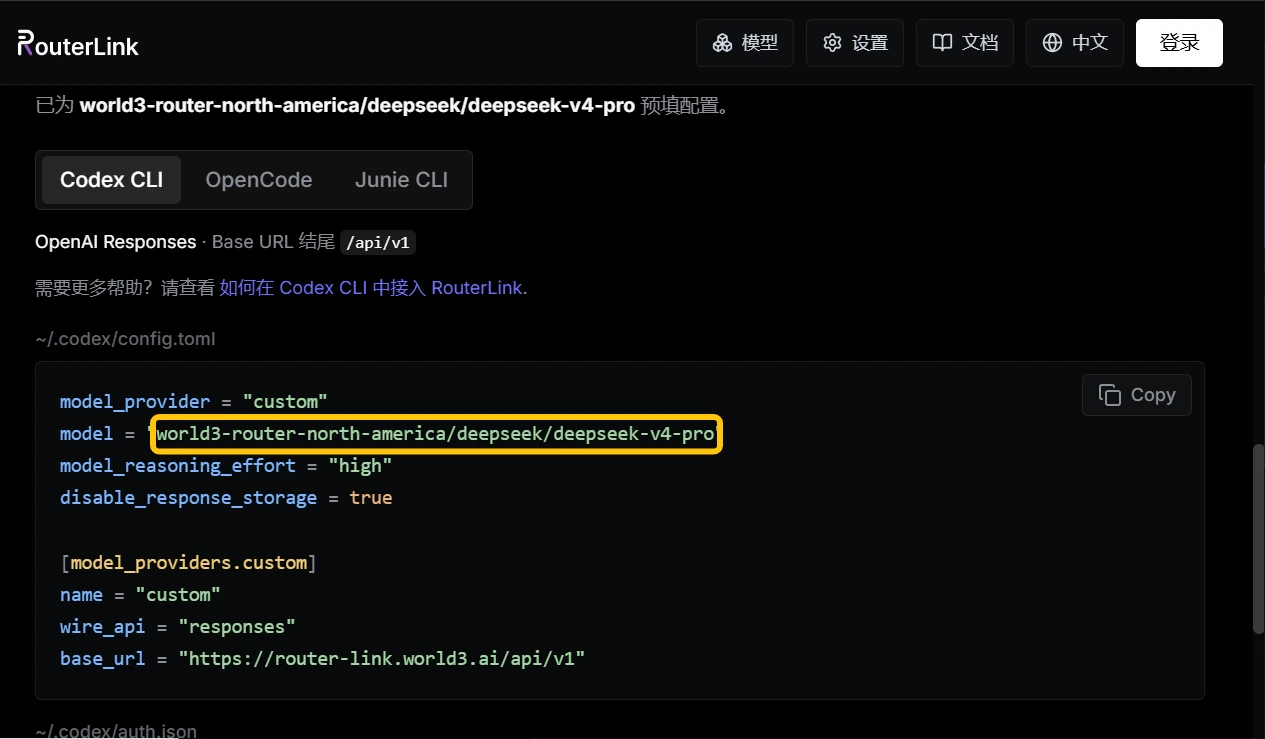
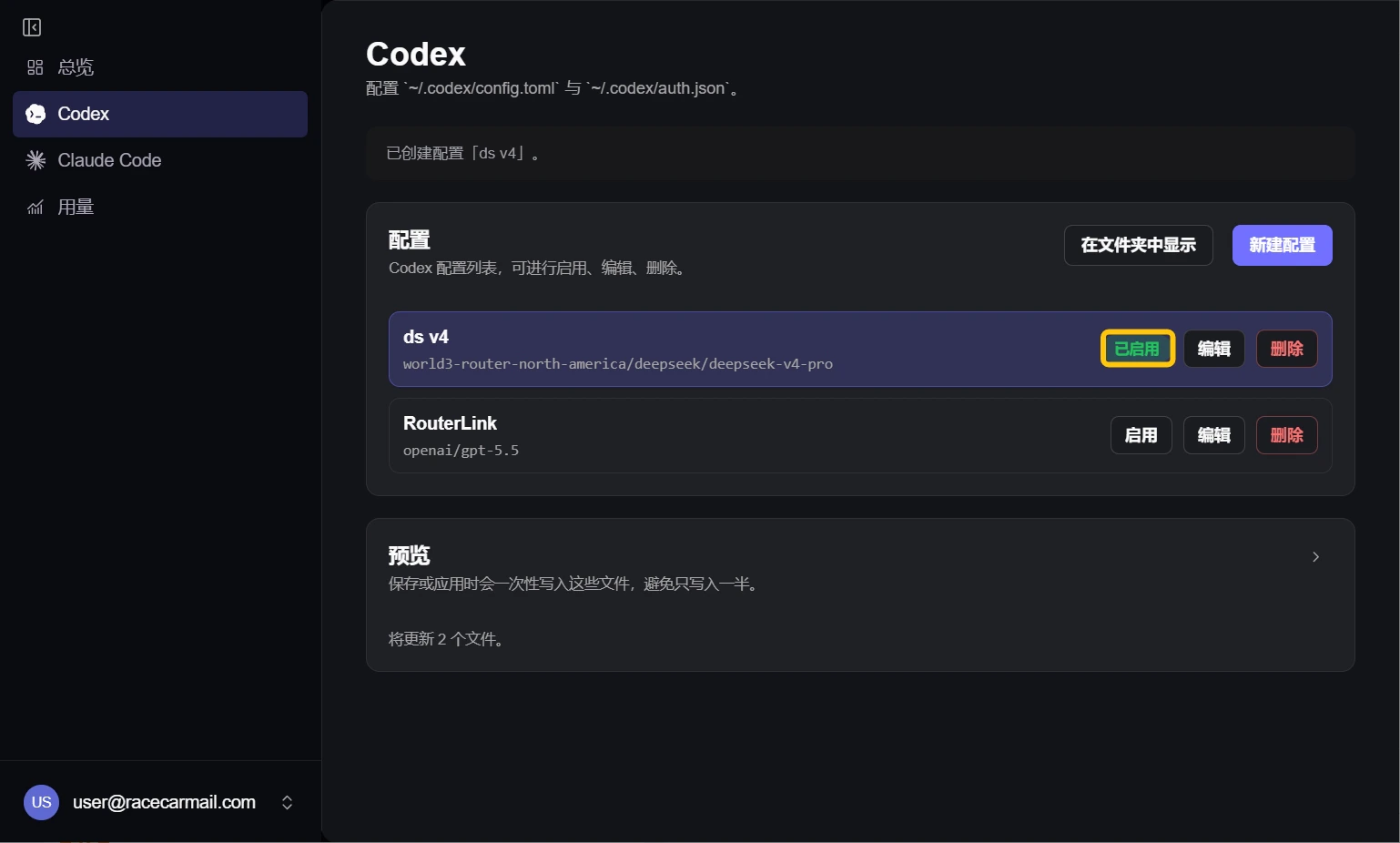
world3-router-north-america/deepseek/deepseek-v4-pro in the Codex model field.Troubleshooting
I’ve already configured Claude Code/Codex before. How can I switch back to my previous configuration?
I’ve already configured Claude Code/Codex before. How can I switch back to my previous configuration?
After launching RouterLink Starter, click Claude or Codex on the left sidebar, then select “default” under Configs and click “Enable”.
API Error: 402 You don't have enough $WAI Credits to complete this request.
API Error: 402 You don't have enough $WAI Credits to complete this request.
Your balance is insufficient. You can top up your account on the billing page. For more information: Price.
How do I update RouterLink Starter?
How do I update RouterLink Starter?
After launching RouterLink Starter, click your email address in the bottom-left corner, then go to Settings. On the right side, click “Check for updates” under Updates.