Documentation Index
Fetch the complete documentation index at: https://docs.routerlink.ai/llms.txt
Use this file to discover all available pages before exploring further.
This documentation is provided for informational purposes only and demonstrates how to configure and use our API with third-party AI chat interfaces. Any third-party software, websites, or services mentioned are not operated, controlled, or endorsed by us.
Introduction to LobeChat
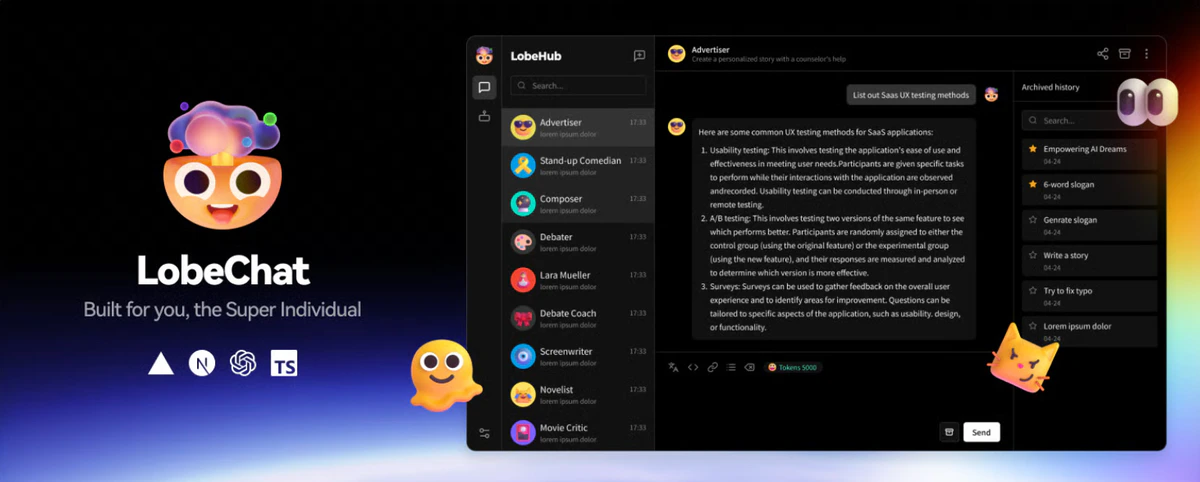
- Multi-provider model support via OpenRouter protocol
- Plugin ecosystem for extended functionality
- Customizable conversation management
- Cross-platform accessibility
Step
Access LobeChat
Navigate to https://lobechat.com and authenticate using your preferred sign-in method (e.g., GitHub, Google, or email).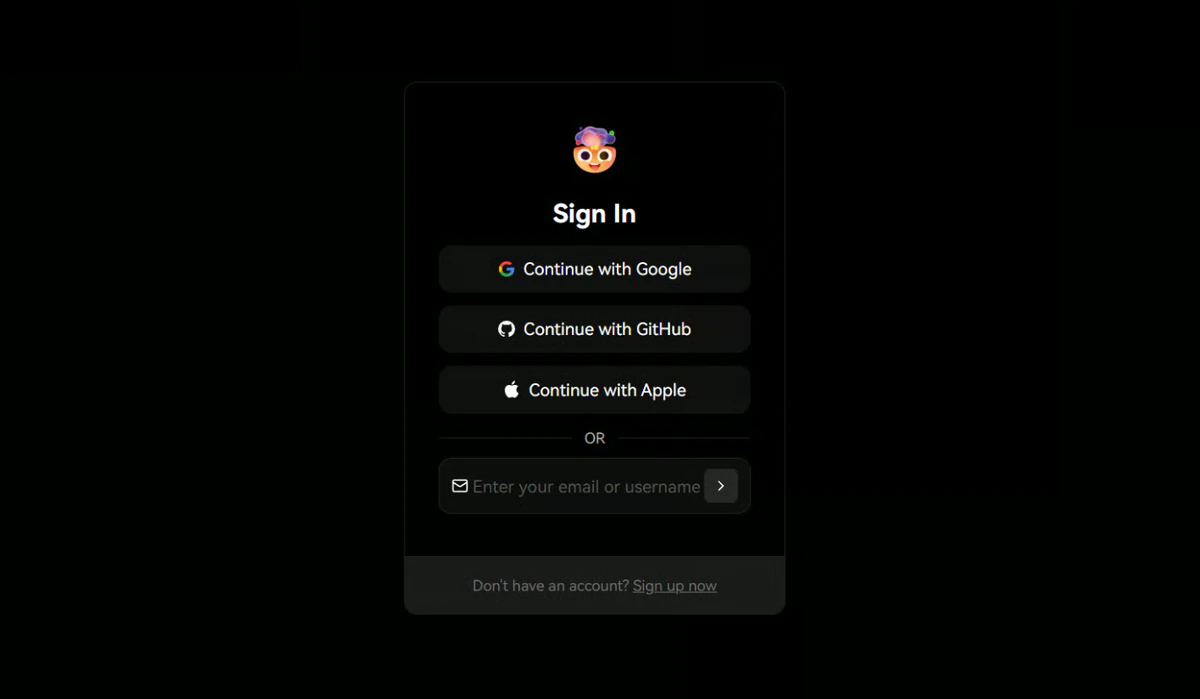
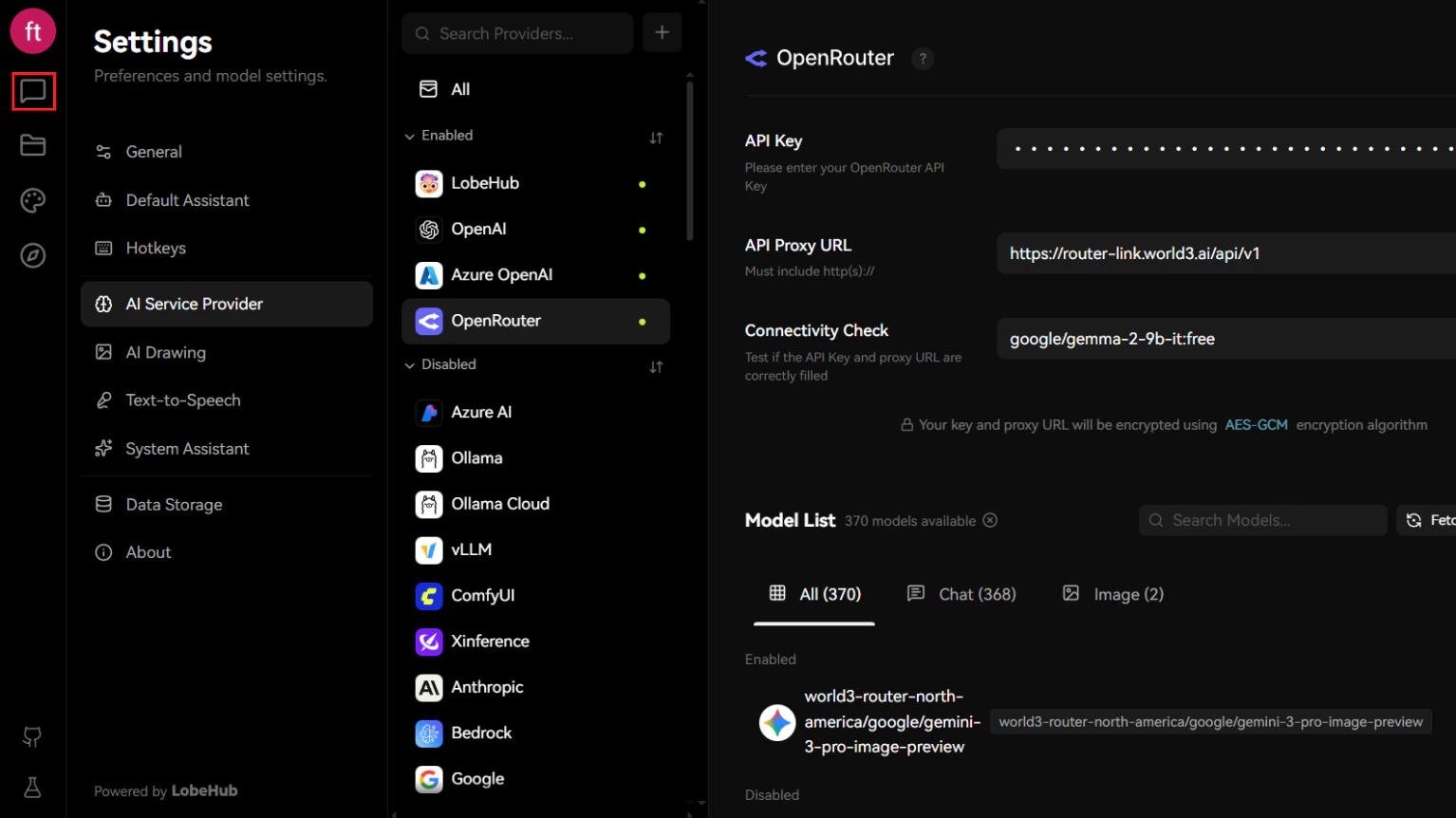
Navigate to AI Service Provider Settings
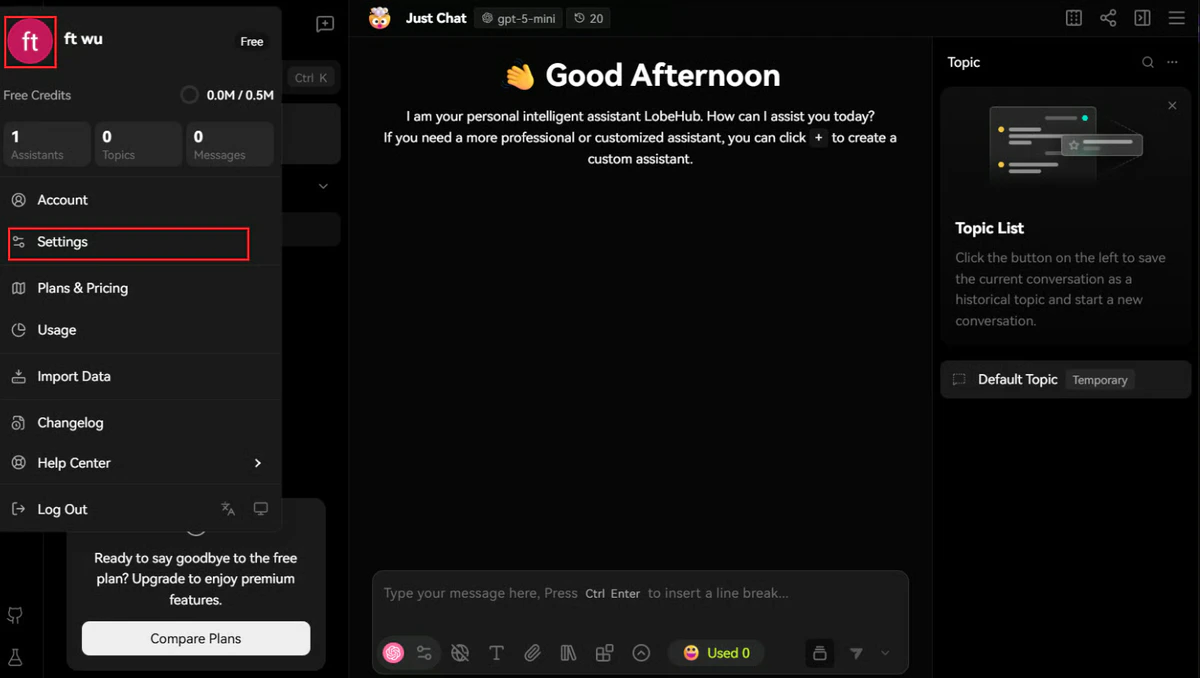
- Locate and click your user avatar in the top-left corner of the interface.
- Select “Settings” from the dropdown menu.
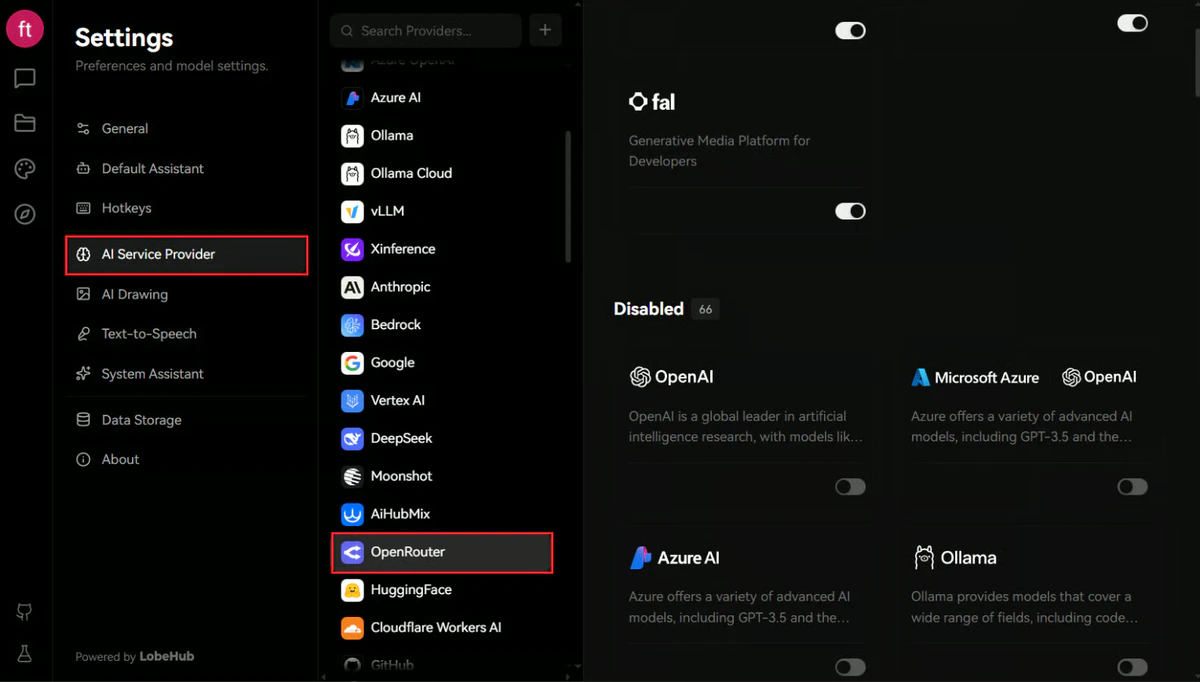
- In the Settings panel, navigate to “AI Service Provider” in the left sidebar.
- Scroll down and locate the OpenRouter provider option.
Configure RouterLink API Connection
Configure the OpenRouter provider with your RouterLink credentials: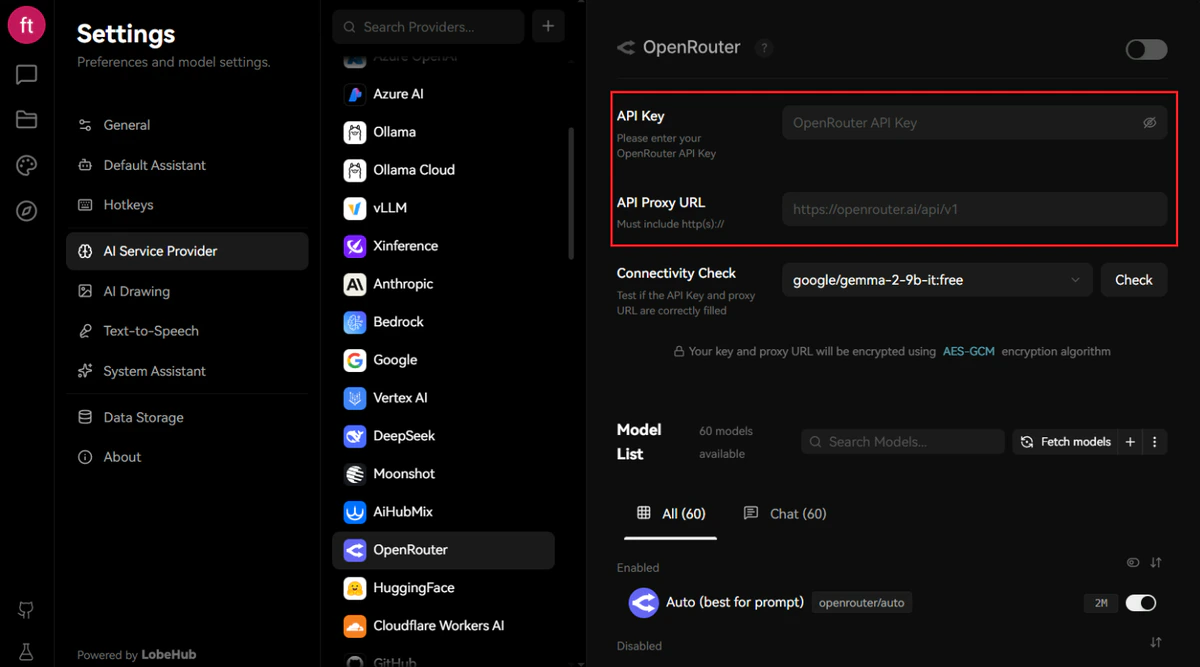
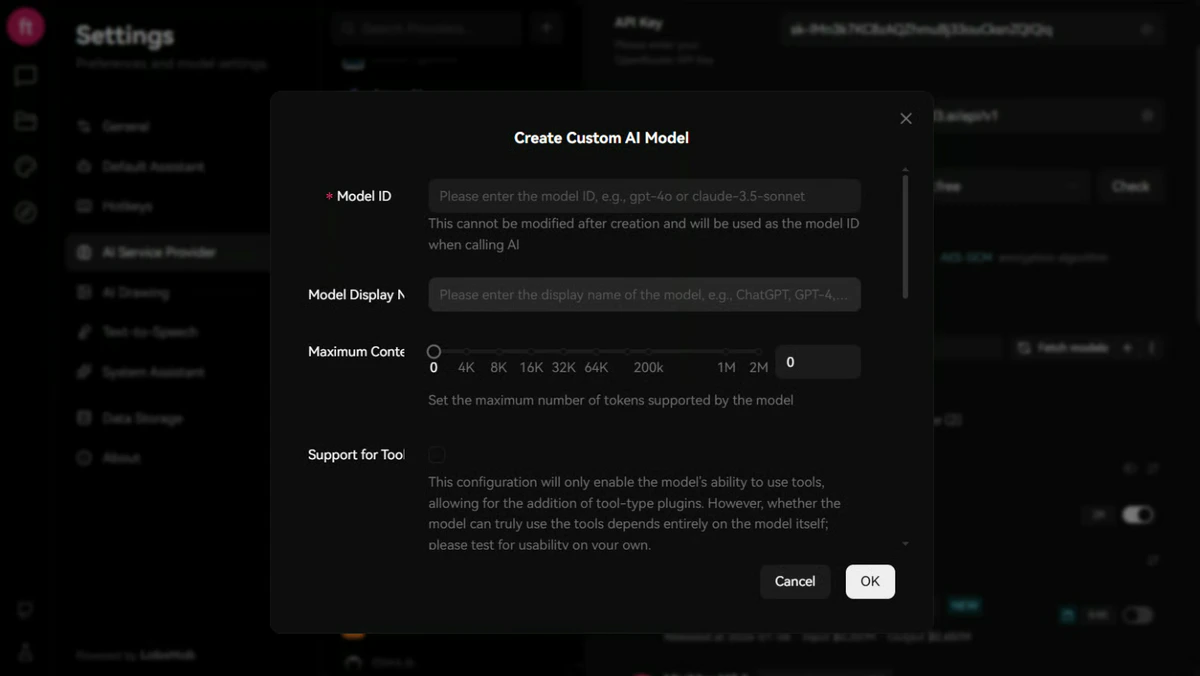
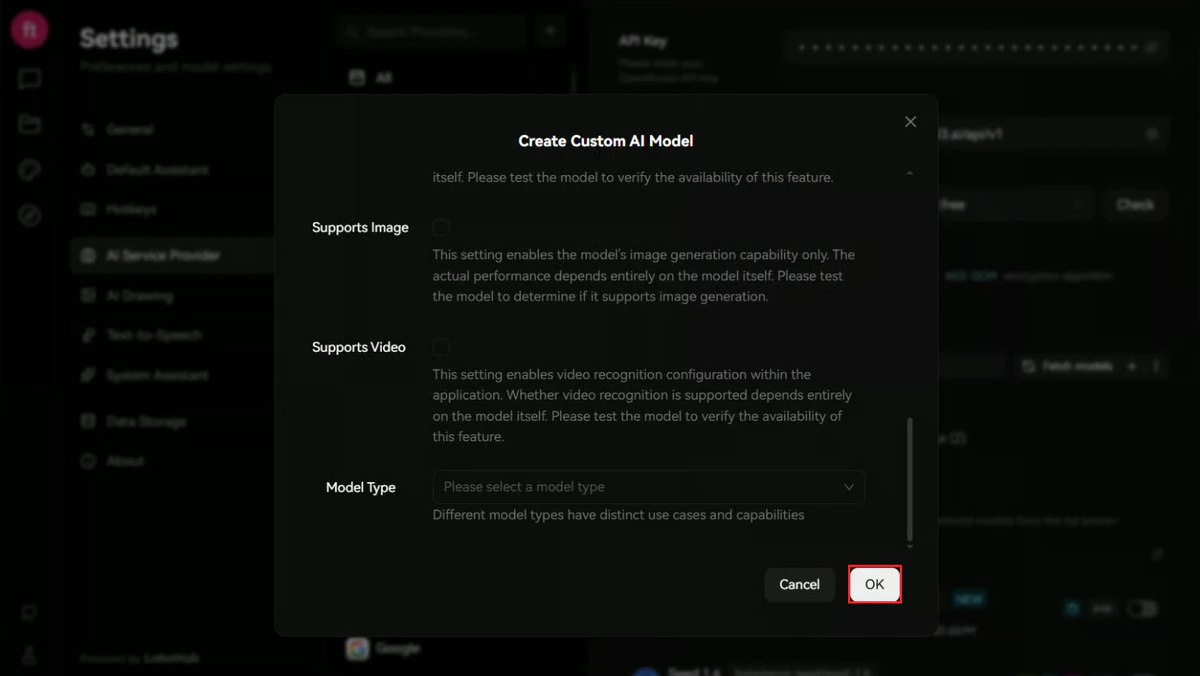
After entering the credentials, click the ”+” button adjacent to “Fetch Models” to add a custom model configuration.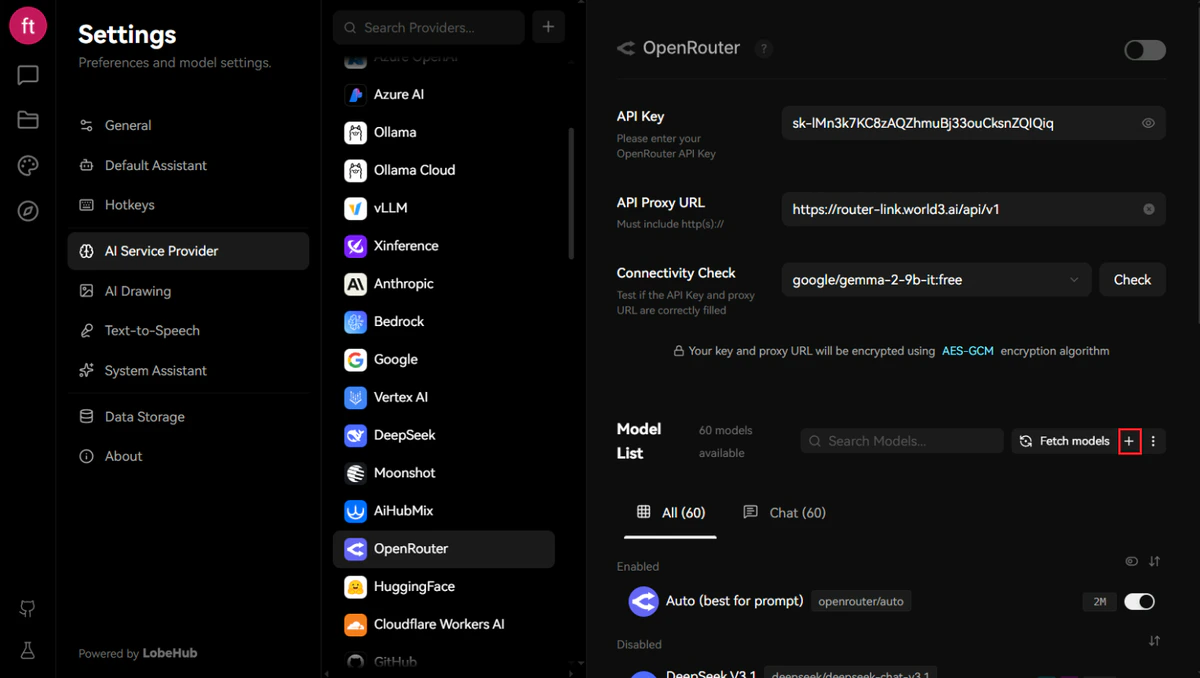
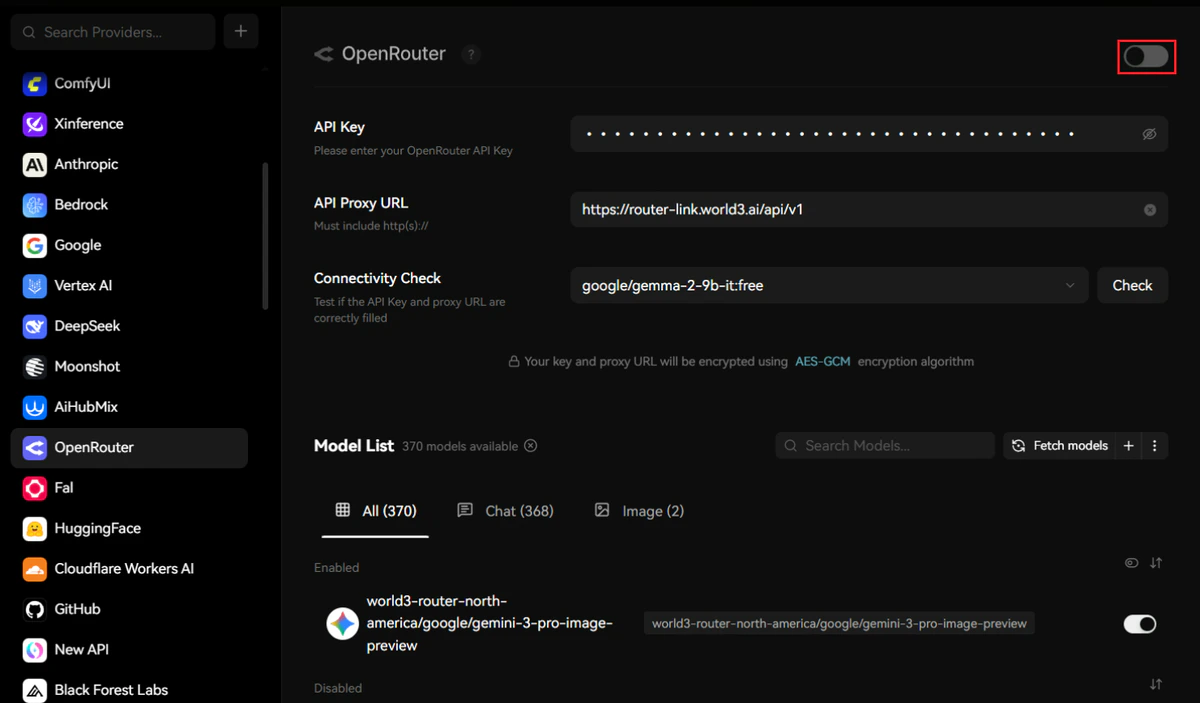
| Field | Content |
|---|---|
| API Key | Obtain one from RouterLInk API |
| API Proxy URL | https://router-link.world3.ai/api/v1 |
Model Registration
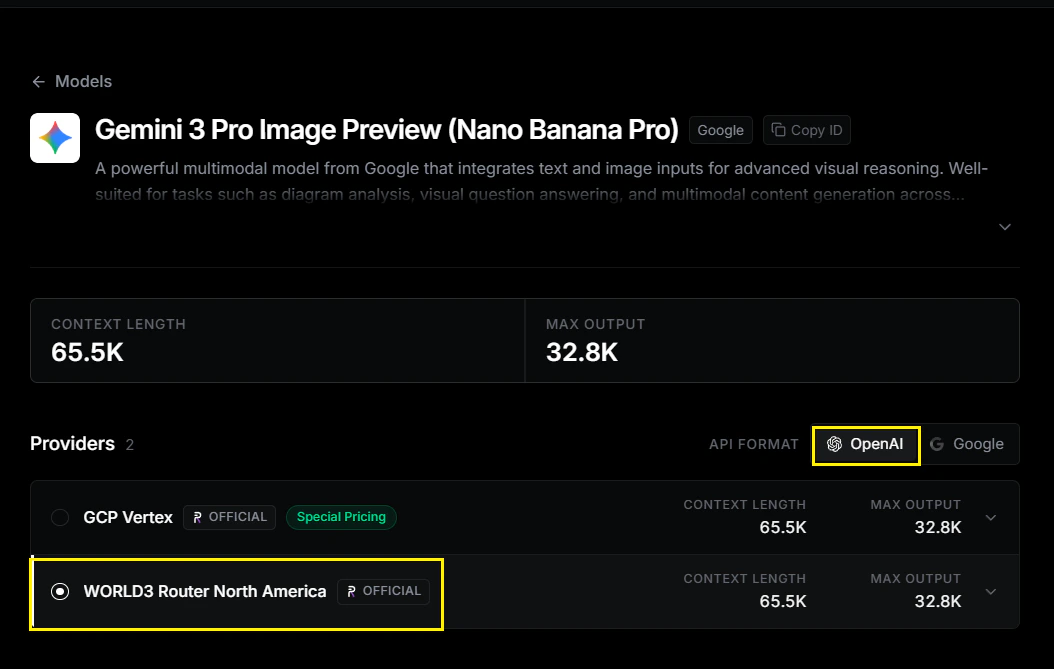
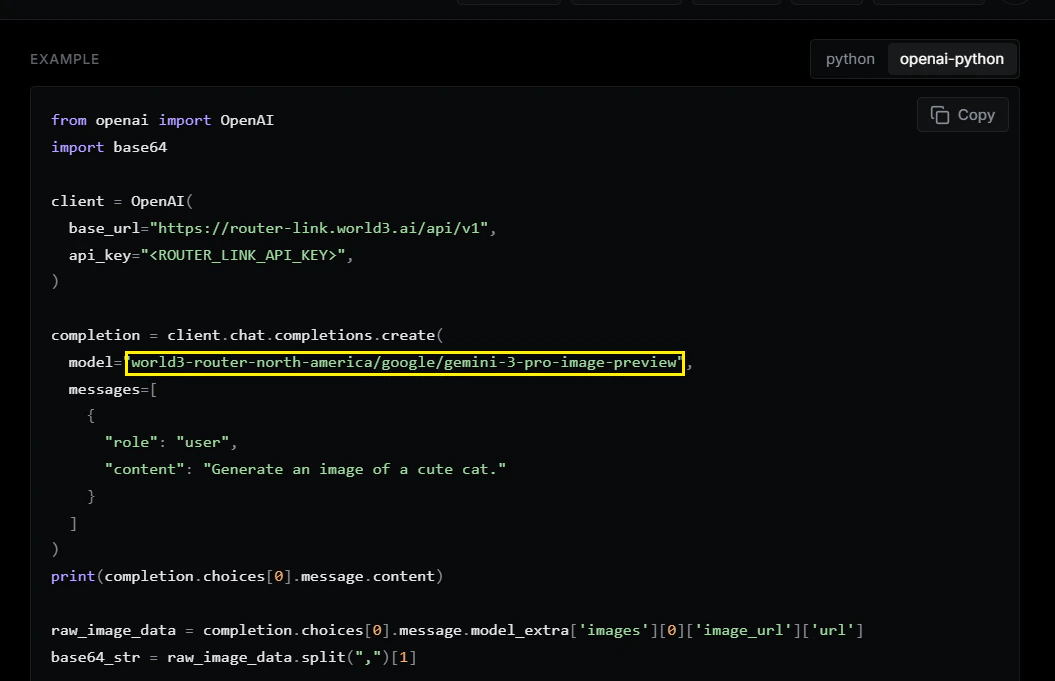
Specify the model you wish to utilize. This example demonstrates configuration for Gemini 3 Pro Image Preview.For optimal compatibility, please select API format: OpenAI.
Provider: world3-router-north-america
world3-router-north-america/google/gemini-3-pro-image-previewEnable the Provider
Toggle the OpenRouter master switch in the top-right corner to enable the provider connection.Initiate a Conversation
- Click “Chat” in the top-left navigation area to access the conversation interface.
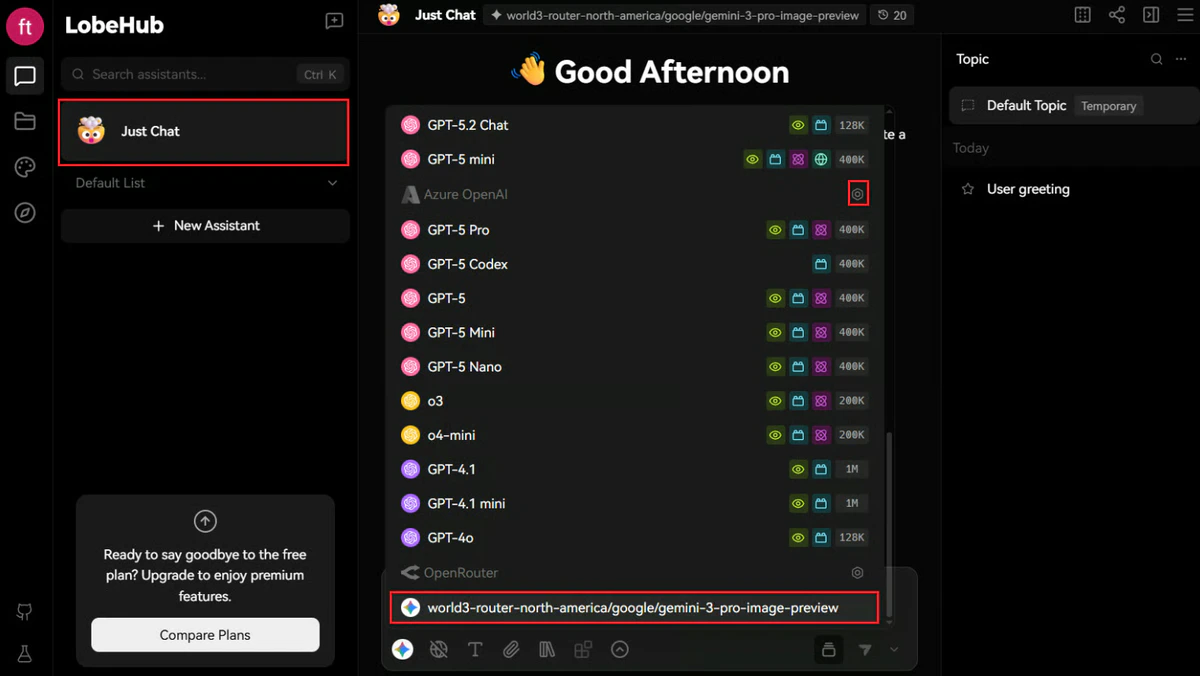
- Select “Just Chat” and choose your configured OpenRouter model from the model selector.
To streamline model selection, navigate to Settings and disable unused model providers, leaving only your RouterLink-configured models active.
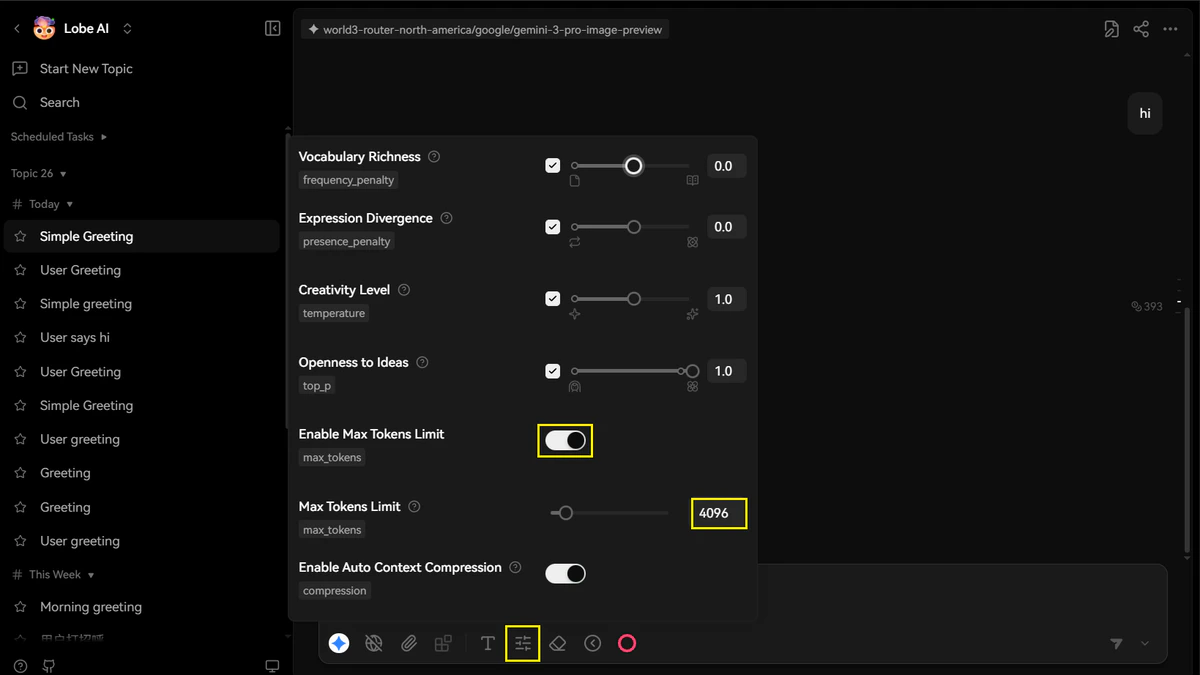
- If you are using the free daily WORLD3 credits, please set the max tokens to ensure the service works properly (for example, set it to 4096).
Troubleshooting
| Issue | Solution |
|---|---|
| Authentication failed | Verify your API key is correctly copied without leading/trailing spaces |
| Model not responding | Confirm the model ID matches the exact format from the RouterLink documentation |
| Connection timeout | Check your network connectivity and ensure the API Proxy URL is correct |