> ## Documentation Index
> Fetch the complete documentation index at: https://docs.routerlink.ai/llms.txt
> Use this file to discover all available pages before exploring further.
# OpenClaw
> 本文档仅供参考,演示如何配置我们的 API 与第三方 AI 聊天界面配合使用。文中提及的任何第三方软件、网站或服务均非由我们运营、控制或背书。
# **OpenClaw 简介**
 [OpenClaw](https://openclaw.ai/) 是一款运行在你自己的设备上的 个人 AI 助手。它能够通过你日常使用的渠道(WhatsApp、Telegram、Slack、Discord、Google Chat、Signal、iMessage、BlueBubbles、IRC、Microsoft Teams、Matrix、飞书、LINE、Mattermost、Nextcloud Talk、Nostr、Synology Chat、Tlon、Twitch、Zalo、Zalo Personal、微信、WebChat)回答你的问题。它可以在 macOS / iOS / Android 上进行语音输入与输出,还能渲染一个由你掌控的实时 Canvas。Gateway 只是控制平面——产品本身就是这个助手。
**OpenClaw** 核心特性:
* 可执行真实任务的自主 AI 智能体
* 自托管,数据完全可控
* 多渠道接入(Telegram、Slack、Web 等)
* 可扩展的技能 / 插件体系
* 支持多种 AI 模型
* 跨会话的持久记忆
* 专为自动化与工作流而生
# 步骤
OpenClaw 要求 Node >= 22.14,请先安装 [最新 LTS 版本的 Node.js](https://nodejs.org/en/download/)。
安装完成后,打开终端(Windows 用户使用 PowerShell)并检查版本号。
* macOS、Linux、Windows:
```shellscript theme={null}
node -v
```
如果无法正常显示版本号,请搜索相关问题,并确认你的系统版本未过旧。
> **Windows** 用户可能出现因为数字签名而无法运行脚本的问题,请运行如下命令:
>
> ```powershell theme={null}
> Set-ExecutionPolicy -Scope CurrentUser -ExecutionPolicy RemoteSigned -Force
> ```
安装 OpenClaw:
```shellscript theme={null}
npm install -g openclaw@latest
```
> **Windows** 用户可能出现因为缺少 VC 运行库而无法运行的问题,请下载并安装[此软件](https://aka.ms/vs/17/release/vc_redist.x64.exe)。
打开终端,运行以下命令开始配置。
```shellscript theme={null}
openclaw onboard
```
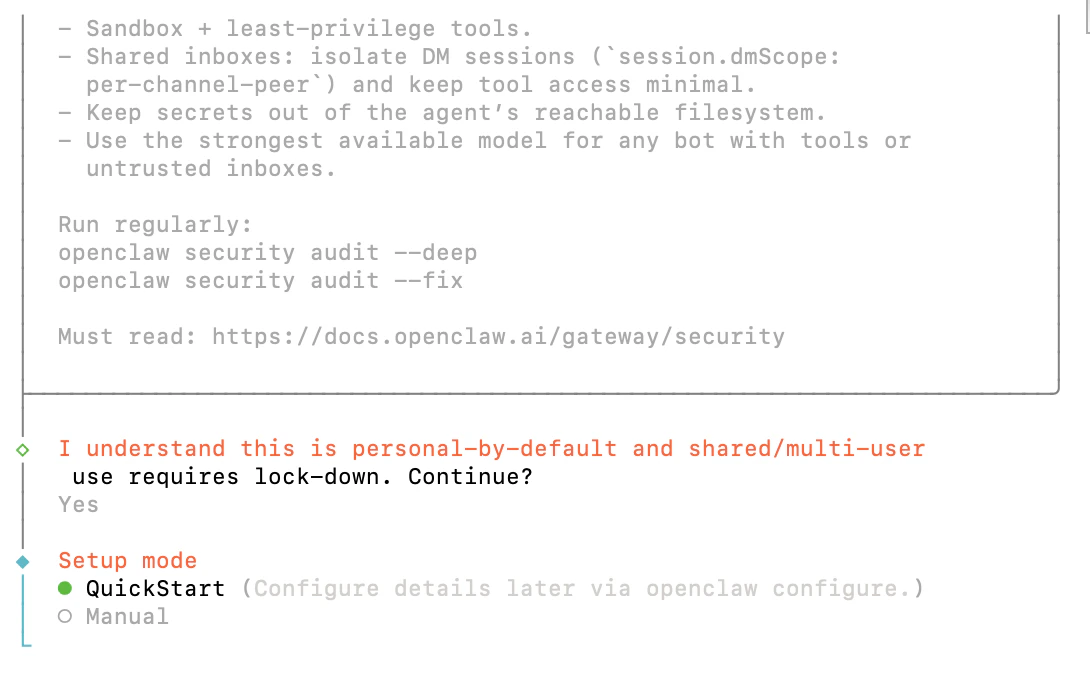
选择 "Yes"、"QuickStart"。
[OpenClaw](https://openclaw.ai/) 是一款运行在你自己的设备上的 个人 AI 助手。它能够通过你日常使用的渠道(WhatsApp、Telegram、Slack、Discord、Google Chat、Signal、iMessage、BlueBubbles、IRC、Microsoft Teams、Matrix、飞书、LINE、Mattermost、Nextcloud Talk、Nostr、Synology Chat、Tlon、Twitch、Zalo、Zalo Personal、微信、WebChat)回答你的问题。它可以在 macOS / iOS / Android 上进行语音输入与输出,还能渲染一个由你掌控的实时 Canvas。Gateway 只是控制平面——产品本身就是这个助手。
**OpenClaw** 核心特性:
* 可执行真实任务的自主 AI 智能体
* 自托管,数据完全可控
* 多渠道接入(Telegram、Slack、Web 等)
* 可扩展的技能 / 插件体系
* 支持多种 AI 模型
* 跨会话的持久记忆
* 专为自动化与工作流而生
# 步骤
OpenClaw 要求 Node >= 22.14,请先安装 [最新 LTS 版本的 Node.js](https://nodejs.org/en/download/)。
安装完成后,打开终端(Windows 用户使用 PowerShell)并检查版本号。
* macOS、Linux、Windows:
```shellscript theme={null}
node -v
```
如果无法正常显示版本号,请搜索相关问题,并确认你的系统版本未过旧。
> **Windows** 用户可能出现因为数字签名而无法运行脚本的问题,请运行如下命令:
>
> ```powershell theme={null}
> Set-ExecutionPolicy -Scope CurrentUser -ExecutionPolicy RemoteSigned -Force
> ```
安装 OpenClaw:
```shellscript theme={null}
npm install -g openclaw@latest
```
> **Windows** 用户可能出现因为缺少 VC 运行库而无法运行的问题,请下载并安装[此软件](https://aka.ms/vs/17/release/vc_redist.x64.exe)。
打开终端,运行以下命令开始配置。
```shellscript theme={null}
openclaw onboard
```
选择 "Yes"、"QuickStart"。
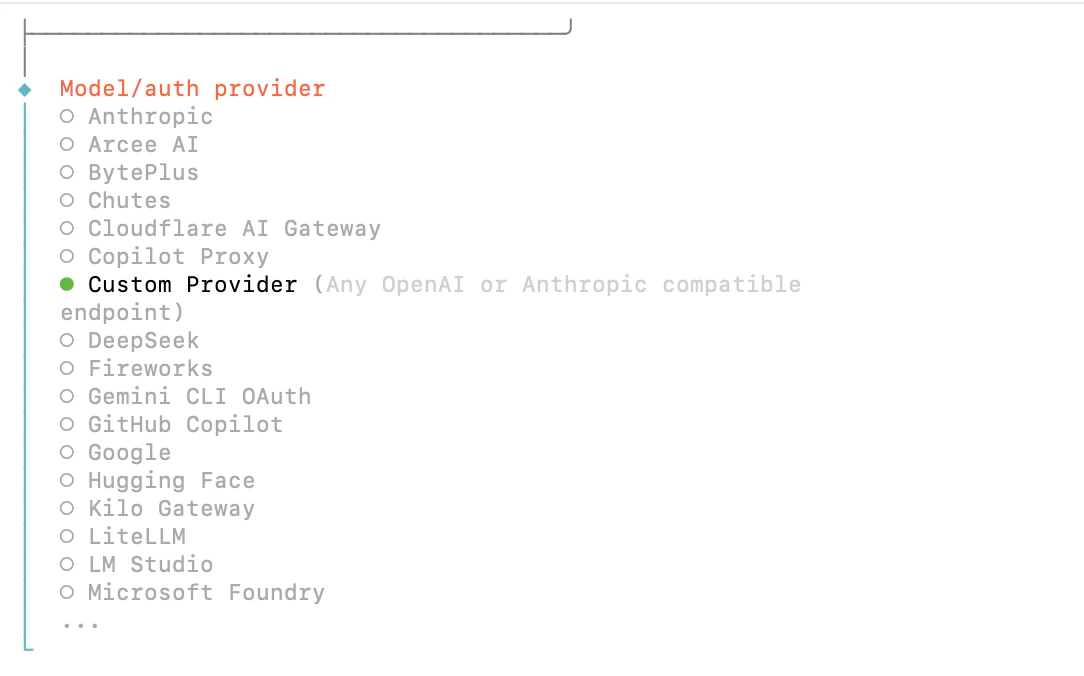
 选择 "Custom Provider"。
 以下是同时兼容 Anthropic 与 OpenAI 协议的示例模型配置。
**Claude Opus 4.7**
| 字段 | 内容 |
| ---------------------- | ---------------------------------------------------------------------- |
| API Base URL | [https://router-link.world3.ai/api](https://router-link.world3.ai/api) |
| API Key | 在 [RouterLink Key](https://routerlink.ai/settings/api-keys) 获取 |
| Endpoint compatibility | Anthropic-compatible |
| Model ID | claude-opus-4-7 |
**GPT-5.3-Codex**
| 字段 | 内容 |
| :--------------------- | :------------------------------------------------------------------------------- |
| API Base URL | [**https://router-link.world3.ai/api/v1**](https://router-link.world3.ai/api/v1) |
| API Key | 在 [RouterLink Key](https://routerlink.ai/settings/api-keys) 获取 |
| Endpoint compatibility | OpenAI-compatible |
| Model ID | gpt-5.5 |
**Gemini 3.1 Pro Preview**
| 字段 | 内容 |
| :--------------------- | :------------------------------------------------------------------------------- |
| API Base URL | [**https://router-link.world3.ai/api/v1**](https://router-link.world3.ai/api/v1) |
| API Key | 在 [RouterLink Key](https://routerlink.ai/settings/api-keys) 获取 |
| Endpoint compatibility | OpenAI-compatible |
| Model ID | gemini-3.1-pro-preview |
以下是同时兼容 Anthropic 与 OpenAI 协议的示例模型配置。
**Claude Opus 4.7**
| 字段 | 内容 |
| ---------------------- | ---------------------------------------------------------------------- |
| API Base URL | [https://router-link.world3.ai/api](https://router-link.world3.ai/api) |
| API Key | 在 [RouterLink Key](https://routerlink.ai/settings/api-keys) 获取 |
| Endpoint compatibility | Anthropic-compatible |
| Model ID | claude-opus-4-7 |
**GPT-5.3-Codex**
| 字段 | 内容 |
| :--------------------- | :------------------------------------------------------------------------------- |
| API Base URL | [**https://router-link.world3.ai/api/v1**](https://router-link.world3.ai/api/v1) |
| API Key | 在 [RouterLink Key](https://routerlink.ai/settings/api-keys) 获取 |
| Endpoint compatibility | OpenAI-compatible |
| Model ID | gpt-5.5 |
**Gemini 3.1 Pro Preview**
| 字段 | 内容 |
| :--------------------- | :------------------------------------------------------------------------------- |
| API Base URL | [**https://router-link.world3.ai/api/v1**](https://router-link.world3.ai/api/v1) |
| API Key | 在 [RouterLink Key](https://routerlink.ai/settings/api-keys) 获取 |
| Endpoint compatibility | OpenAI-compatible |
| Model ID | gemini-3.1-pro-preview |
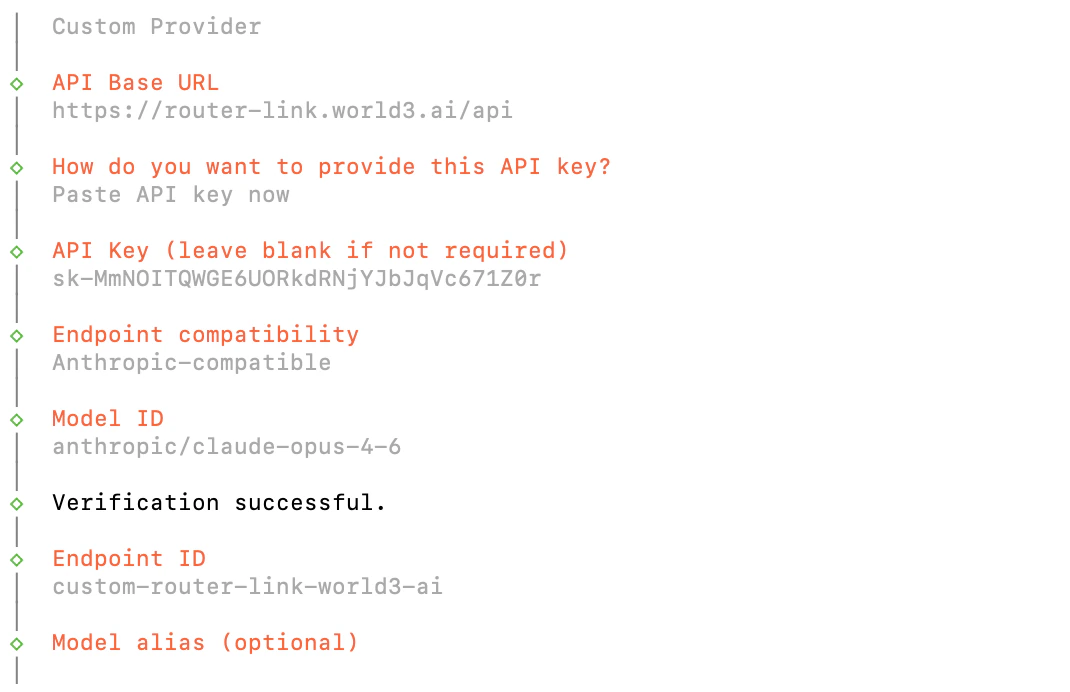 你可以基于以上示例添加其他 [模型](https://routerlink.ai/models):
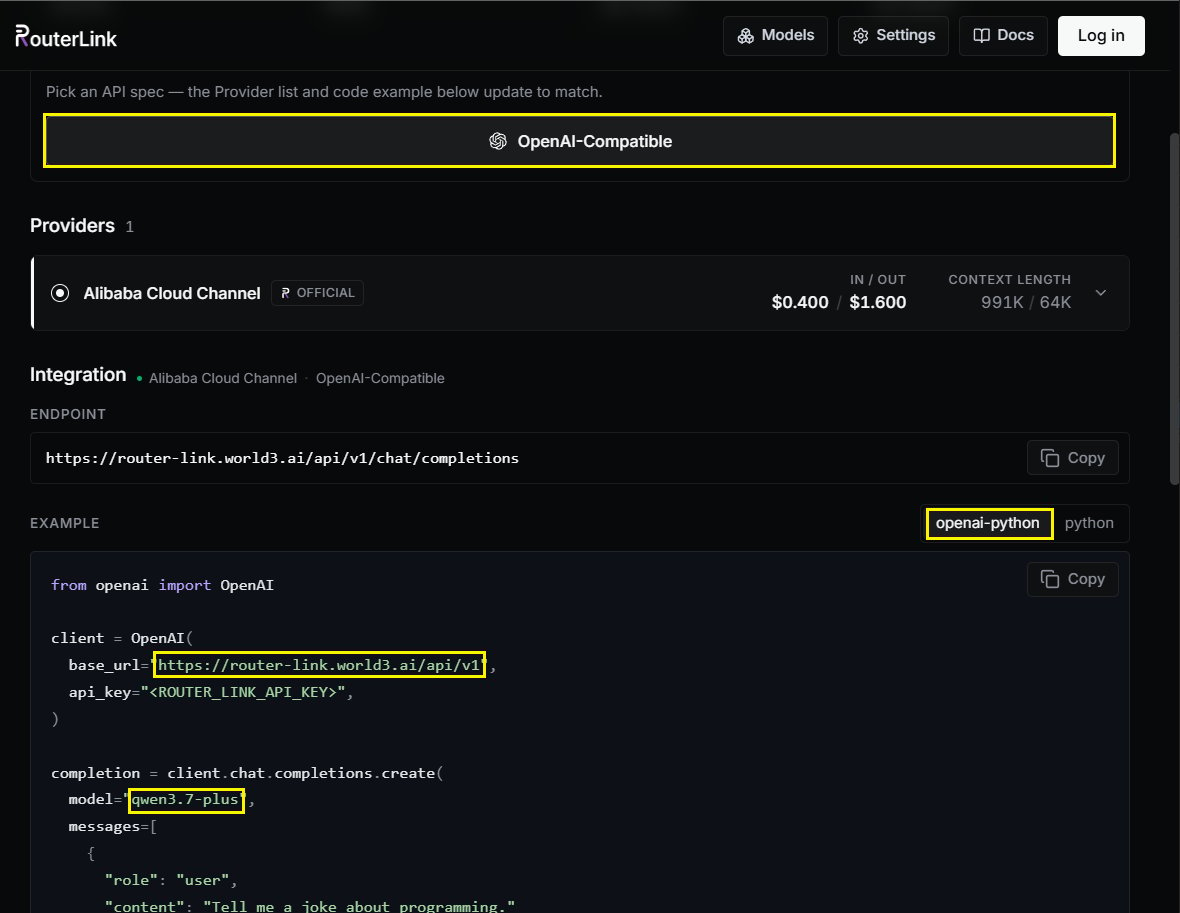 接下来,可以根据你的需求继续完成配置。
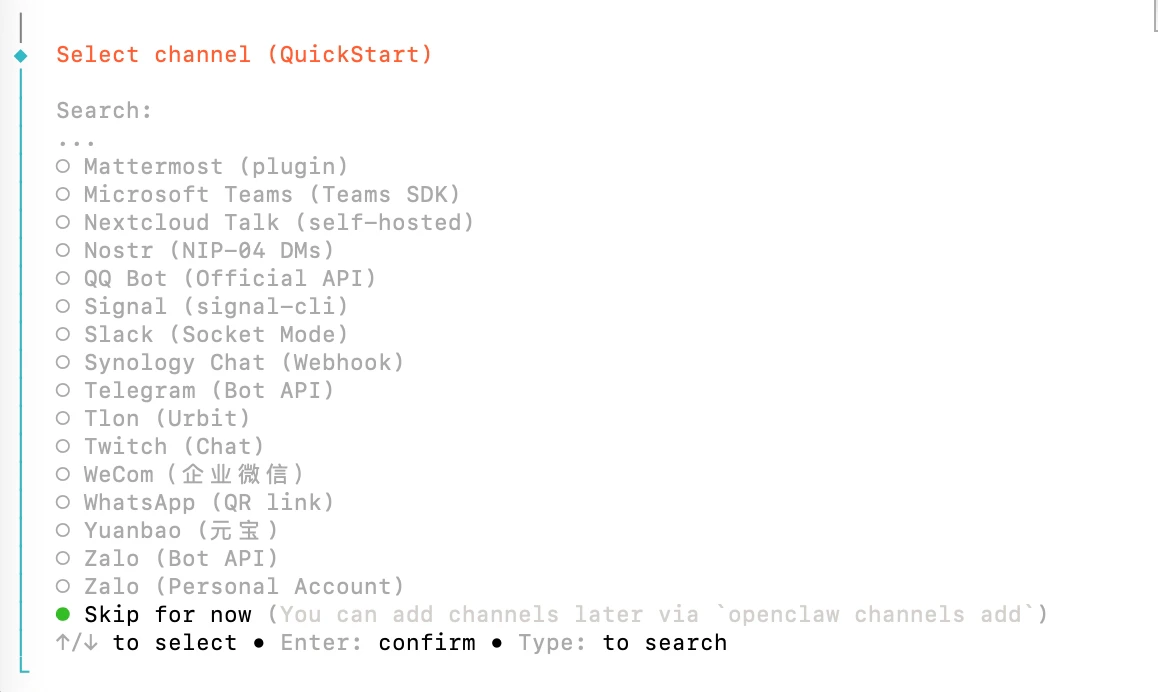 运行:
```shellscript theme={null}
openclaw gateway
```
确认 Gateway 正在运行:
```shellscript theme={null}
openclaw gateway status
```
你应当看到 Gateway 监听在端口 18789。
Open 仪表盘:
```shellscript theme={null}
openclaw dashboard
```
这会在浏览器中打开控制 UI。如果能正常加载,说明一切就绪。
发送你的第一条消息。
在控制 UI 的聊天框中输入消息,你应该会收到 AI 的回复。
运行:
```shellscript theme={null}
openclaw gateway
```
确认 Gateway 正在运行:
```shellscript theme={null}
openclaw gateway status
```
你应当看到 Gateway 监听在端口 18789。
Open 仪表盘:
```shellscript theme={null}
openclaw dashboard
```
这会在浏览器中打开控制 UI。如果能正常加载,说明一切就绪。
发送你的第一条消息。
在控制 UI 的聊天框中输入消息,你应该会收到 AI 的回复。
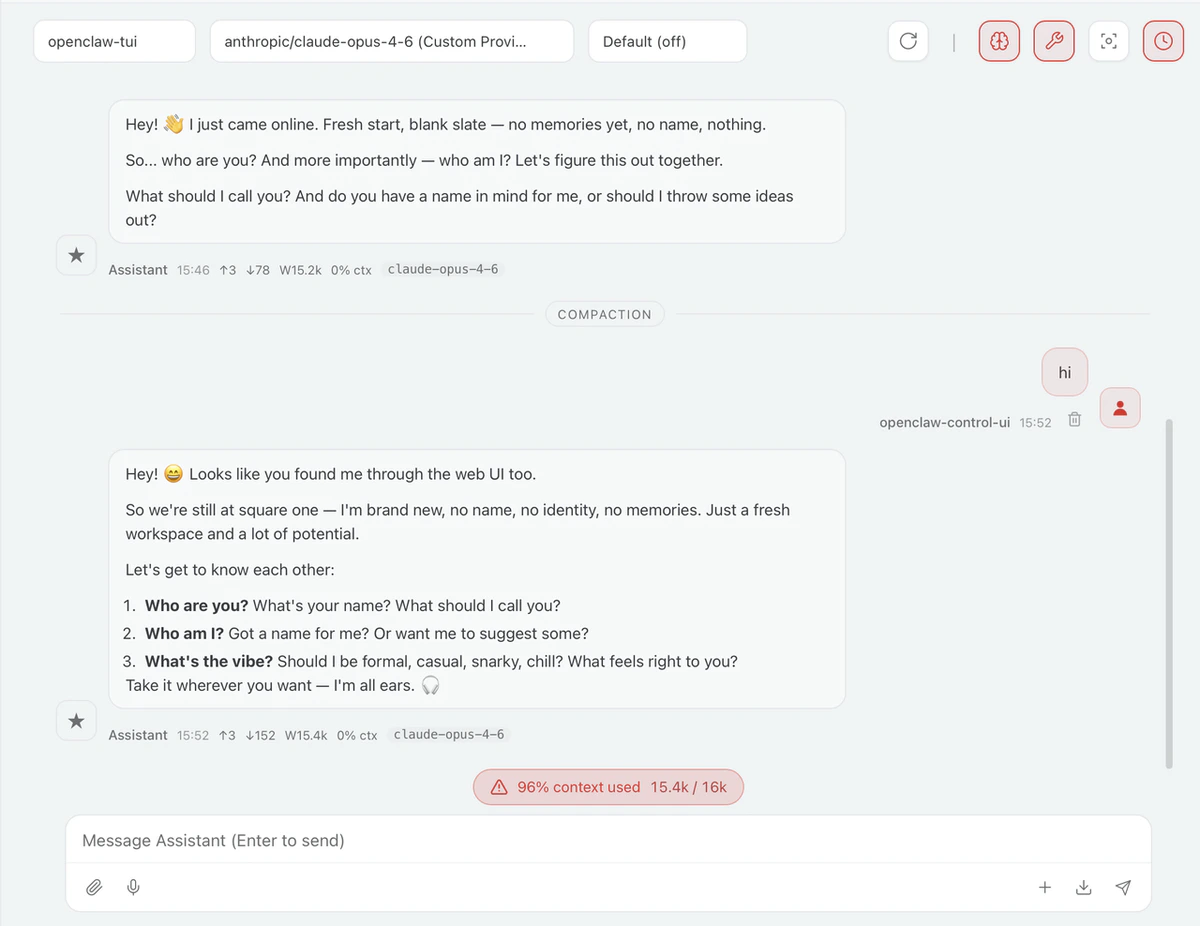 想从手机端使用?最快上手的渠道是 [Telegram](https://docs.openclaw.ai/channels/telegram)(只需一个 Bot Token)。完整渠道列表请参见 [Channels](https://docs.openclaw.ai/channels)。
# **常见问题**
再次运行:
```shellscript theme={null}
openclaw onboard
```
在 Config handling 中选择 **"Use existing values"**,然后在 **Custom Provider** 下添加你需要的新模型。
```shellscript theme={null}
openclaw gateway stop
openclaw gateway
openclaw dashboard
```
在终端中执行:
```shellscript theme={null}
openclaw update
```
请查看 [官方文档](https://docs.openclaw.ai/help/faq)。
想从手机端使用?最快上手的渠道是 [Telegram](https://docs.openclaw.ai/channels/telegram)(只需一个 Bot Token)。完整渠道列表请参见 [Channels](https://docs.openclaw.ai/channels)。
# **常见问题**
再次运行:
```shellscript theme={null}
openclaw onboard
```
在 Config handling 中选择 **"Use existing values"**,然后在 **Custom Provider** 下添加你需要的新模型。
```shellscript theme={null}
openclaw gateway stop
openclaw gateway
openclaw dashboard
```
在终端中执行:
```shellscript theme={null}
openclaw update
```
请查看 [官方文档](https://docs.openclaw.ai/help/faq)。