> ## Documentation Index
> Fetch the complete documentation index at: https://docs.routerlink.ai/llms.txt
> Use this file to discover all available pages before exploring further.
# LobeChat
> This documentation is provided for informational purposes only and demonstrates how to configure and use our API with third-party AI chat interfaces. Any third-party software, websites, or services mentioned are not operated, controlled, or endorsed by us.
# **Introduction to LobeChat**
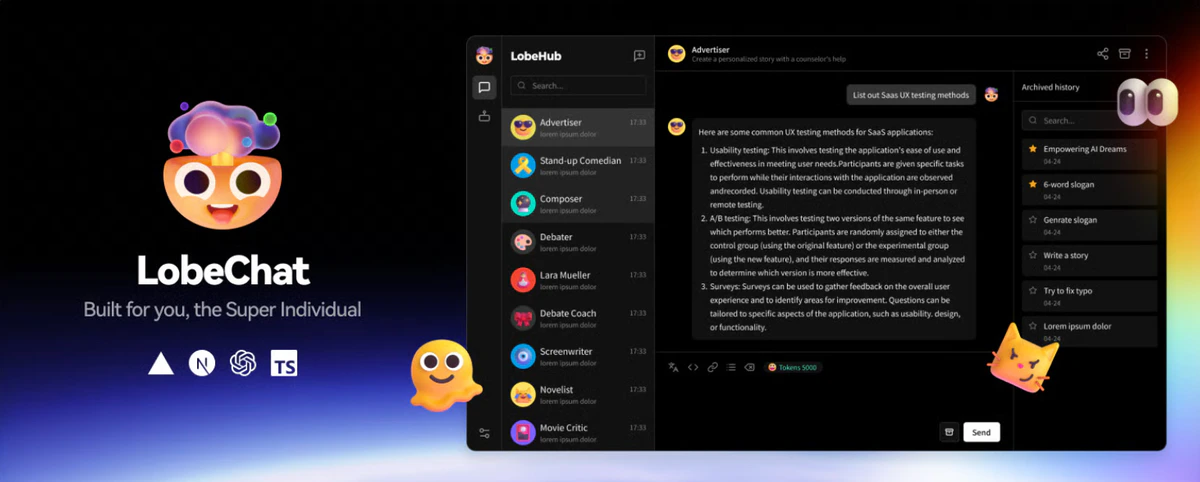 [**LobeChat**](https://lobechat.com) is an open-source, multi-modal AI chat platform and framework that serves as a unified interface for various large language models (LLMs). Designed as a personal AI "operating system," it enables users to access, orchestrate, and interact with different AI models and tools through a single, cohesive interface.
Key features include:
* Multi-provider model support via OpenRouter protocol
* Plugin ecosystem for extended functionality
* Customizable conversation management
* Cross-platform accessibility
# Step
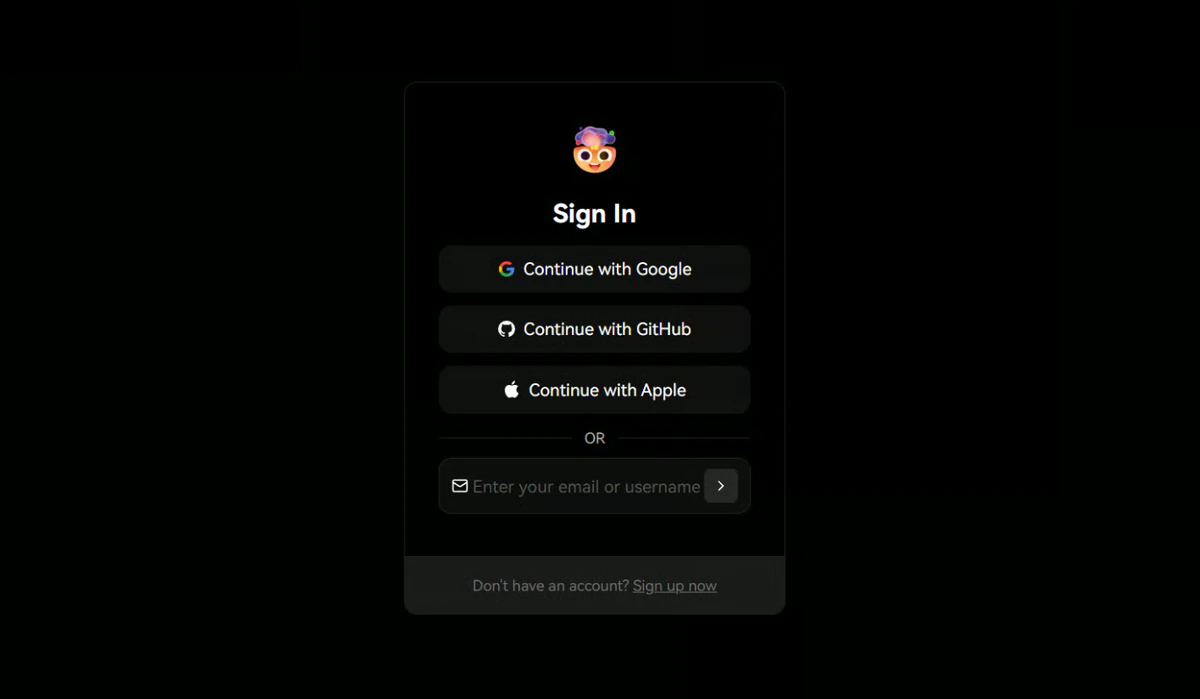
Navigate to [https://lobechat.com](https://lobechat.com) and authenticate using your preferred sign-in method (e.g., GitHub, Google, or email). Configure some account settings according to your own preferences.
[**LobeChat**](https://lobechat.com) is an open-source, multi-modal AI chat platform and framework that serves as a unified interface for various large language models (LLMs). Designed as a personal AI "operating system," it enables users to access, orchestrate, and interact with different AI models and tools through a single, cohesive interface.
Key features include:
* Multi-provider model support via OpenRouter protocol
* Plugin ecosystem for extended functionality
* Customizable conversation management
* Cross-platform accessibility
# Step
Navigate to [https://lobechat.com](https://lobechat.com) and authenticate using your preferred sign-in method (e.g., GitHub, Google, or email). Configure some account settings according to your own preferences.
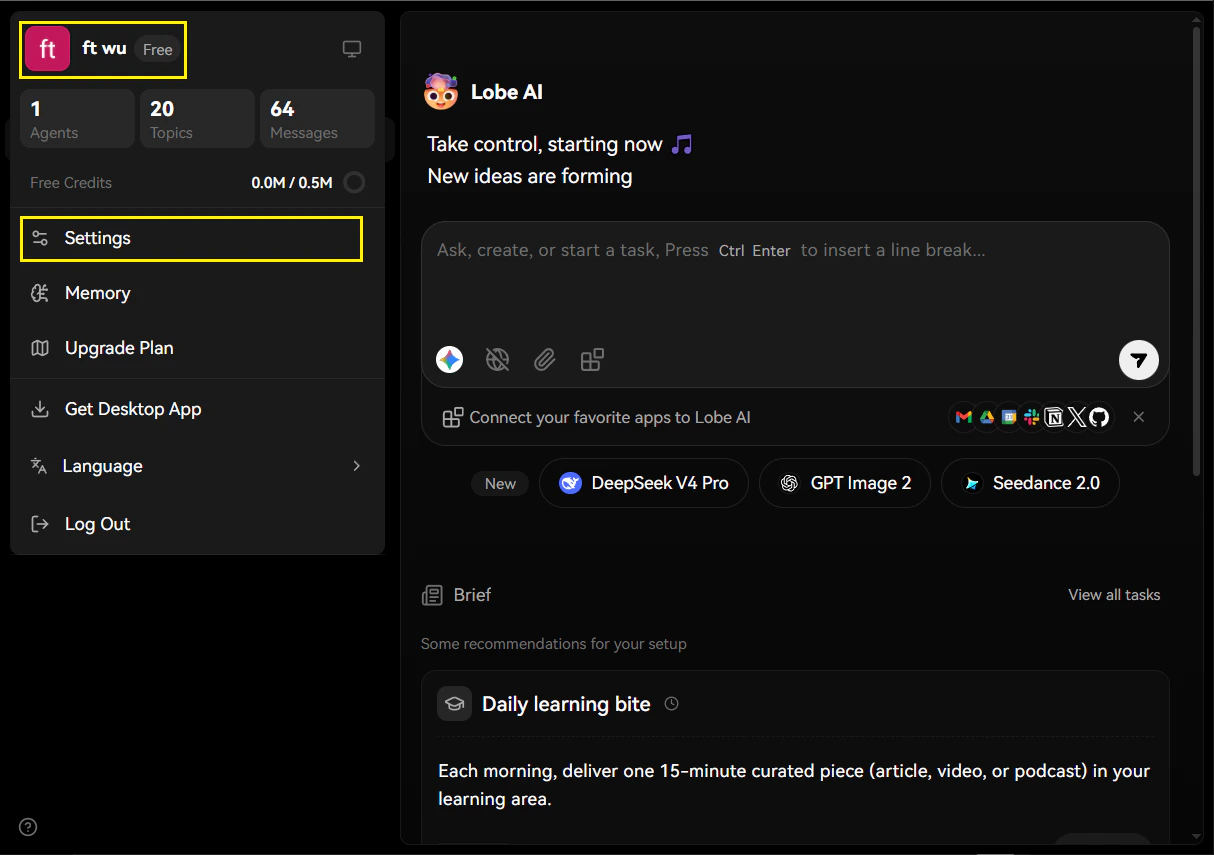
 1. Locate and click your **user avatar** in the top-left corner of the interface.
2. Select **"Settings"** from the dropdown menu.
1. Locate and click your **user avatar** in the top-left corner of the interface.
2. Select **"Settings"** from the dropdown menu.
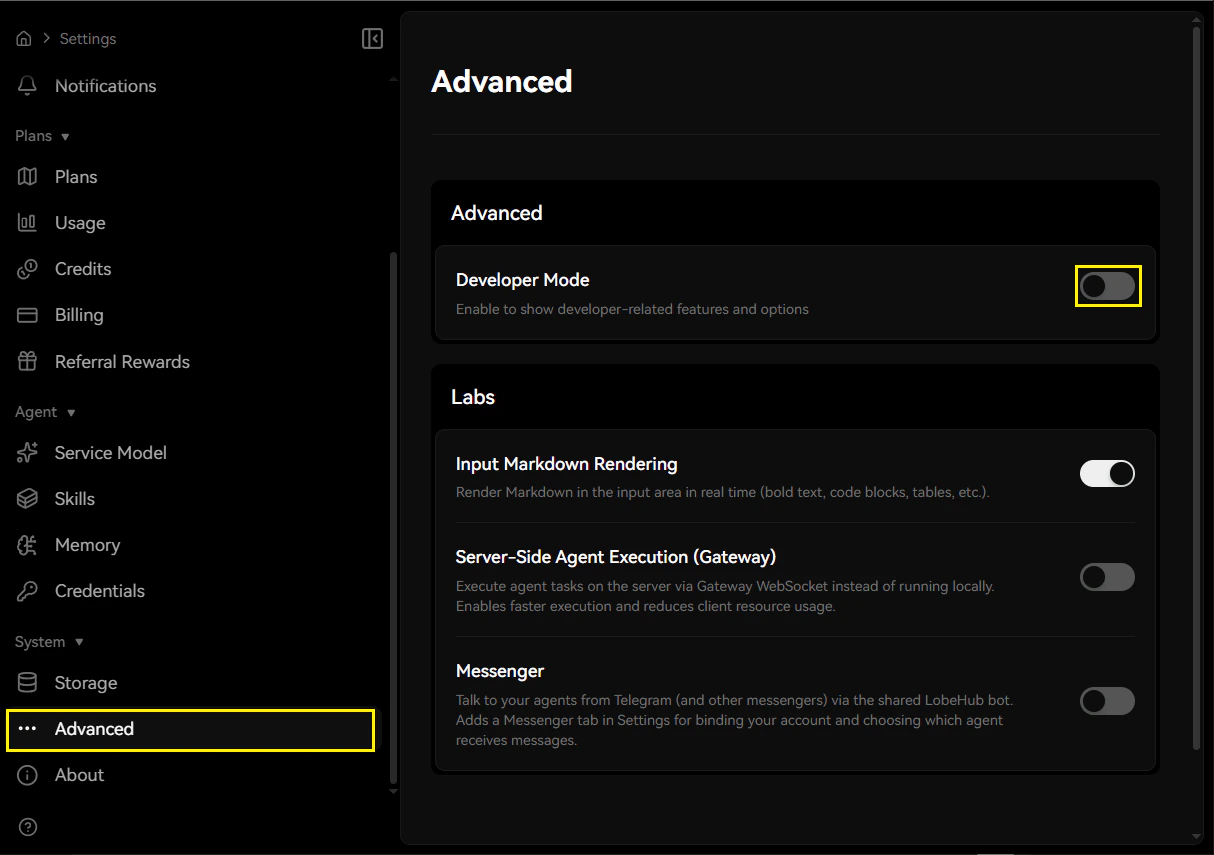
 3. In the Settings panel, navigate to **"Advanced"** in the bottom-left sidebar.
4. Enable Developer Mode.
3. In the Settings panel, navigate to **"Advanced"** in the bottom-left sidebar.
4. Enable Developer Mode.
 Click Provider → OpenRouter, then configure the API Key and API Proxy URL:
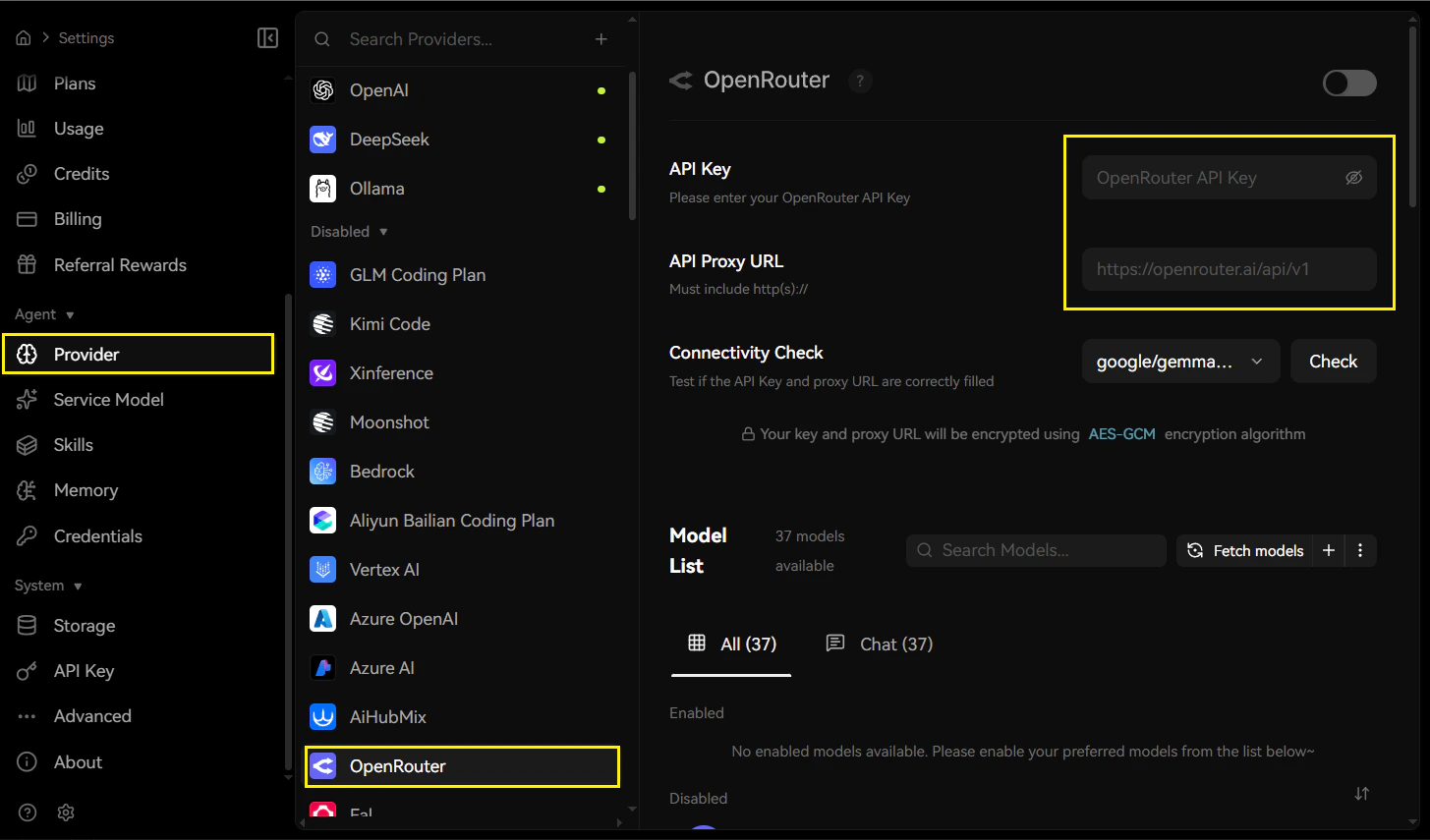 **API Configuration Parameters**
| Field | Content |
| ------------- | ---------------------------------------------------------------------------- |
| API Key | Obtain one from [RouterLInk](https://routerlink.ai/settings/api-keys) |
| API Proxy URL | [https://router-link.world3.ai/api/v1](https://router-link.world3.ai/api/v1) |
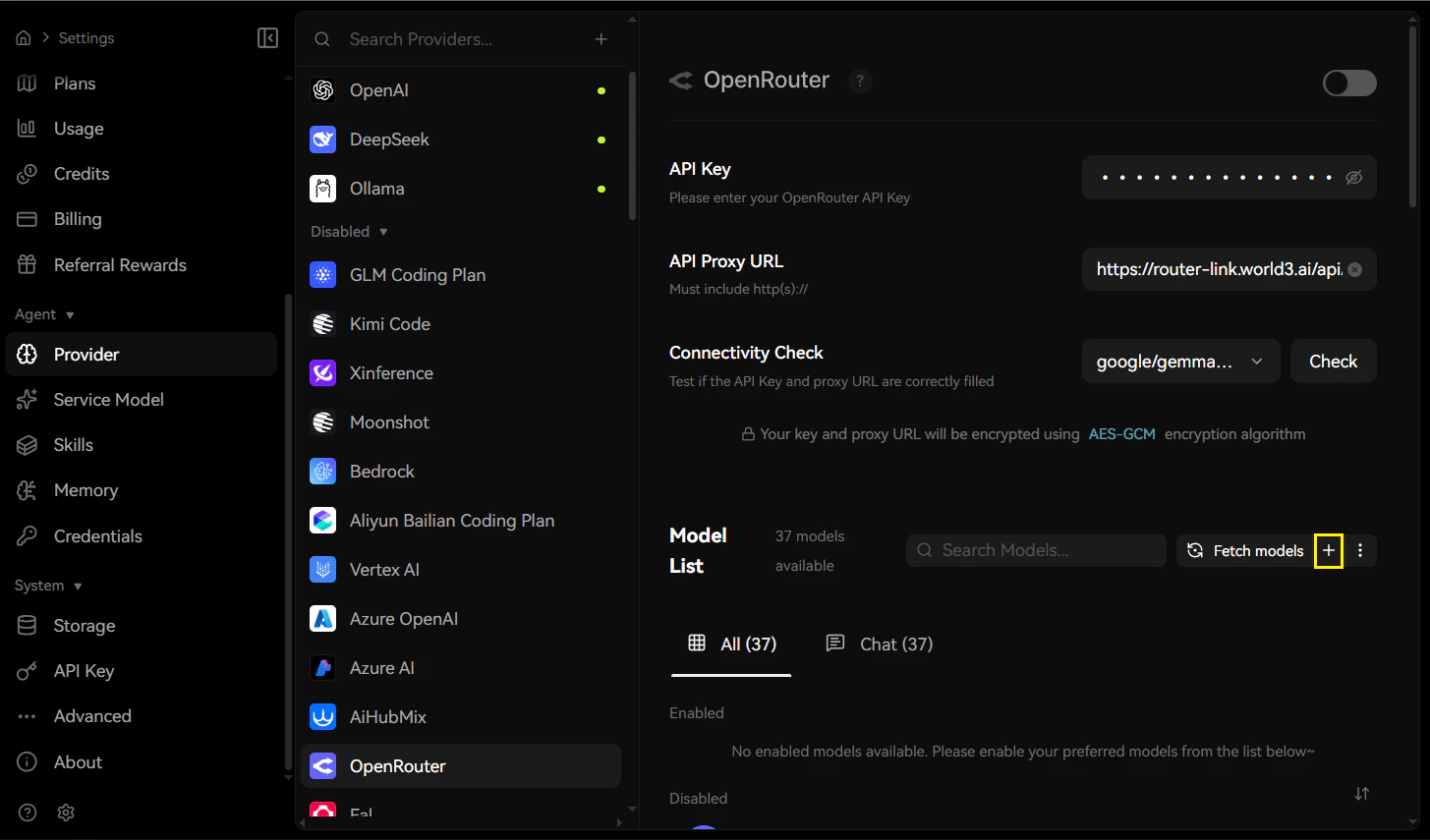
After entering the credentials, click the **"+"** button adjacent to add a custom model configuration.
**API Configuration Parameters**
| Field | Content |
| ------------- | ---------------------------------------------------------------------------- |
| API Key | Obtain one from [RouterLInk](https://routerlink.ai/settings/api-keys) |
| API Proxy URL | [https://router-link.world3.ai/api/v1](https://router-link.world3.ai/api/v1) |
After entering the credentials, click the **"+"** button adjacent to add a custom model configuration.
 #### **Model Registration**
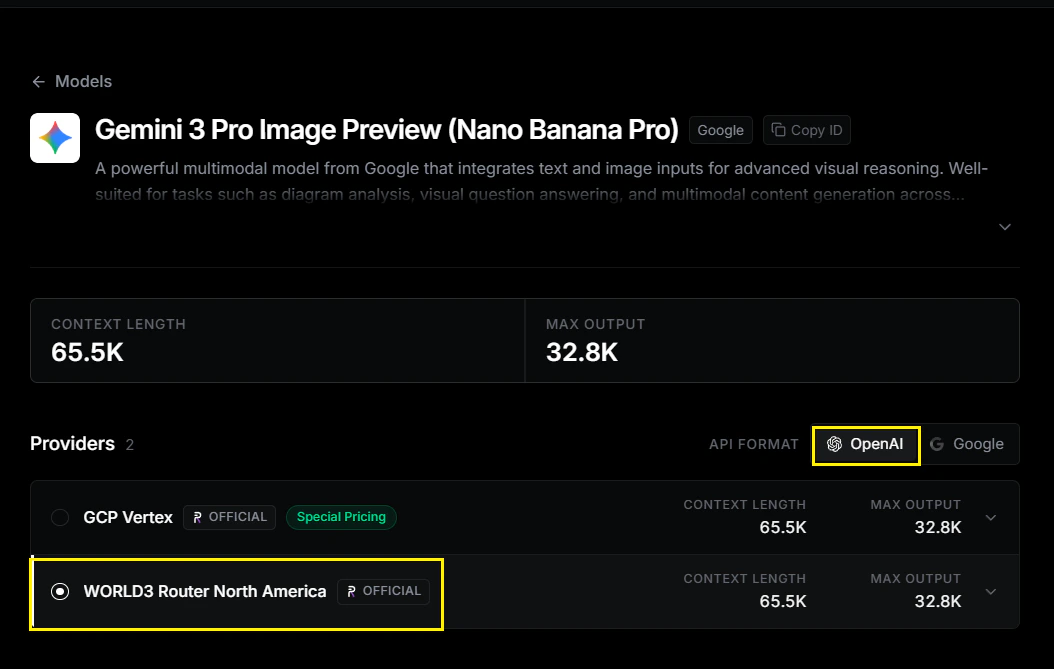
Specify the model you wish to utilize. This example demonstrates configuration for [**Gemini 3 Pro Image Preview**](https://routerlink.ai/m/Gemini%203%20Pro%20Image%20Preview%20\(Nano%20Banana%20Pro\)).
> For optimal compatibility, please select **API format: OpenAI**.\
> Provider: **world3-router-north-america**
#### **Model Registration**
Specify the model you wish to utilize. This example demonstrates configuration for [**Gemini 3 Pro Image Preview**](https://routerlink.ai/m/Gemini%203%20Pro%20Image%20Preview%20\(Nano%20Banana%20Pro\)).
> For optimal compatibility, please select **API format: OpenAI**.\
> Provider: **world3-router-north-america**
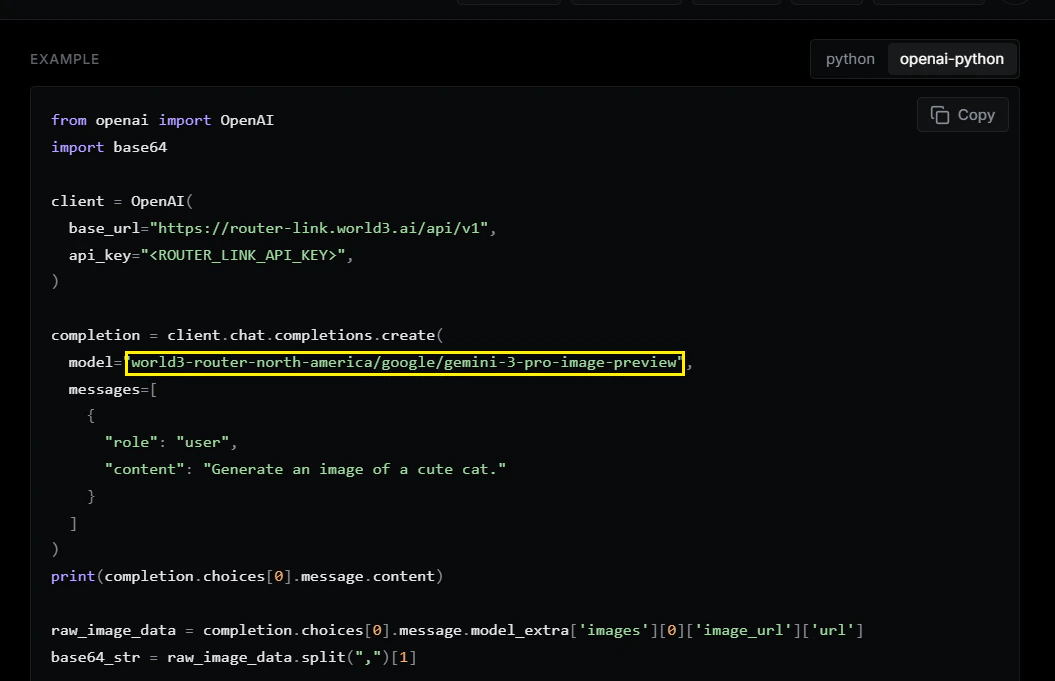
 **Model ID Format:**
Enter the fully-qualified model ID:
`world3-router-north-america/google/gemini-3-pro-image-preview`
**Model ID Format:**
Enter the fully-qualified model ID:
`world3-router-north-america/google/gemini-3-pro-image-preview`
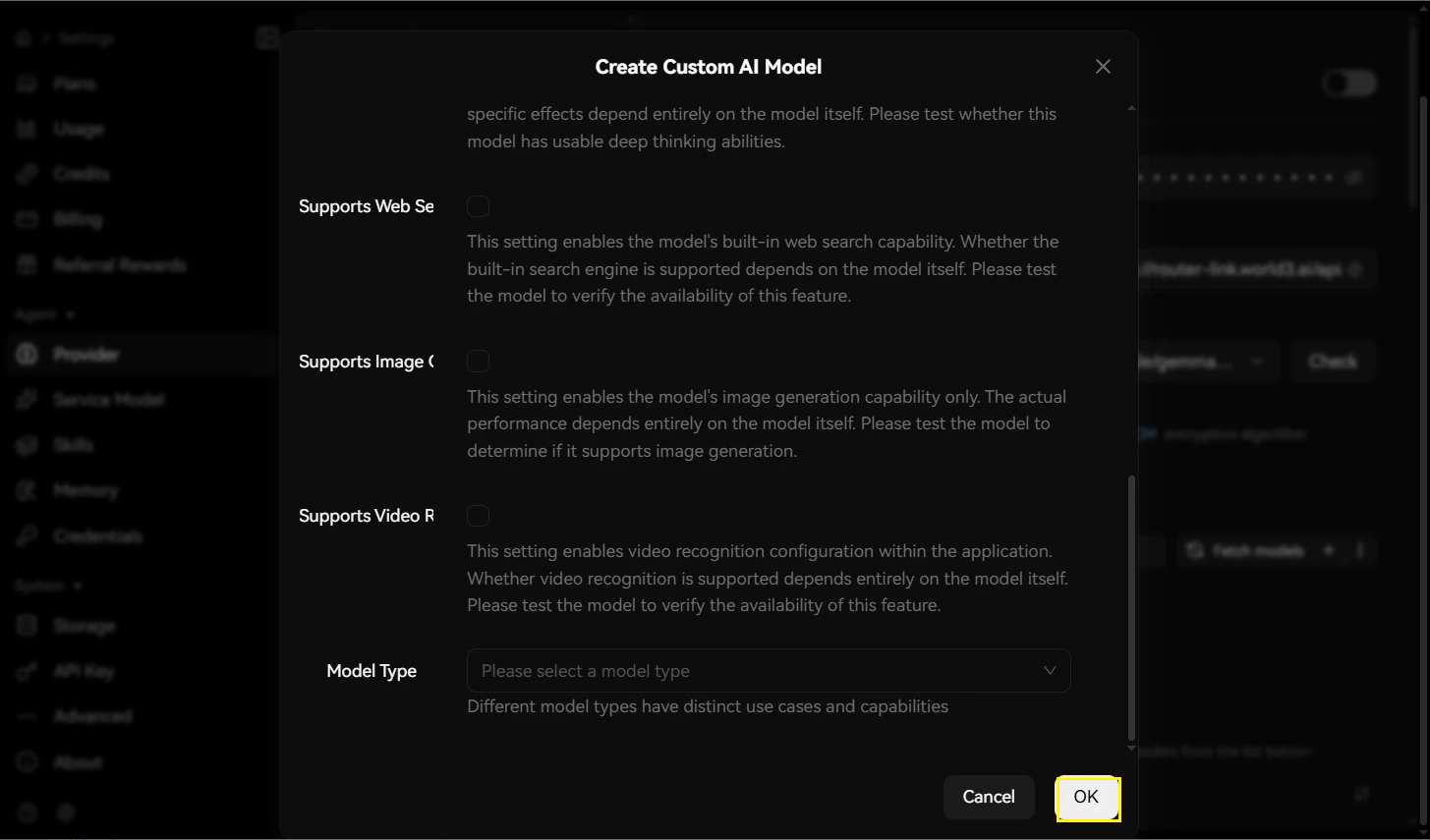
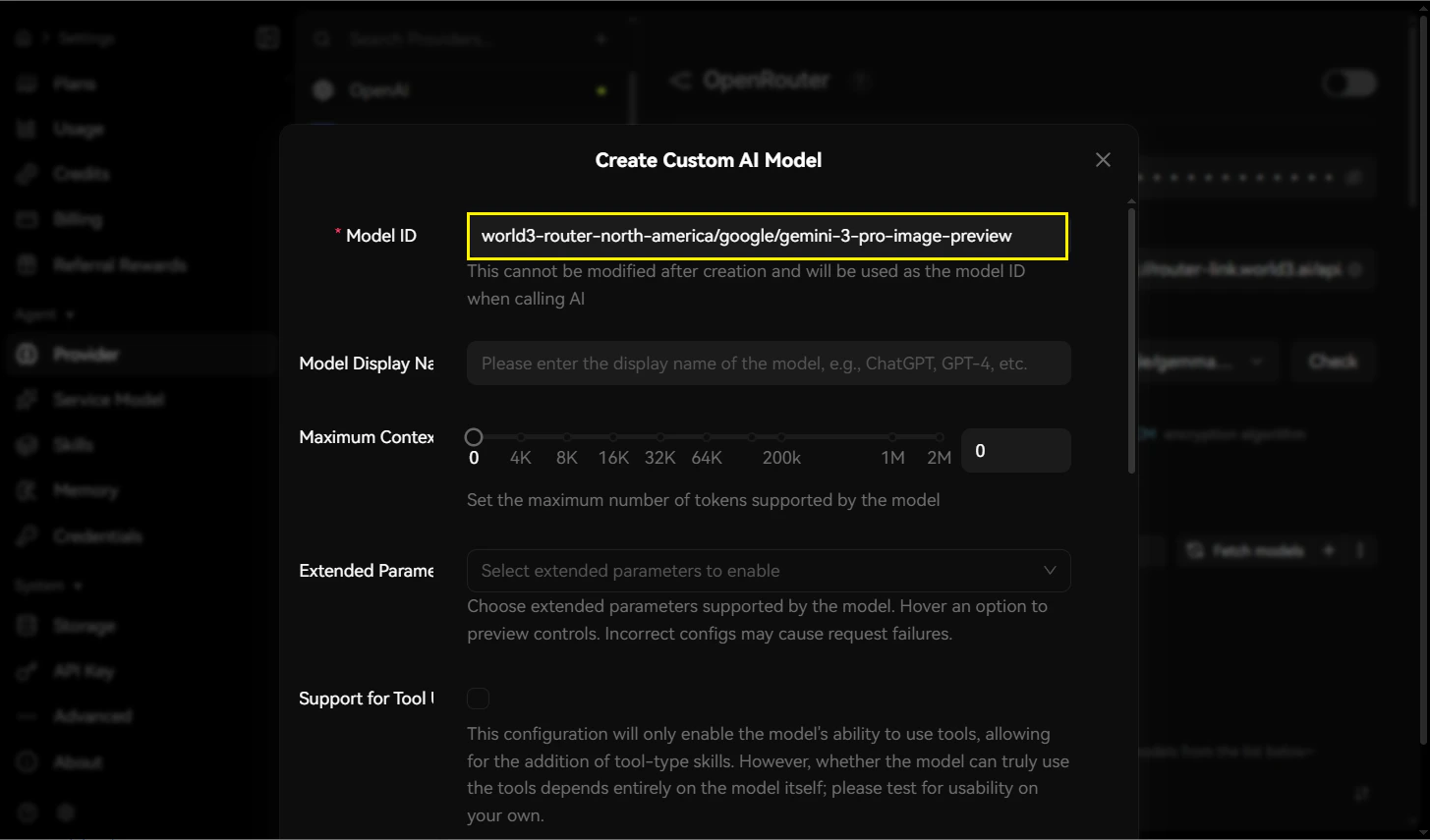 You can configure some settings here, then click “OK” at the end.
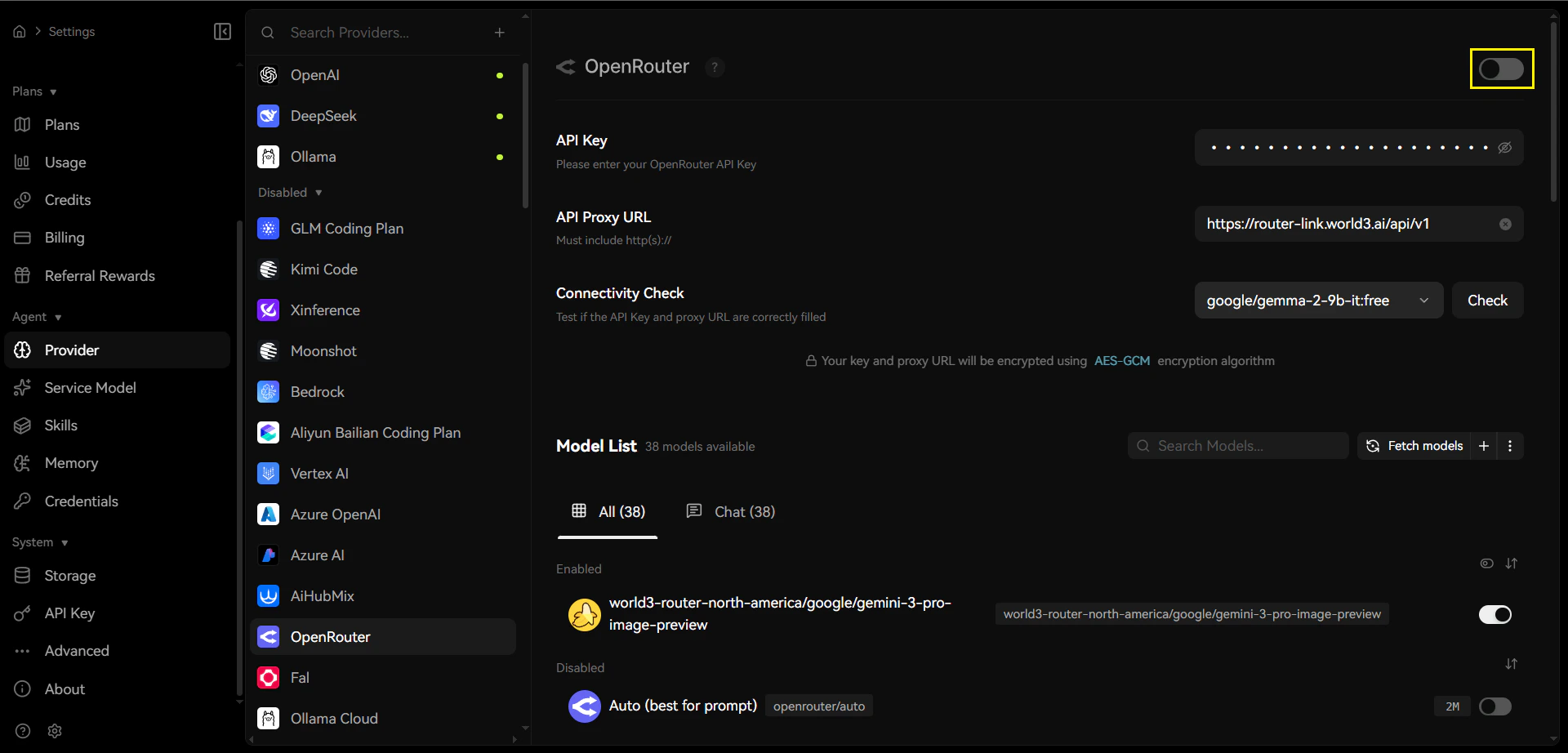
 ### **Enable the Provider**
Toggle the **OpenRouter master switch** in the top-right corner to enable the provider connection.
### **Enable the Provider**
Toggle the **OpenRouter master switch** in the top-right corner to enable the provider connection.
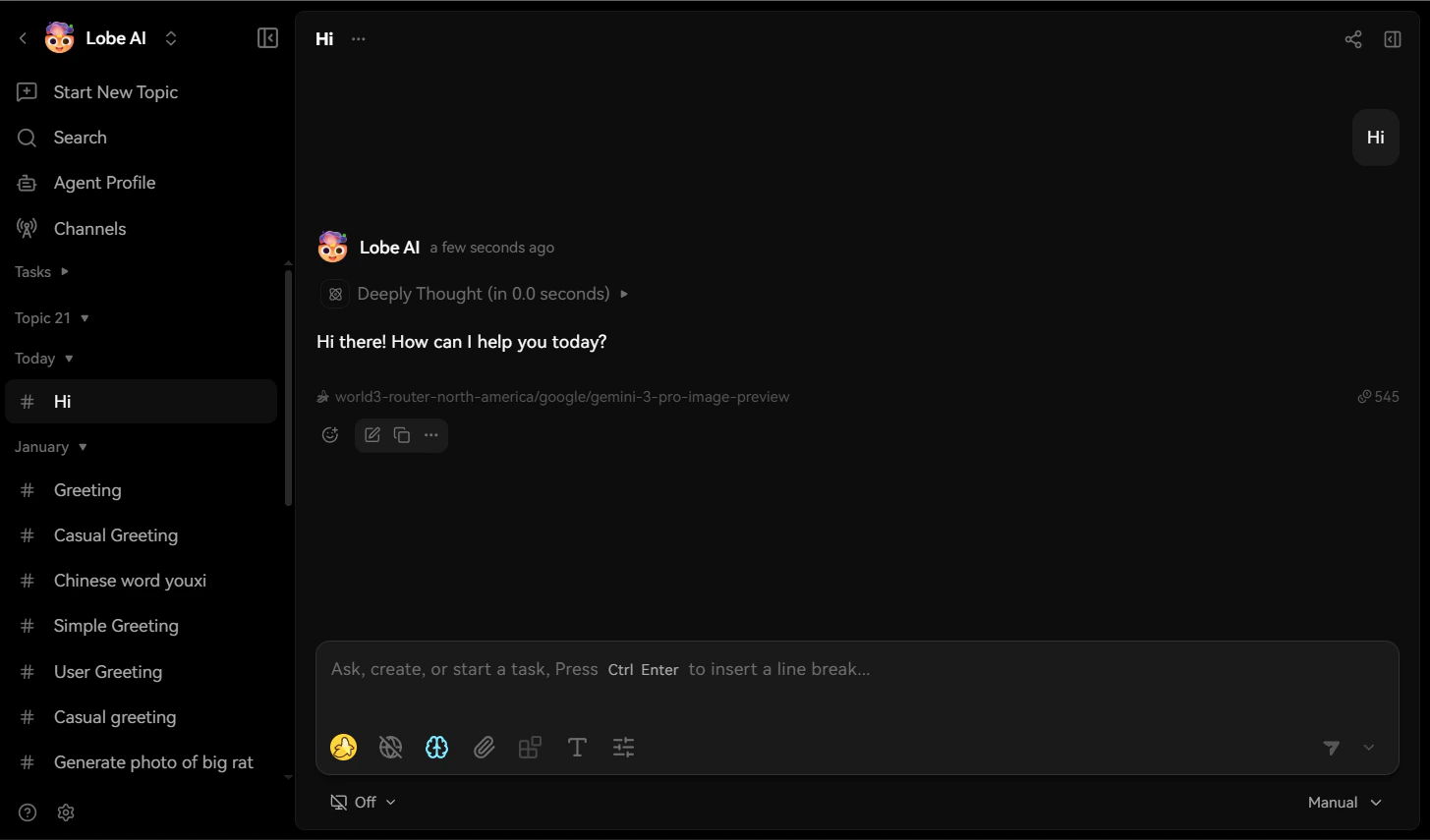
 1. Click the Home button on the left sidebar and select a model under OpenRouter.
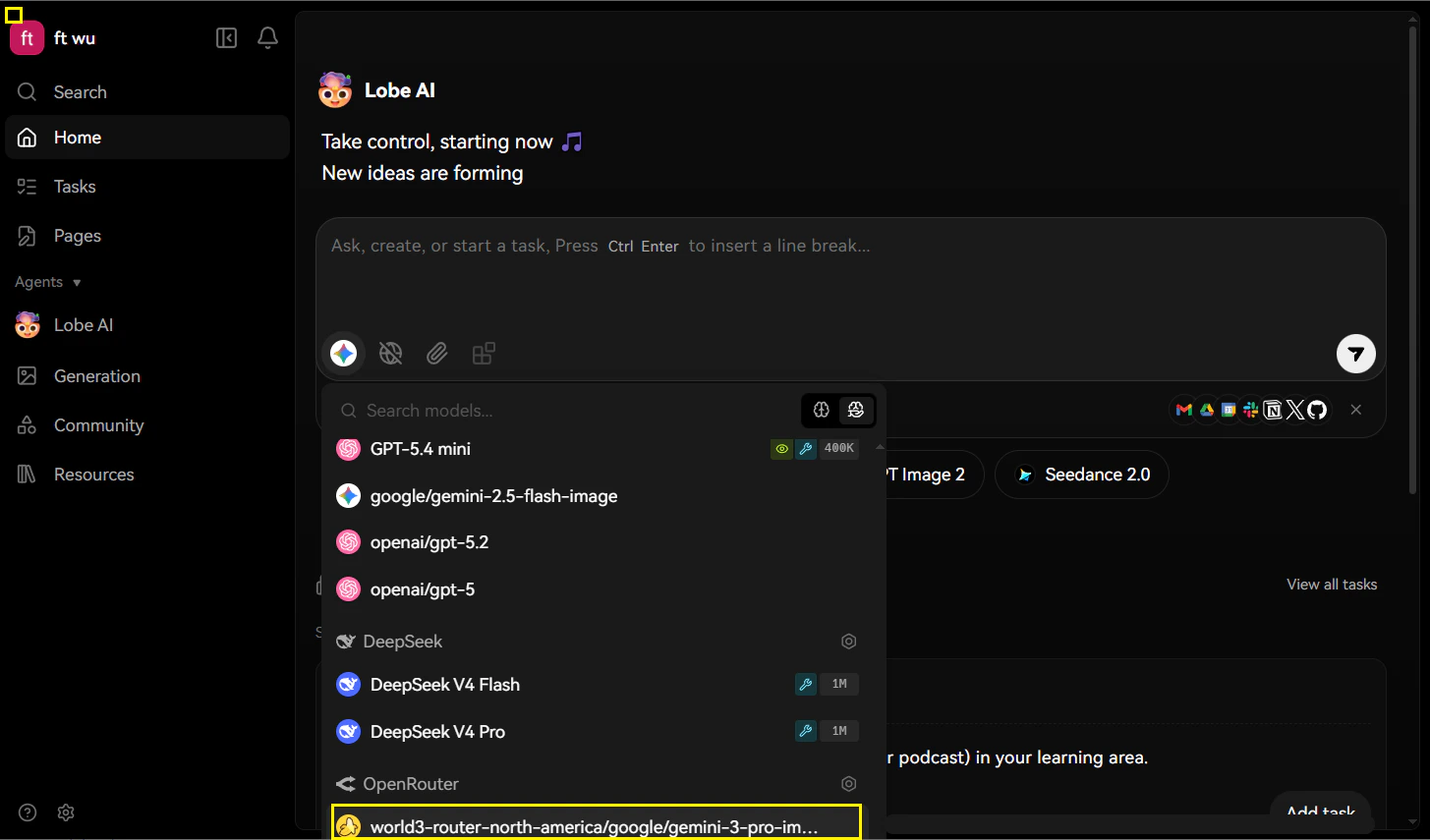 2. You can start using it now.
 # **Troubleshooting**
| **Issue** | **Solution** |
| ------------------------- | ------------------------------------------------------------------------------- |
| **Authentication failed** | Verify your API key is correctly copied without leading/trailing spaces |
| **Model not responding** | Confirm the model ID matches the exact format from the RouterLink documentation |
| **Connection timeout** | Check your network connectivity and ensure the API Proxy URL is correct |
# **Troubleshooting**
| **Issue** | **Solution** |
| ------------------------- | ------------------------------------------------------------------------------- |
| **Authentication failed** | Verify your API key is correctly copied without leading/trailing spaces |
| **Model not responding** | Confirm the model ID matches the exact format from the RouterLink documentation |
| **Connection timeout** | Check your network connectivity and ensure the API Proxy URL is correct |