> ## Documentation Index
> Fetch the complete documentation index at: https://docs.routerlink.ai/llms.txt
> Use this file to discover all available pages before exploring further.
# OpenCode
> This documentation is provided for informational purposes only and demonstrates how to configure and use our API with third-party AI chat interfaces. Any third-party software, websites, or services mentioned are not operated, controlled, or endorsed by us.
# **Introduction to OpenCode**
 [OpenCode](https://opencode.ai/) is an open source AI coding agent. It’s available as a terminal-based interface, desktop app, or IDE extension.**OpenCode** Key Features:
* Local-first, privacy-focused
* Supports 75+ AI models
* Terminal-based interactive UI
* Code generation, debugging & refactoring
* Plugin & tool integrations (MCP)
* Agent modes for coding & planning
* Multi-session support
* LSP-powered code intelligence
* Highly customizable & extensible
* Automation with shell & file operations
# **Step**
Install [the newest LTS version of Node.js](https://nodejs.org/en/download/)After installation is complete, open the terminal (Windows users use PowerShell) and check the version number.
> Windows users may be unable to run scripts because of digital signature requirements. Please run the following command:\
> **Windows PowerShell:**
>
> ```powershell theme={null}
> Set-ExecutionPolicy -Scope CurrentUser -ExecutionPolicy RemoteSigned -Force
> ```
* macOS, Linux, Windows:
```shellscript theme={null}
npm install -g opencode-ai
```
> Windows users may encounter issues running the software due to missing VC runtime libraries. Please download and install [this software](https://aka.ms/vs/17/release/vc_redist.x64.exe).
Before modifying the configuration file, you need to register a provider alias (Provider ID) in the local key manager. This step ensures the secure hosting of the API Key, preventing it from being hardcoded in plain text within the configuration file.Execute the authentication command:
```shellscript theme={null}
opencode auth login
```
Select the type: Locate and select "other" at the bottom of the list (you can directly type to search).
\
Define the ID: Enter "local".
Enter the key: Input the token key API Key (sk-xxxx) that you have created from [RouterLink](https://routerlink.ai/settings/api-keys).
OpenCode uses the `opencode.json` file to parse provider parameters. Please locate and create/edit this file according to your operating system.
Edit or create `opencode.json` file
On macOS & Linux: `~/.config/opencode/opencode.json`
On Windows: `C:\Users\\.config\opencode\opencode.json`
Configuration file:
```json theme={null}
{
"$schema": "https://opencode.ai/config.json",
"provider": {
"local": {
"npm": "@ai-sdk/openai-compatible",
"name": "local",
"options": {
"baseURL": "https://router-link.world3.ai/api/v1"
},
"models": {
"gpt-5.5": {
"name": "gpt-5.5"
},
"gemini-3.1-pro-preview": {
"name": "gemini-3.1-pro-preview"
},
"claude-opus-4-8": {
"name": "claude-opus-4-8"
}
}
}
}
}
```
npm: Use `@ai-sdk/openai-compatible` to adapt to the OpenAI-compatible protocol.
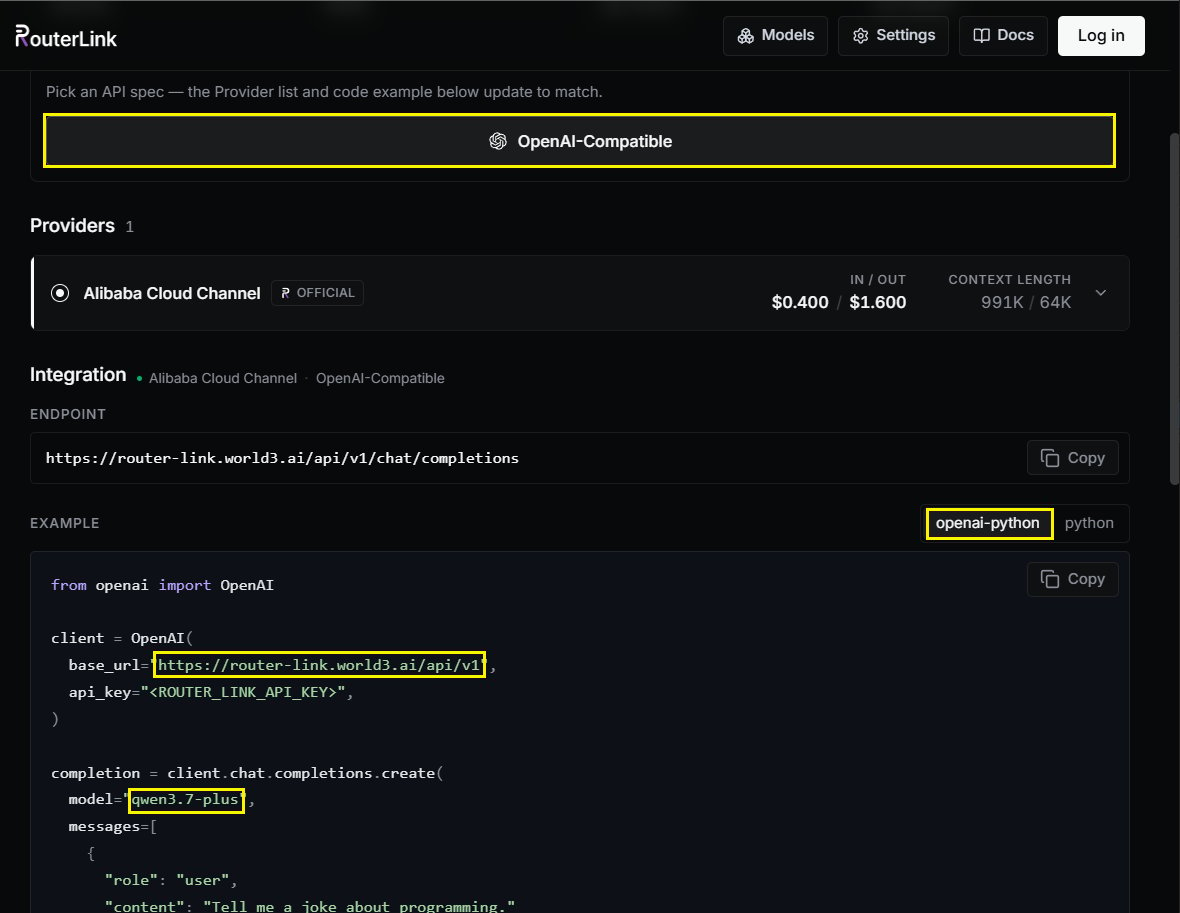
baseURL: Enter the API endpoint of the RouterLink platform.
models: You need to manually declare the list of [models](https://routerlink.ai/models) supported by OpenAI=compatible protocal. The keys must correspond to the actual Model IDs:
[OpenCode](https://opencode.ai/) is an open source AI coding agent. It’s available as a terminal-based interface, desktop app, or IDE extension.**OpenCode** Key Features:
* Local-first, privacy-focused
* Supports 75+ AI models
* Terminal-based interactive UI
* Code generation, debugging & refactoring
* Plugin & tool integrations (MCP)
* Agent modes for coding & planning
* Multi-session support
* LSP-powered code intelligence
* Highly customizable & extensible
* Automation with shell & file operations
# **Step**
Install [the newest LTS version of Node.js](https://nodejs.org/en/download/)After installation is complete, open the terminal (Windows users use PowerShell) and check the version number.
> Windows users may be unable to run scripts because of digital signature requirements. Please run the following command:\
> **Windows PowerShell:**
>
> ```powershell theme={null}
> Set-ExecutionPolicy -Scope CurrentUser -ExecutionPolicy RemoteSigned -Force
> ```
* macOS, Linux, Windows:
```shellscript theme={null}
npm install -g opencode-ai
```
> Windows users may encounter issues running the software due to missing VC runtime libraries. Please download and install [this software](https://aka.ms/vs/17/release/vc_redist.x64.exe).
Before modifying the configuration file, you need to register a provider alias (Provider ID) in the local key manager. This step ensures the secure hosting of the API Key, preventing it from being hardcoded in plain text within the configuration file.Execute the authentication command:
```shellscript theme={null}
opencode auth login
```
Select the type: Locate and select "other" at the bottom of the list (you can directly type to search).
\
Define the ID: Enter "local".
Enter the key: Input the token key API Key (sk-xxxx) that you have created from [RouterLink](https://routerlink.ai/settings/api-keys).
OpenCode uses the `opencode.json` file to parse provider parameters. Please locate and create/edit this file according to your operating system.
Edit or create `opencode.json` file
On macOS & Linux: `~/.config/opencode/opencode.json`
On Windows: `C:\Users\\.config\opencode\opencode.json`
Configuration file:
```json theme={null}
{
"$schema": "https://opencode.ai/config.json",
"provider": {
"local": {
"npm": "@ai-sdk/openai-compatible",
"name": "local",
"options": {
"baseURL": "https://router-link.world3.ai/api/v1"
},
"models": {
"gpt-5.5": {
"name": "gpt-5.5"
},
"gemini-3.1-pro-preview": {
"name": "gemini-3.1-pro-preview"
},
"claude-opus-4-8": {
"name": "claude-opus-4-8"
}
}
}
}
}
```
npm: Use `@ai-sdk/openai-compatible` to adapt to the OpenAI-compatible protocol.
baseURL: Enter the API endpoint of the RouterLink platform.
models: You need to manually declare the list of [models](https://routerlink.ai/models) supported by OpenAI=compatible protocal. The keys must correspond to the actual Model IDs:
 Launch the main program:
```shellscript theme={null}
opencode
```
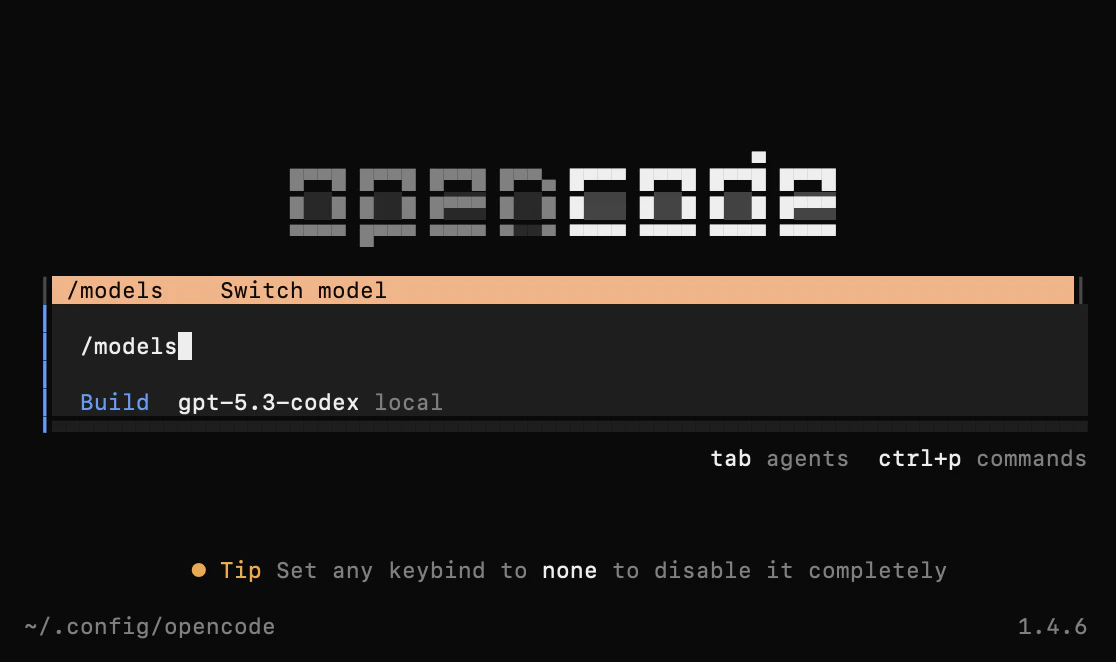
Enter the following command in the interactive prompt to open the model menu: `/models`.
Launch the main program:
```shellscript theme={null}
opencode
```
Enter the following command in the interactive prompt to open the model menu: `/models`.
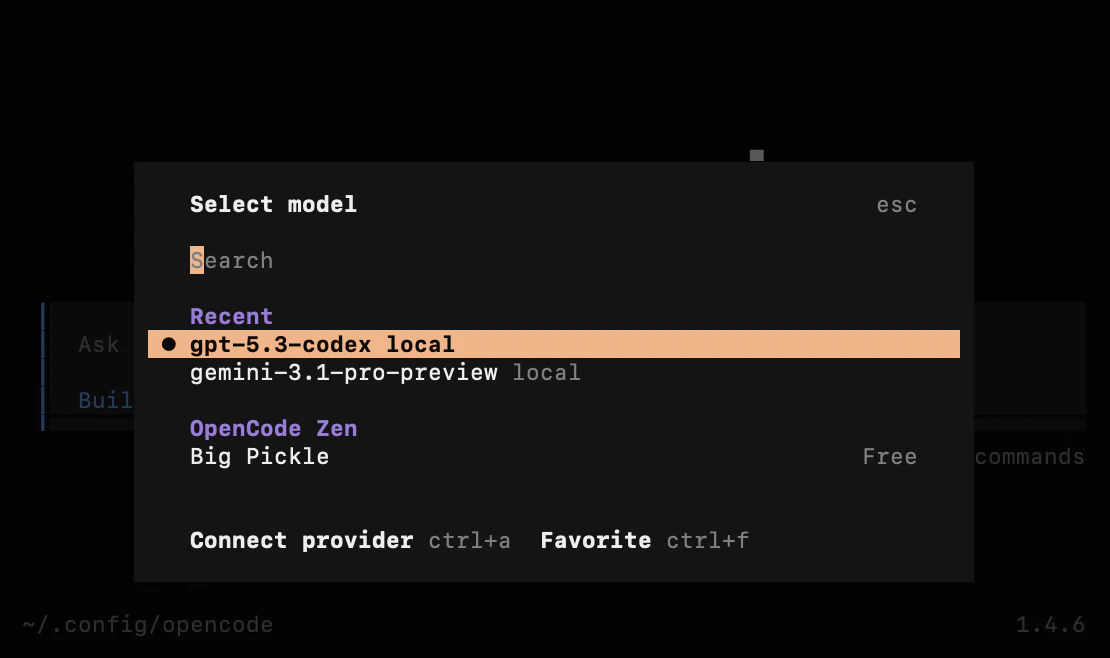
 If the configuration is correct, you will see its models listed.