> ## Documentation Index
> Fetch the complete documentation index at: https://docs.routerlink.ai/llms.txt
> Use this file to discover all available pages before exploring further.
# Junie CLI
> This documentation is provided for informational purposes only and demonstrates how to configure and use our API with third-party AI chat interfaces. Any third-party software, websites, or services mentioned are not operated, controlled, or endorsed by us.
# **Introduction to Junie CLI**
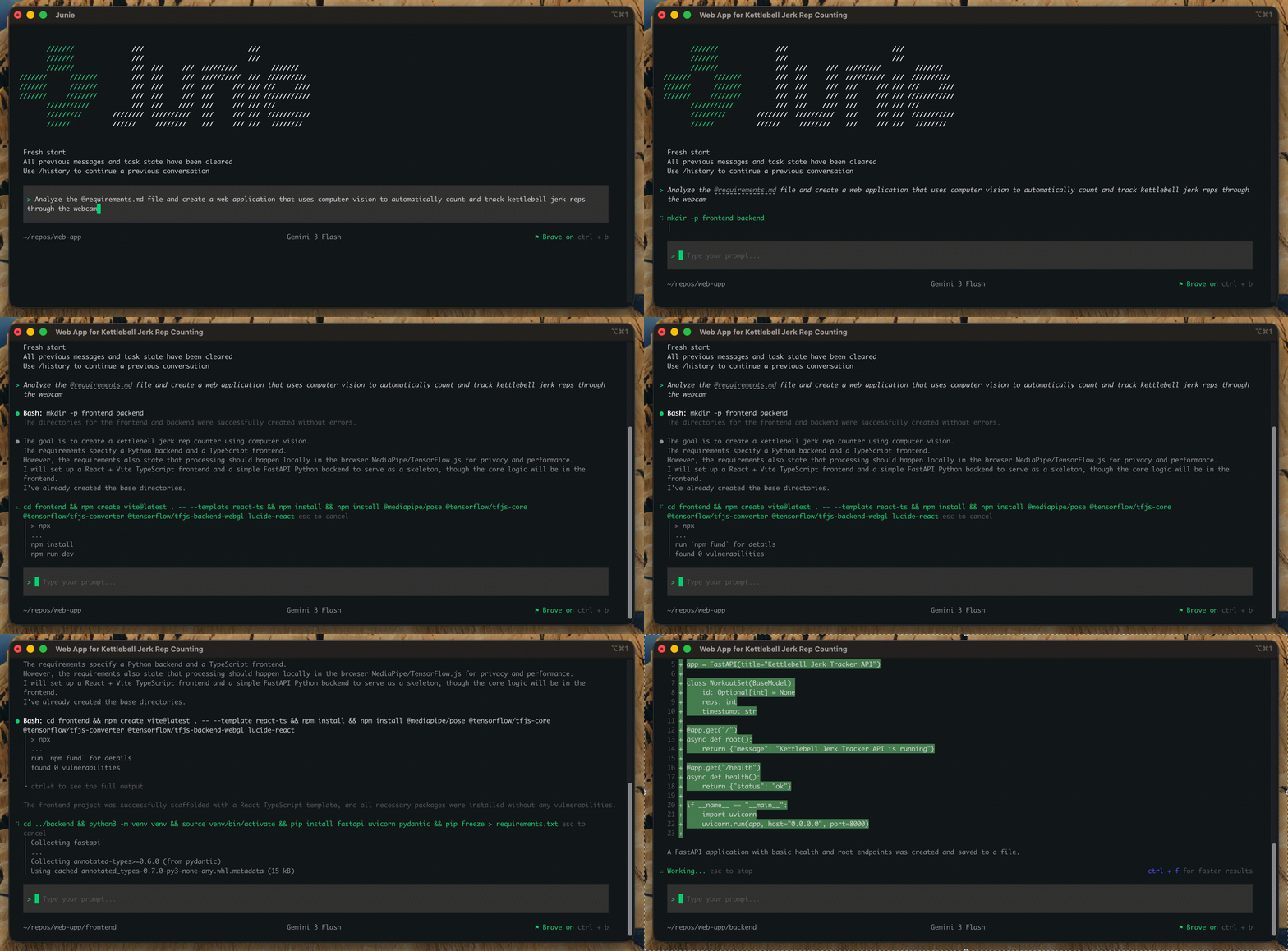 **An LLM-agnostic coding agent built for real-world development — by JetBrains.**
[Junie](https://github.com/JetBrains/junie) is an AI coding agent that lives in your terminal, integrates with your IDE and CI/CD pipelines, and helps you ship code faster. Give it a task in natural language — fix a bug, implement a feature, review a PR — and Junie handles the rest. Like your real coding buddy.
Junie CLI Key Features:
* AI coding agent in terminal
* Multi-model (OpenAI, Anthropic, etc.)
* Real-time interactive tasks
* Deep codebase understanding
* Plan mode (safe preview)
* Command execution & automation
* CI/CD & Git integration
* Extensible (custom commands, MCP)
## **Step**
> Windows users may be unable to run scripts because of digital signature requirements. Please run the following command:\
> **Windows PowerShell:**
>
> ```powershell theme={null}
> Set-ExecutionPolicy -Scope CurrentUser -ExecutionPolicy RemoteSigned -Force
> ```
Firstly, install [**the newest LTS version of Node.js**](https://nodejs.org/en/download/), and then use npm to install it globally in the terminal:
```shellscript theme={null}
npm install -g @jetbrains/junie
```
**macOS, Linux:**
```shellscript theme={null}
curl -fsSL https://junie.jetbrains.com/install.sh | bash
```
**Windows PowerShell:**
```powershell theme={null}
powershell -NoProfile -ExecutionPolicy Bypass -Command "iex (irm 'https://junie.jetbrains.com/install.ps1')"
```
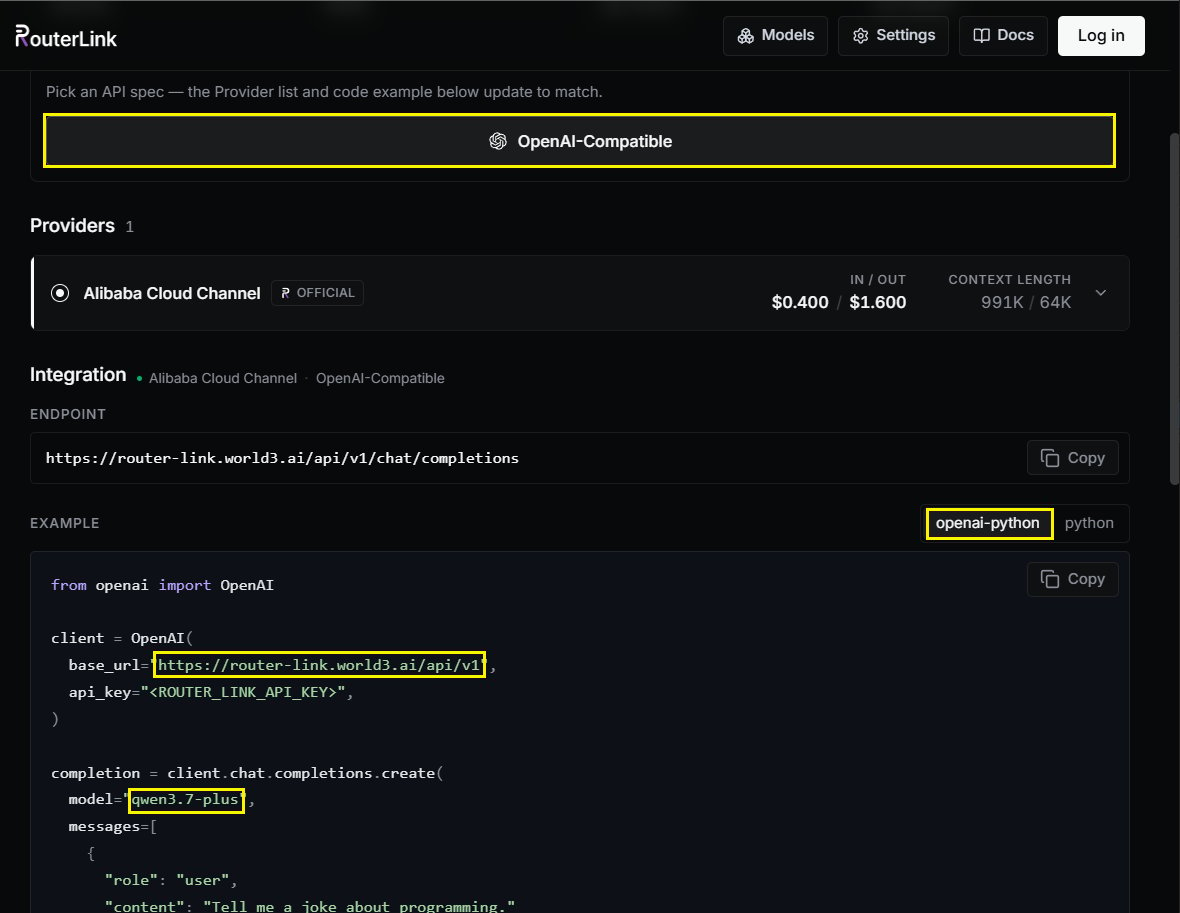
**Edit or create** `routerlink.json` file
On macOS & Linux: `~/.junie/models/routerlink.json`
On Windows: `C:\Users\\.junie\models\routerlink.json`
Make sure to replace `` with your API key from [RouterLink](https://routerlink.ai/settings/api-keys). When replacing it, do not keep the angle brackets `<` and `>`.
```json theme={null}
{
"baseUrl": "https://router-link.world3.ai/api/v1/chat/completions",
"id": "claude-sonnet-4-6",
"apiKey": "",
"apiType": "OpenAICompletion",
"primaryModel": {
"id": "claude-sonnet-4-6"
},
"fasterModel": {
"id": "claude-sonnet-4-6"
}
}
```
You can replace the “id” field with any [**model**](https://routerlink.ai/models) that is compatible with the OpenAI format:
**An LLM-agnostic coding agent built for real-world development — by JetBrains.**
[Junie](https://github.com/JetBrains/junie) is an AI coding agent that lives in your terminal, integrates with your IDE and CI/CD pipelines, and helps you ship code faster. Give it a task in natural language — fix a bug, implement a feature, review a PR — and Junie handles the rest. Like your real coding buddy.
Junie CLI Key Features:
* AI coding agent in terminal
* Multi-model (OpenAI, Anthropic, etc.)
* Real-time interactive tasks
* Deep codebase understanding
* Plan mode (safe preview)
* Command execution & automation
* CI/CD & Git integration
* Extensible (custom commands, MCP)
## **Step**
> Windows users may be unable to run scripts because of digital signature requirements. Please run the following command:\
> **Windows PowerShell:**
>
> ```powershell theme={null}
> Set-ExecutionPolicy -Scope CurrentUser -ExecutionPolicy RemoteSigned -Force
> ```
Firstly, install [**the newest LTS version of Node.js**](https://nodejs.org/en/download/), and then use npm to install it globally in the terminal:
```shellscript theme={null}
npm install -g @jetbrains/junie
```
**macOS, Linux:**
```shellscript theme={null}
curl -fsSL https://junie.jetbrains.com/install.sh | bash
```
**Windows PowerShell:**
```powershell theme={null}
powershell -NoProfile -ExecutionPolicy Bypass -Command "iex (irm 'https://junie.jetbrains.com/install.ps1')"
```
**Edit or create** `routerlink.json` file
On macOS & Linux: `~/.junie/models/routerlink.json`
On Windows: `C:\Users\\.junie\models\routerlink.json`
Make sure to replace `` with your API key from [RouterLink](https://routerlink.ai/settings/api-keys). When replacing it, do not keep the angle brackets `<` and `>`.
```json theme={null}
{
"baseUrl": "https://router-link.world3.ai/api/v1/chat/completions",
"id": "claude-sonnet-4-6",
"apiKey": "",
"apiType": "OpenAICompletion",
"primaryModel": {
"id": "claude-sonnet-4-6"
},
"fasterModel": {
"id": "claude-sonnet-4-6"
}
}
```
You can replace the “id” field with any [**model**](https://routerlink.ai/models) that is compatible with the OpenAI format:
 > Windows users may encounter issues running the software due to missing VC runtime libraries. Please download and install [this software](https://aka.ms/vs/17/release/vc_redist.x64.exe).
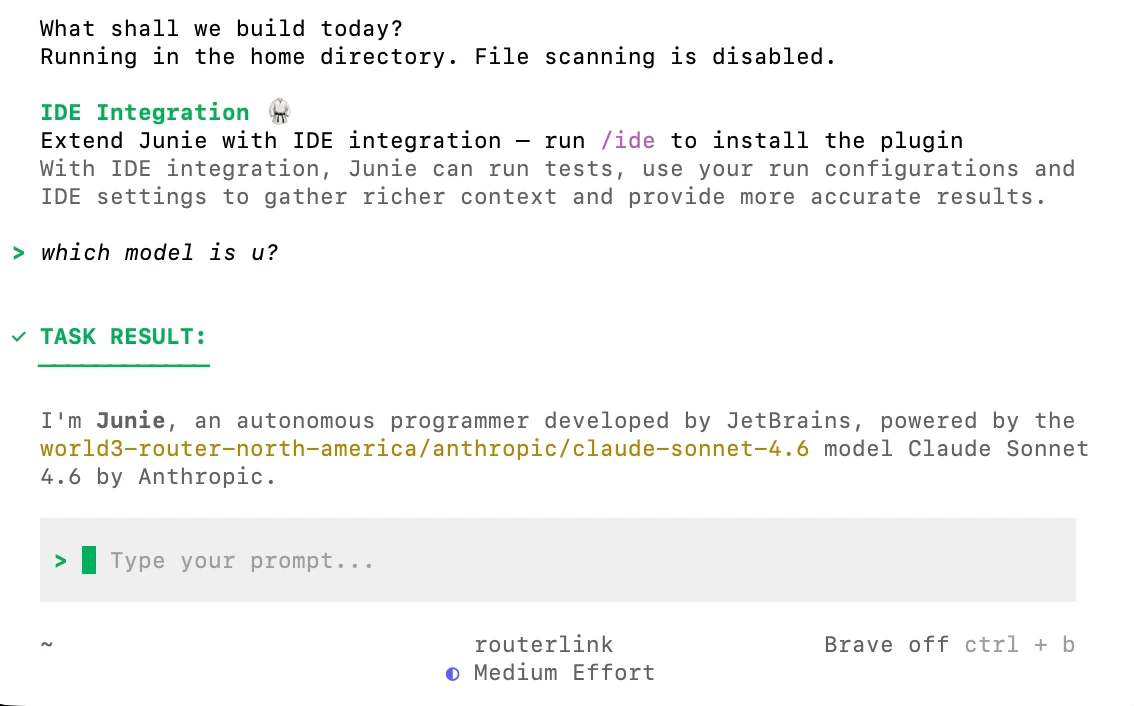
Navigate to the root directory of the project where you want to use Junie CLI and run :
```shellscript theme={null}
junie --model custom:routerlink
```
Now you can use Junie.
> Windows users may encounter issues running the software due to missing VC runtime libraries. Please download and install [this software](https://aka.ms/vs/17/release/vc_redist.x64.exe).
Navigate to the root directory of the project where you want to use Junie CLI and run :
```shellscript theme={null}
junie --model custom:routerlink
```
Now you can use Junie.
 #### **Build a new project**
```shellscript theme={null}
junie
> Build a web dashboard that shows open issues, recent commits, and CI status for this repository
```
#### **Analyze a project**
```shellscript theme={null}
junie
> Review the current changes in this branch and highlight potential bugs, performance issues, and missing tests
```
#### **Fix bugs**
```shellscript theme={null}
junie
> Fix the failing tests in the auth module and add a regression test
```
See the full documentation and supported features on the official [documentation](https://junie.jetbrains.com/docs) page.
To set up a GitHub Action to let Junie respond to issues, PRs, and CI failures automatically, simply run this command inside the agent:
```shellscript theme={null}
/install-github-action
```
See the full cookbook: [Junie on GitHub](https://junie.jetbrains.com/docs/junie-on-github.html).
#### **Build a new project**
```shellscript theme={null}
junie
> Build a web dashboard that shows open issues, recent commits, and CI status for this repository
```
#### **Analyze a project**
```shellscript theme={null}
junie
> Review the current changes in this branch and highlight potential bugs, performance issues, and missing tests
```
#### **Fix bugs**
```shellscript theme={null}
junie
> Fix the failing tests in the auth module and add a regression test
```
See the full documentation and supported features on the official [documentation](https://junie.jetbrains.com/docs) page.
To set up a GitHub Action to let Junie respond to issues, PRs, and CI failures automatically, simply run this command inside the agent:
```shellscript theme={null}
/install-github-action
```
See the full cookbook: [Junie on GitHub](https://junie.jetbrains.com/docs/junie-on-github.html).