> ## Documentation Index
> Fetch the complete documentation index at: https://docs.routerlink.ai/llms.txt
> Use this file to discover all available pages before exploring further.
# OpenClaw
> This documentation is provided for informational purposes only and demonstrates how to configure and use our API with third-party AI chat interfaces. Any third-party software, websites, or services mentioned are not operated, controlled, or endorsed by us.
# **Introduction to OpenClaw**
 [OpenClaw](https://openclaw.ai/) is a *personal AI assistant* you run on your own devices. It answers you on the channels you already use (WhatsApp, Telegram, Slack, Discord, Google Chat, Signal, iMessage, BlueBubbles, IRC, Microsoft Teams, Matrix, Feishu, LINE, Mattermost, Nextcloud Talk, Nostr, Synology Chat, Tlon, Twitch, Zalo, Zalo Personal, WeChat, WebChat). It can speak and listen on macOS/iOS/Android, and can render a live Canvas you control. The Gateway is just the control plane — the product is the assistant.
**OpenClaw** Key Features:
* Autonomous AI agent that executes real tasks
* Self-hosted with full data control
* Multi-channel (Telegram, Slack, Web, etc.)
* Extensible skill/plugin system
* Supports multiple AI models
* Persistent memory across sessions
* Built for automation & workflows
# Step
OpenClaw requires Node >= 22.14, please install [the newest LTS version of Node.js](https://nodejs.org/en/download/).
After installation is complete, open the terminal (Windows users use PowerShell) and check the version number.
* macOS, Linux, Windows:
```shellscript theme={null}
node -v
```
If it cannot be displayed correctly, please search for related issues and make sure that your current system version is not outdated.
> Windows users may be unable to run scripts because of digital signature requirements. Please run the following command:\
> **Windows PowerShell:**
>
> ```powershell theme={null}
> Set-ExecutionPolicy -Scope CurrentUser -ExecutionPolicy RemoteSigned -Force
> ```
Install OpenClaw.
```shellscript theme={null}
npm install -g openclaw@latest
```
> Windows users may encounter issues running the software due to missing VC runtime libraries. Please download and install [this software](https://aka.ms/vs/17/release/vc_redist.x64.exe).
Open the terminal and run the following command to begin configuration.
```shellscript theme={null}
openclaw onboard
```
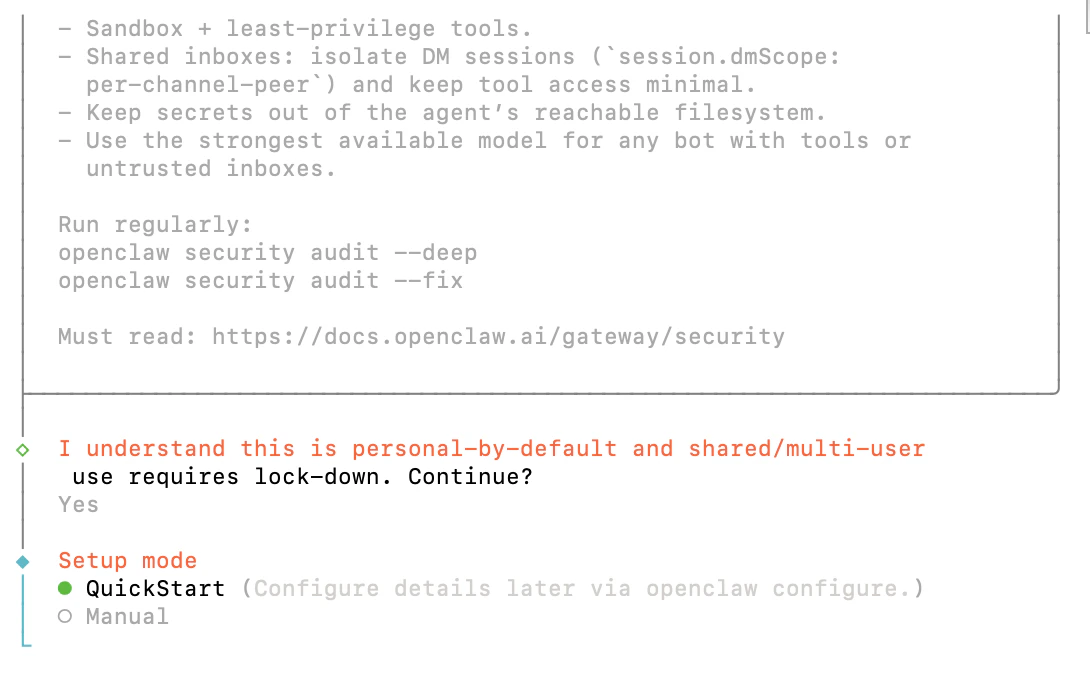
Select “Yes”, "QuickStart".
[OpenClaw](https://openclaw.ai/) is a *personal AI assistant* you run on your own devices. It answers you on the channels you already use (WhatsApp, Telegram, Slack, Discord, Google Chat, Signal, iMessage, BlueBubbles, IRC, Microsoft Teams, Matrix, Feishu, LINE, Mattermost, Nextcloud Talk, Nostr, Synology Chat, Tlon, Twitch, Zalo, Zalo Personal, WeChat, WebChat). It can speak and listen on macOS/iOS/Android, and can render a live Canvas you control. The Gateway is just the control plane — the product is the assistant.
**OpenClaw** Key Features:
* Autonomous AI agent that executes real tasks
* Self-hosted with full data control
* Multi-channel (Telegram, Slack, Web, etc.)
* Extensible skill/plugin system
* Supports multiple AI models
* Persistent memory across sessions
* Built for automation & workflows
# Step
OpenClaw requires Node >= 22.14, please install [the newest LTS version of Node.js](https://nodejs.org/en/download/).
After installation is complete, open the terminal (Windows users use PowerShell) and check the version number.
* macOS, Linux, Windows:
```shellscript theme={null}
node -v
```
If it cannot be displayed correctly, please search for related issues and make sure that your current system version is not outdated.
> Windows users may be unable to run scripts because of digital signature requirements. Please run the following command:\
> **Windows PowerShell:**
>
> ```powershell theme={null}
> Set-ExecutionPolicy -Scope CurrentUser -ExecutionPolicy RemoteSigned -Force
> ```
Install OpenClaw.
```shellscript theme={null}
npm install -g openclaw@latest
```
> Windows users may encounter issues running the software due to missing VC runtime libraries. Please download and install [this software](https://aka.ms/vs/17/release/vc_redist.x64.exe).
Open the terminal and run the following command to begin configuration.
```shellscript theme={null}
openclaw onboard
```
Select “Yes”, "QuickStart".
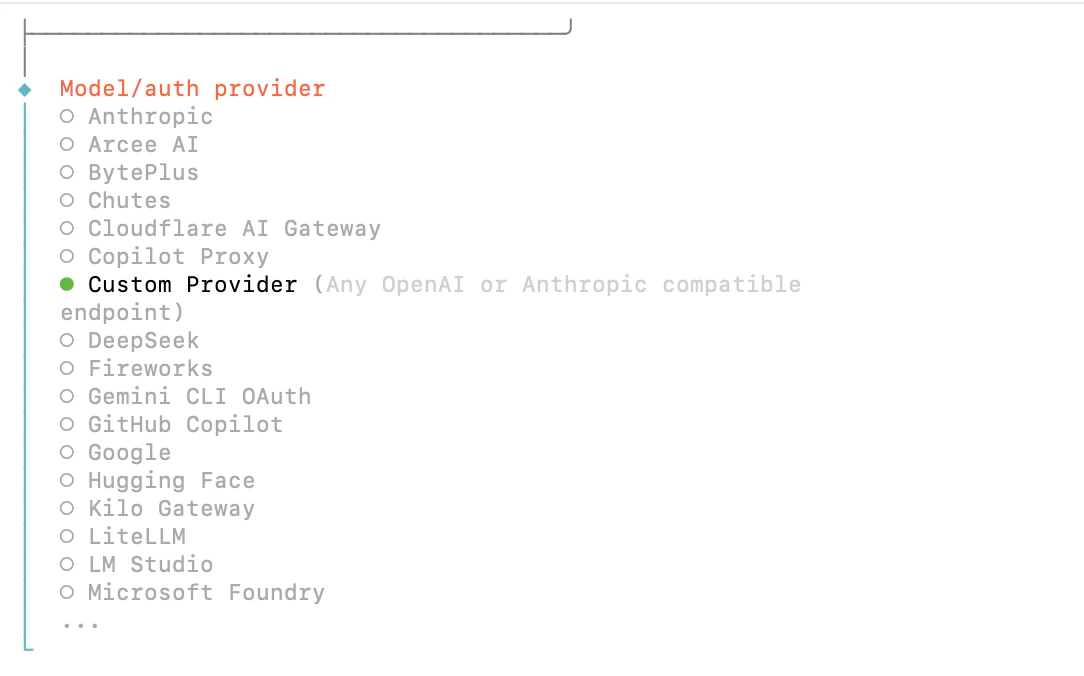
 Select “Custom Provider”.
 Here are example model configurations compatible with both Anthropic and OpenAI formats.
**Claude Opus 4.7**
| Field | Content |
| ---------------------- | ---------------------------------------------------------------------- |
| API Base URL | [https://router-link.world3.ai/api](https://router-link.world3.ai/api) |
| API Key | Obtain one from [RouterLInk](https://routerlink.ai/settings/api-keys) |
| Endpoint compatibility | Anthropic-compatible |
| Model ID | claude-opus-4-7 |
**GPT-5.3-Codex**
| Field | Content |
| :--------------------- | :------------------------------------------------------------------------------- |
| API Base URL | [**https://router-link.world3.ai/api/v1**](https://router-link.world3.ai/api/v1) |
| API Key | Obtain one from [RouterLInk](https://routerlink.ai/settings/api-keys) |
| Endpoint compatibility | OpenAI-compatible |
| Model ID | gpt-5.5 |
**Gemini 3.1 Pro Preview**
| Field | Content |
| :--------------------- | :------------------------------------------------------------------------------- |
| API Base URL | [**https://router-link.world3.ai/api/v1**](https://router-link.world3.ai/api/v1) |
| API Key | Obtain one from [RouterLInk](https://routerlink.ai/settings/api-keys) |
| Endpoint compatibility | OpenAI-compatible |
| Model ID | gemini-3.1-pro-preview |
Here are example model configurations compatible with both Anthropic and OpenAI formats.
**Claude Opus 4.7**
| Field | Content |
| ---------------------- | ---------------------------------------------------------------------- |
| API Base URL | [https://router-link.world3.ai/api](https://router-link.world3.ai/api) |
| API Key | Obtain one from [RouterLInk](https://routerlink.ai/settings/api-keys) |
| Endpoint compatibility | Anthropic-compatible |
| Model ID | claude-opus-4-7 |
**GPT-5.3-Codex**
| Field | Content |
| :--------------------- | :------------------------------------------------------------------------------- |
| API Base URL | [**https://router-link.world3.ai/api/v1**](https://router-link.world3.ai/api/v1) |
| API Key | Obtain one from [RouterLInk](https://routerlink.ai/settings/api-keys) |
| Endpoint compatibility | OpenAI-compatible |
| Model ID | gpt-5.5 |
**Gemini 3.1 Pro Preview**
| Field | Content |
| :--------------------- | :------------------------------------------------------------------------------- |
| API Base URL | [**https://router-link.world3.ai/api/v1**](https://router-link.world3.ai/api/v1) |
| API Key | Obtain one from [RouterLInk](https://routerlink.ai/settings/api-keys) |
| Endpoint compatibility | OpenAI-compatible |
| Model ID | gemini-3.1-pro-preview |
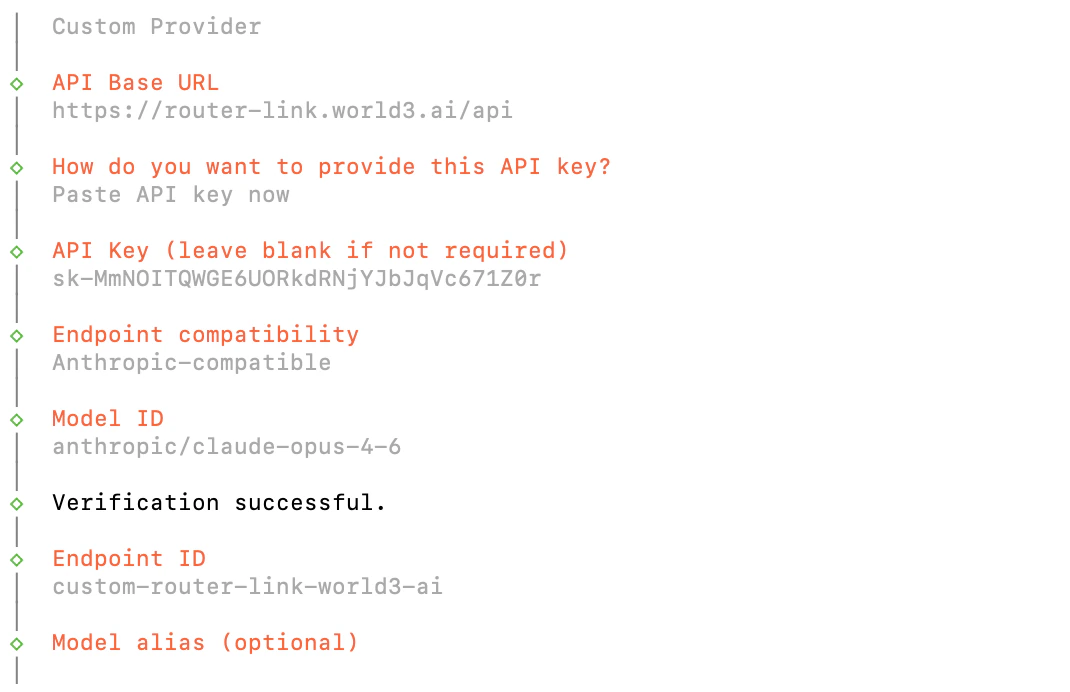 You can add other [models](https://routerlink.ai/models) based on these:
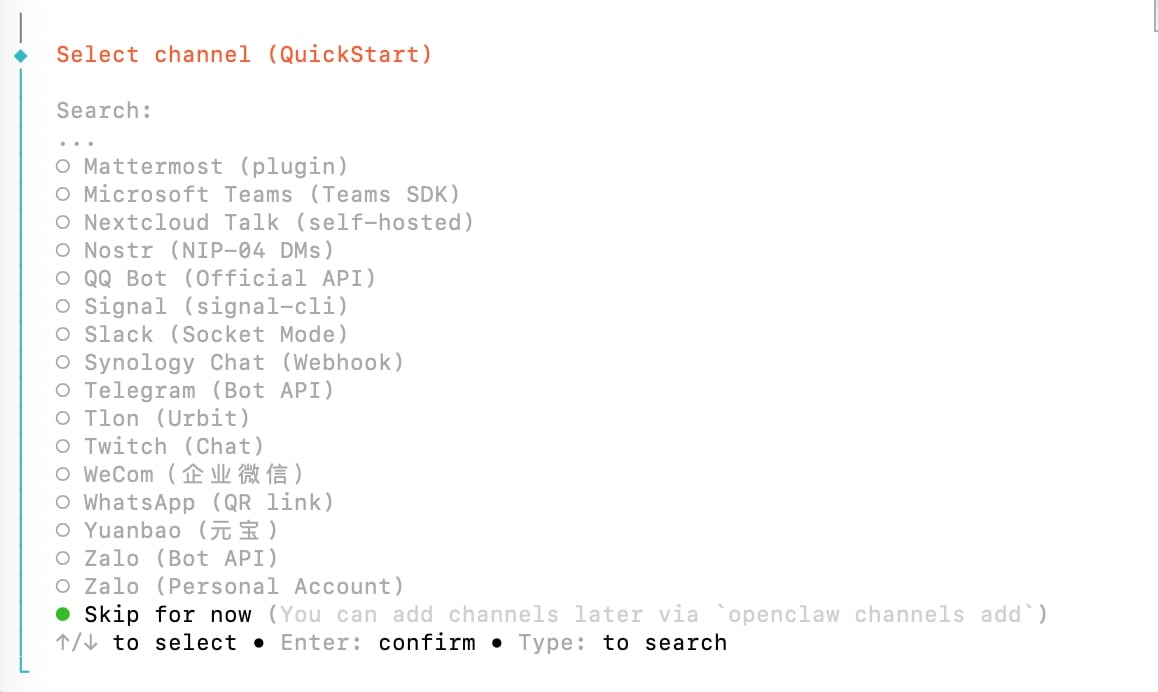
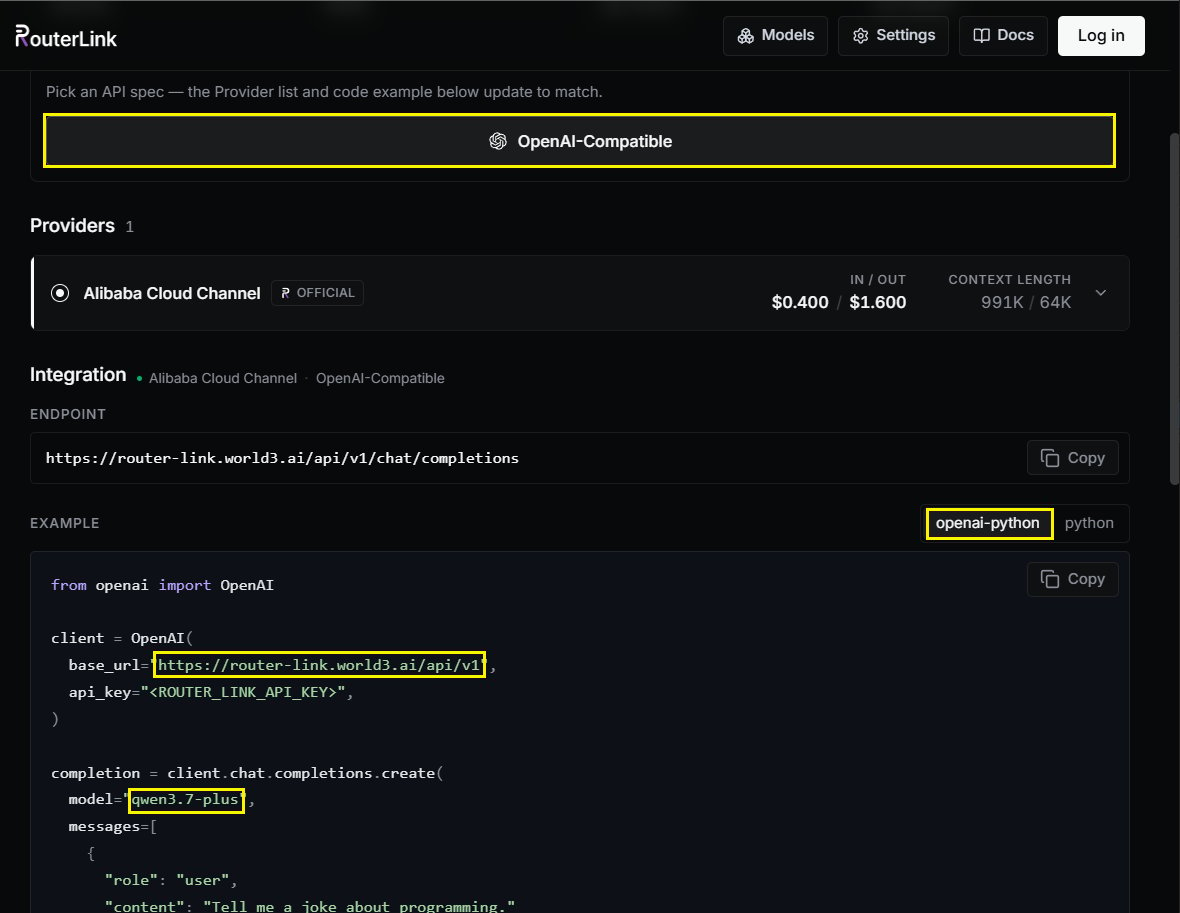 Next, you can configure it as needed.
 Run
```shellscript theme={null}
openclaw gateway
```
Verify the Gateway is running
```shellscript theme={null}
openclaw gateway status
```
You should see the Gateway listening on port 18789.
Open the dashboard
```shellscript theme={null}
openclaw dashboard
```
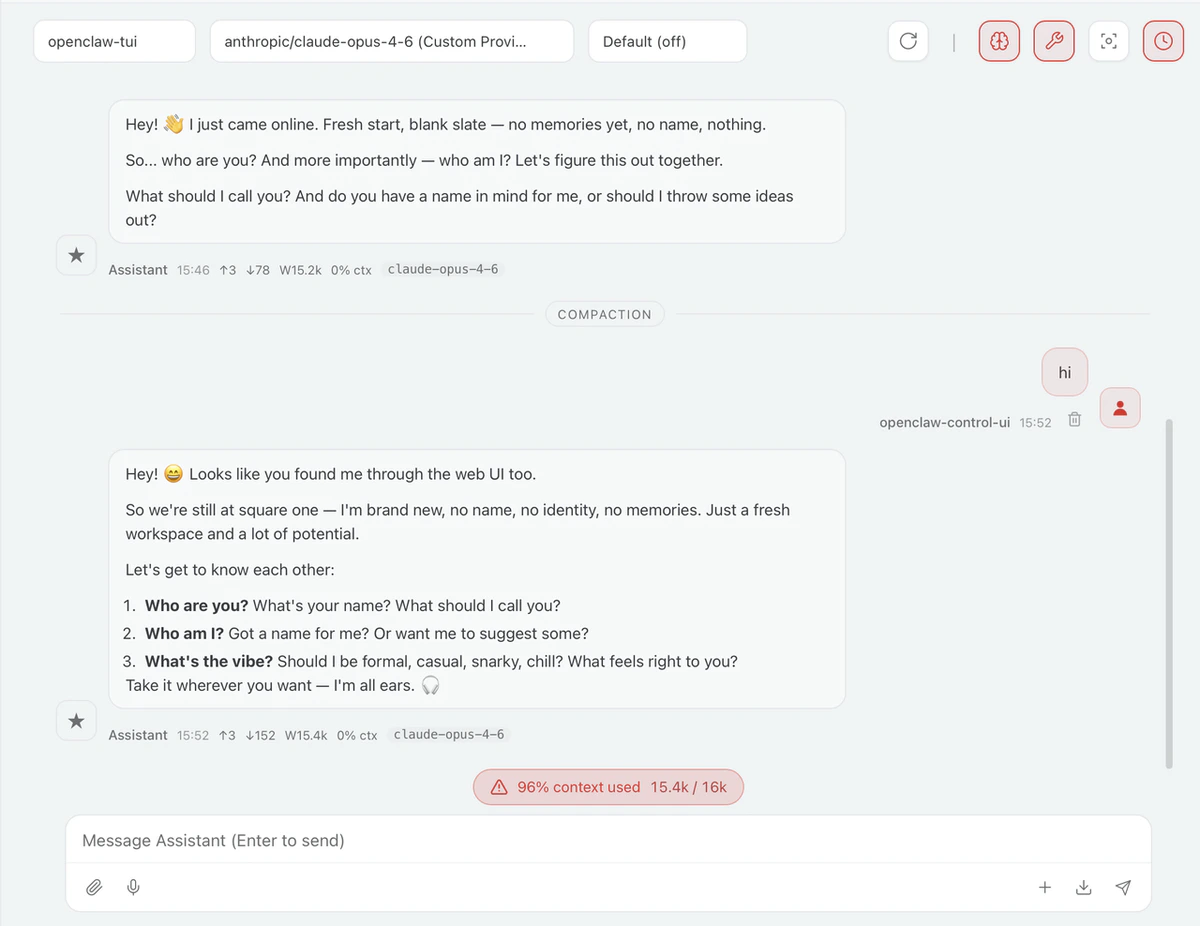
This opens the Control UI in your browser. If it loads, everything is working.
Send your first message.
Type a message in the Control UI chat and you should get an AI reply.
Run
```shellscript theme={null}
openclaw gateway
```
Verify the Gateway is running
```shellscript theme={null}
openclaw gateway status
```
You should see the Gateway listening on port 18789.
Open the dashboard
```shellscript theme={null}
openclaw dashboard
```
This opens the Control UI in your browser. If it loads, everything is working.
Send your first message.
Type a message in the Control UI chat and you should get an AI reply.
 Want to chat from your phone instead? The fastest channel to set up is [Telegram](https://docs.openclaw.ai/channels/telegram) (just a bot token). See [Channels](https://docs.openclaw.ai/channels) for all options.
# **Troubleshooting**
Run it again
```shellscript theme={null}
openclaw onboard
```
Select **“Use existing values”** in Config handling.Add the new model you need under **Custom Provider**.
```shellscript theme={null}
openclaw gateway stop
openclaw gateway
openclaw dashboard
```
Enter the following command in the terminal:
```shellscript theme={null}
openclaw update
```
Please check [the official documentation](https://docs.openclaw.ai/help/faq).
Want to chat from your phone instead? The fastest channel to set up is [Telegram](https://docs.openclaw.ai/channels/telegram) (just a bot token). See [Channels](https://docs.openclaw.ai/channels) for all options.
# **Troubleshooting**
Run it again
```shellscript theme={null}
openclaw onboard
```
Select **“Use existing values”** in Config handling.Add the new model you need under **Custom Provider**.
```shellscript theme={null}
openclaw gateway stop
openclaw gateway
openclaw dashboard
```
Enter the following command in the terminal:
```shellscript theme={null}
openclaw update
```
Please check [the official documentation](https://docs.openclaw.ai/help/faq).